Your Role as Approver
As an Approver, you are a critical decision maker in the BidFactory bid lifecycle. Your primary function is to evaluate bids at formal decision gates and determine whether the organization should commit to pursuing or submitting a bid. The quality and speed of your decisions directly affect the team’s efficiency and the organization’s competitive success.
Key Responsibilities
- Make Bid/No-Bid decisions at the AR2 Gate — After the Marketing Intelligence phase, you review competitive analysis and decide whether to invest resources in writing a proposal.
- Make Submit/No-Submit decisions at the AR3 Gate — After the Best Practices Review phase, you review the completed proposal and authorize or halt submission.
- Review proposals for strategic alignment and quality — Assess whether proposals meet organizational standards and align with strategic goals.
- Manage the Company Profile — You have exclusive write access to the organization-level information used across proposals. Keeping it current is your responsibility.
- Oversee competitor data quality — Delete competitor entries that are incorrect, outdated, or should be removed from the system.
- Review extraction results and RFI responses — Sign off on AI-extracted data and auto-filled RFI responses to ensure accuracy before the team proceeds.
What You Can Do
- View all bids, bid details, proposals, and documents
- Approve or reject at the AR2 Gate (Bid/No-Bid decision)
- Approve or reject at the AR3 Gate (Submit/No-Submit decision)
- Update the Company Profile (you are the only non-admin role with write access)
- Delete competitors from the system
- View and review proposals (all sections and languages)
- View the Knowledge Base (read-only)
- Browse the Discovery queue for situational awareness
- View the Analytics dashboard and all metrics
- Manage your personal notifications
What You Cannot Do
The Approver role is intentionally scoped to decision-making and oversight. The following actions require a different role:
- Create or edit bids
- Intake or dismiss tenders from the Discovery queue
- Advance bid phases (except by making gate decisions)
- Create or manage tasks
- Generate proposals or upload documents
- Edit Knowledge Base assets, templates, or personnel profiles
- Merge competitors (only delete)
- Trigger competitor enrichment
- Manage users or configure system settings
Getting Started
Logging In
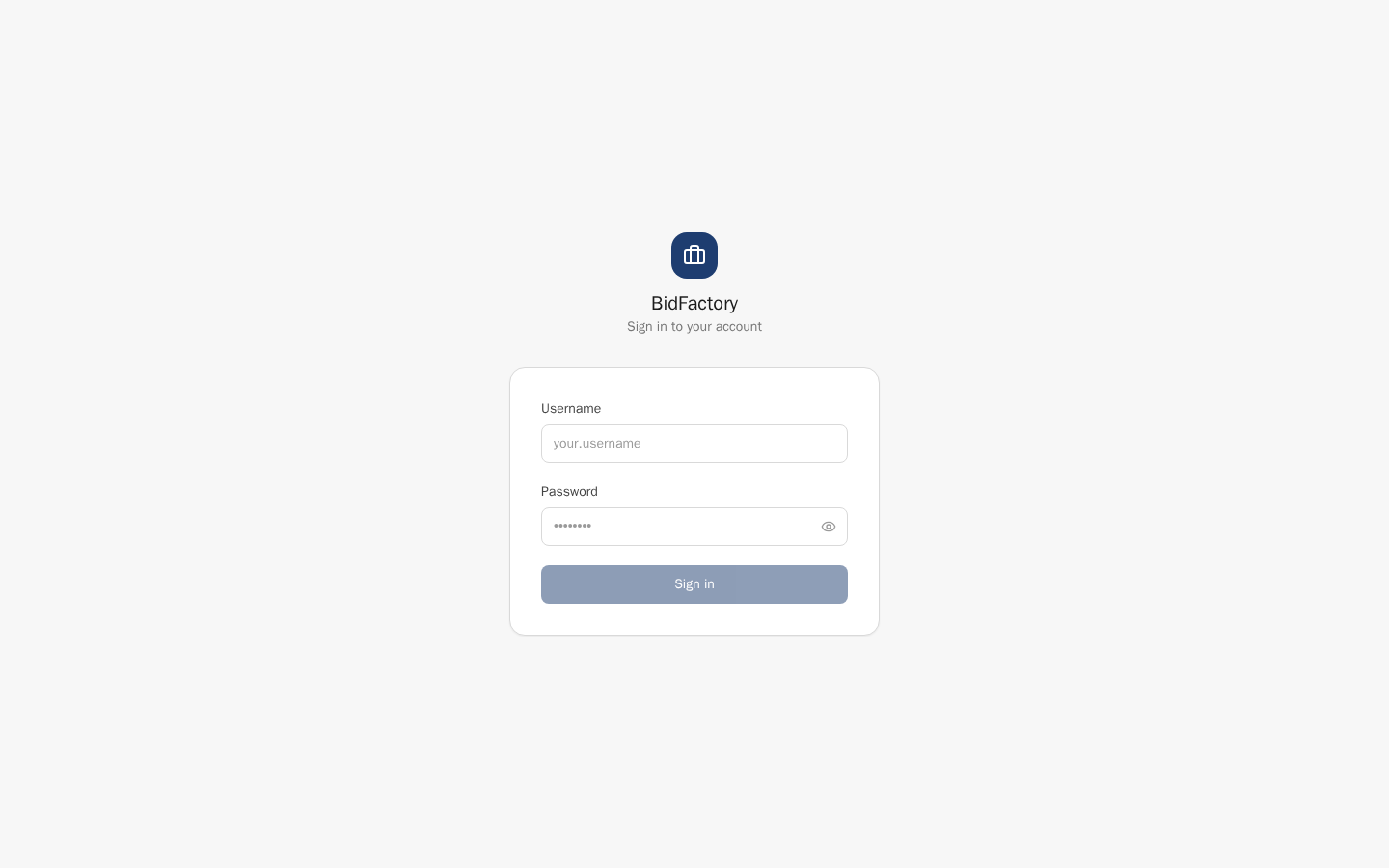
Your administrator will provide your login credentials when your account is created. To log in:
- Navigate to /login in your browser.
- Enter your username and password. Use the eye icon to toggle password visibility if needed.
- Click “Sign In” to authenticate and enter BidFactory.
If you forget your password, contact your system administrator to reset it.
Session Management
BidFactory uses secure JWT-based authentication. Your session automatically refreshes in the background as long as you are active — you will not be interrupted by token expiry during normal use. If you step away for an extended period without activity, you may be asked to log in again.
Interface Overview
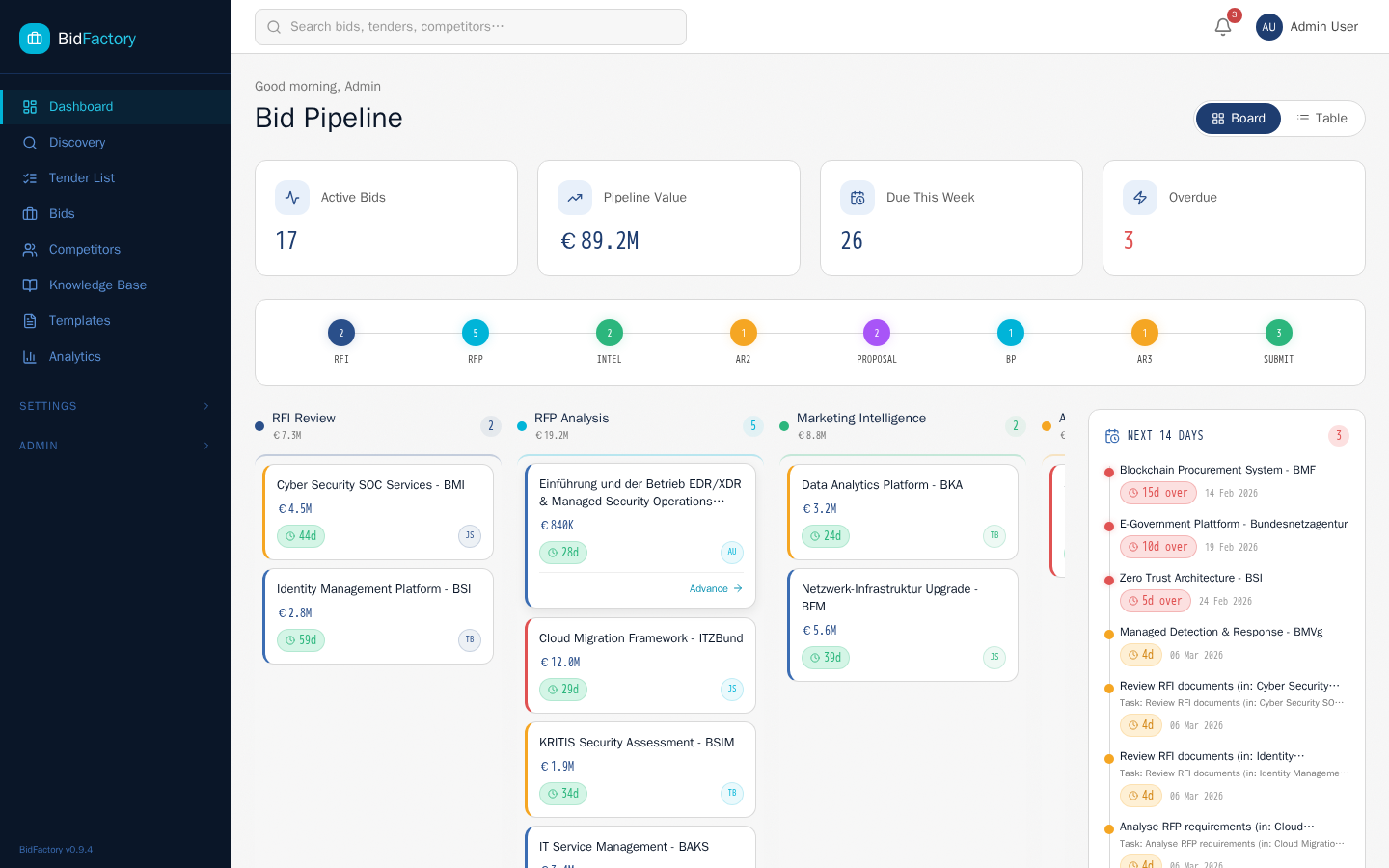
The BidFactory interface has three main areas:
- Left Sidebar — Dark navy navigation panel. As an Approver you will primarily use: Dashboard, Bids, Competitors, Analytics, Knowledge Base, Discovery, and Notifications.
- Top Header — Contains the global search field (Ctrl+K or Cmd+K) and the notification bell with an unread count badge. Click the notification bell to see gate approval requests.
- Main Content Area — The primary workspace that changes based on your navigation selection.
Dashboard Overview
Metric Cards
At the top of the Dashboard, four metric cards give you an at-a-glance pipeline summary:
| Metric | What It Tells You |
|---|---|
| Active Bids | Total number of bids currently in the pipeline |
| Pipeline Value | Combined estimated value of all active bids (EUR) |
| Due This Week | Bids with deadlines in the next 7 days — check if any are at gates |
| Overdue | Bids past their deadline (displayed with a pulsing red indicator) |
Phase Pipeline Tracker
Below the metric cards, a visual pipeline shows 9 circular nodes — one for each bid phase — with the count of bids currently in each phase. As an Approver, pay close attention to the AR2 Gate and AR3 Gate nodes: any non-zero count there means bids are waiting for your decision.
Kanban Board View
The default Dashboard view organizes bids into columns by phase. Each column shows the phase name, total value, and a count badge. Each bid card displays the bid title, estimated value, a deadline chip color-coded by urgency, and the assigned manager’s avatar.
Table View
Toggle to the Table view for a compact, sortable list of all bids. This is useful when you need to quickly scan bids by phase, priority, or deadline. Click any column header to sort. Click a bid title to navigate to its detail page.
Deadline Sidebar
On the right side of the Dashboard, a deadline panel shows upcoming milestones for the next 14 days, color-coded by urgency: Overdue 0–3 days 4–7 days 7+ days. Check this panel to see if any bids approaching their deadlines are currently stuck at a gate waiting for your decision.
Understanding the Bid Pipeline
The 9-Phase Pipeline
Every bid in BidFactory follows a structured 9-phase lifecycle from initial discovery through contract close. Understanding the full pipeline helps you contextualize what happens before and after the gates where your decisions are required.
1. RFI Review → 2. RFP Analysis → 3. Marketing Intel → 4. AR2 Gate ★ → 5. Proposal Creation → 6. Best Practices Review → 7. AR3 Gate ★ → 8. Submitted → 9. Closed
★ Phases marked with a star require your gate decision
All Phases at a Glance
| # | Phase | What Happens | Your Involvement |
|---|---|---|---|
| 1 | RFI Review | Initial assessment of the Request for Information. Team evaluates capability alignment. | None (view only) |
| 2 | RFP Analysis | Deep review of the Request for Proposal. Requirements, timeline, and resource analysis. | None (view only) |
| 3 | Marketing Intel | Competitive research. SWOT analysis, competitor assessment, market positioning. | None (view only) |
| 4 | AR2 Gate | Intelligence review complete. Decision required to proceed. | YOUR DECISION: Bid or No-Bid |
| 5 | Proposal Creation | Team writes and refines the proposal. Sections assigned and tracked. | None (view only) |
| 6 | Best Practices Review | Internal quality check. Proposal reviewed against standards. | None (view only) |
| 7 | AR3 Gate | Proposal complete and reviewed. Decision required before submission. | YOUR DECISION: Submit or No-Submit |
| 8 | Submitted | Proposal delivered to the contracting authority. Post-submission tracking. | None (view only) |
| 9 | Closed | Final outcome recorded. | None (view only) |
Bid Statuses
Understanding bid statuses helps you track outcomes from gate decisions:
- Active — Bid is progressing through the pipeline.
- No Bid — AR2 gate resulted in a “No Bid” decision. Pipeline closed.
- No Submit — AR3 gate resulted in a “No Submit” decision. Pipeline closed.
- Won — Contract awarded to your organization.
- Lost — Contract awarded to a competitor.
- Withdrawn — Bid withdrawn from the process.
- On Hold — Bid temporarily paused.
Gate Decisions — Your Core Responsibility
Gate decisions are the most important function of the Approver role. You will be notified when a bid reaches the AR2 or AR3 Gate. Until you record a decision, the bid remains paused and the team cannot proceed.
AR2 Gate: Bid / No-Bid Decision
The AR2 Gate occurs after the Marketing Intelligence phase. At this point, the bid team has gathered all available intelligence about the opportunity. Your job is to evaluate that intelligence and determine whether committing to a full proposal is the right decision for the organization.
When You Are Notified
When a bid enters the AR2 Gate phase, you receive a “Gate Approval Needed” notification in the notification bell. This notification includes the bid name and a direct link to the bid detail page.
What to Review Before Deciding
- Bid overview — Contract value, deadline, authority, and the bid manager’s assessment of the opportunity.
- SWOT analysis — If generated, review Strengths, Weaknesses, Opportunities, and Threats to understand your competitive position.
- Market benchmarking data — Historical pricing data for similar contracts. Are you likely to be price-competitive?
- Competitor intelligence — Which competitors are likely to bid? What is their track record on similar contracts?
- Resource requirements — Does the team have the capacity to produce a quality proposal within the deadline?
- Strategic alignment — Does this opportunity fit your organization’s strategic direction and target sectors?
- Win probability assessment — The AI-generated win probability score and contributing factors.
How to Make the Decision
Decision Outcomes
▶ Bid — Proceed
The bid advances to the Proposal Creation phase. The bid manager and team are notified and begin writing the proposal. Resources are now committed to this opportunity.
✕ No Bid — Close
The bid status changes to No Bid and the pipeline closes for this opportunity. The decision and your justification notes are recorded in the activity timeline for future reference.
AR3 Gate: Submit / No-Submit Decision
The AR3 Gate occurs after the Best Practices Review phase. At this point, a complete proposal has been written and internally reviewed. Your job is to assess whether the proposal meets quality and compliance standards, and whether the organization should commit to submitting it to the contracting authority.
When You Are Notified
When a bid enters the AR3 Gate phase, you receive another “Gate Approval Needed” notification. This is the final gate before submission, so prompt action is especially important — submission deadlines are often tight.
What to Review Before Deciding
- The completed proposal — Review all sections for quality, coherence, and strategic messaging. Check each section for completeness.
- Best practices review results — Were any issues flagged during the internal review? Have they been addressed?
- Compliance check results — Does the proposal meet all mandatory requirements from the RFP?
- Pricing competitiveness — Is the proposed pricing in line with market benchmarks? Does it represent a credible and competitive offer?
- Team availability and delivery capability — Can the team realistically deliver what is promised in the proposal?
- Risk assessment — Have significant contract risks been identified and mitigated in the proposal?
- Deadline status — How much time remains before the submission deadline? Is there time to address any issues you identify?
How to Make the Decision
Decision Outcomes
▶ Submit — Authorize
The bid advances to the Submitted phase. The bid manager handles the actual submission to the contracting authority. Your authorization is recorded in the activity timeline.
✕ No Submit — Close
The bid status changes to No Submit and the pipeline closes. Your justification notes explain why the proposal was not submitted and provide a learning record for the team.
Gate Decision Best Practices
Reviewing Bids & Proposals
Bids List
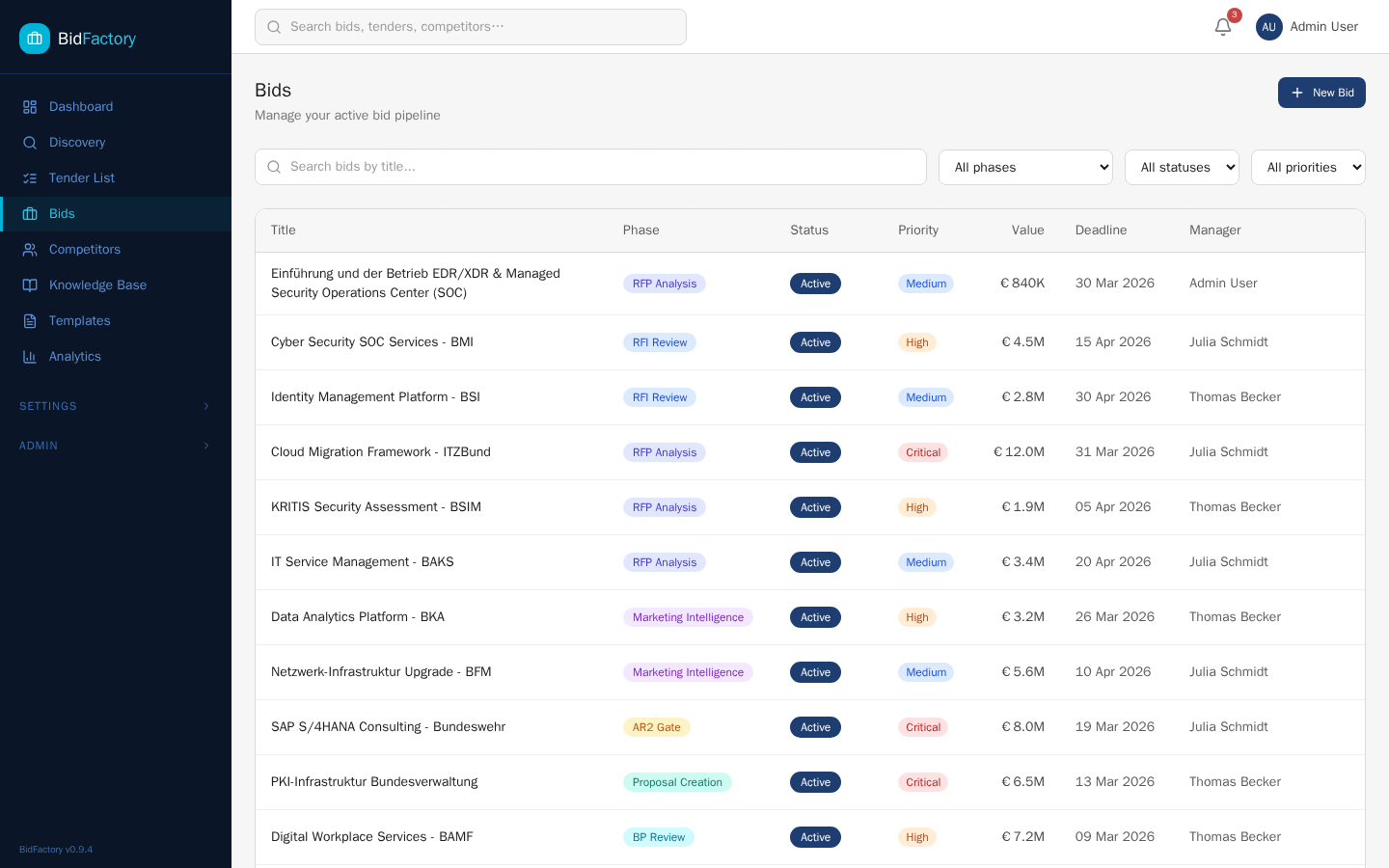
Navigate to Bids in the sidebar to view all bids in the system. As an Approver, you can view all bids but cannot create or delete them.
Filter options:
- Search — Filter by bid title.
- Phase — Select “AR2 Gate” or “AR3 Gate” to immediately surface bids awaiting your decision.
- Status — Active, No Bid, Won, Lost, or Withdrawn.
- Priority — Low, Medium, High, or Critical.
The table shows bid title (clickable), phase badge, status badge, priority, contract value, deadline, and assigned manager. Results are paginated at 20 items per page.
Bid Detail Page
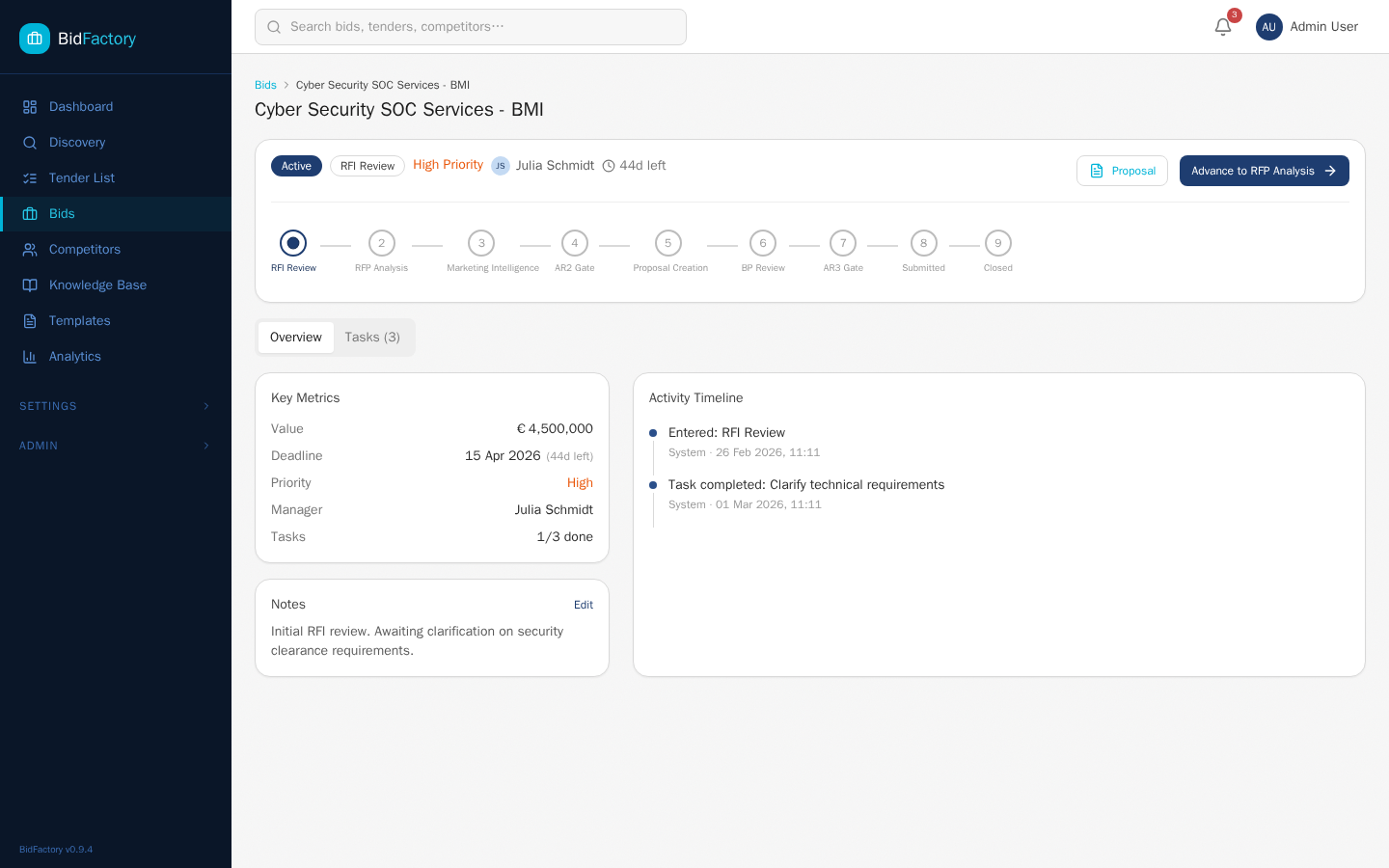
Click any bid title to open its detail page. The page is organized into several key areas:
Status Bar
At the top: Active/Phase/Priority badges, the assigned manager’s avatar, a deadline countdown timer, and a “Proposal” quick-action button. This gives you an immediate snapshot of the bid’s current state.
9-Phase Stepper
A visual progress bar with numbered circles for each phase. Completed phases show a checkmark, the current phase is highlighted in blue, and future phases are shown in gray. This tells you exactly where the bid is in its lifecycle.
Overview Tab
- Key Metrics — Contract value, deadline, priority, assigned manager, and task completion count.
- Notes — Contextual notes added by the bid manager. Read these for important background before making gate decisions.
- Activity Timeline — A chronological log of all events: phase transitions, decisions, notes, and task completions.
Tasks Tab
Shows all tasks associated with the bid, their status, assignees, and due dates. Use this to understand whether the team has completed all preparatory work before your gate decision.
Bid Resources
Navigation cards link to sub-pages for the bid, including proposals, intelligence documents, and other resources. Use these to access the full proposal and supporting materials for your AR3 review.
Reviewing Proposals
For your AR3 gate review, navigate to a bid and then to its Proposal section. Key features when reviewing:
- Section status indicators — Each section shows its completion status and whether it was AI-generated (marked [AI]) or manually written.
- Language filter bar — Switch between EN, DE, and other available languages to review the submission in the required language.
- PDF export — Download the proposal as a professionally formatted PDF to review offline or share with colleagues.
When reviewing a proposal, focus on:
- Strategic alignment: does the proposal address the authority’s specific needs?
- Technical accuracy: are the described solutions feasible and correctly scoped?
- Pricing competitiveness: is the offered price credible and competitive?
- Compliance: are all mandatory requirements from the RFP addressed?
- Clarity and professionalism: is the proposal well-written and free of errors?
Company Profile Management
Your Exclusive Write Access
Navigate to Knowledge Base → Company Profile (or directly to /kb/company-profile). As an Approver, you have exclusive write access to the Company Profile. Bid managers and SMEs can view the profile but cannot edit it. This reflects your accountability for ensuring the organization’s official information is accurate.
Editable Fields
The Company Profile contains 12 editable fields covering your organization’s key information:
| Field | Description |
|---|---|
| Company Name | Your organization’s official registered name |
| Legal Form | Legal entity type (GmbH, AG, Ltd, SAS, etc.) |
| Founding Year | Year the company was established |
| Website URL | Official company website |
| Phone | Primary business contact number |
| Official contact email address | |
| Registered Address | Full legal registered address |
| Employee Count | Current approximate headcount |
| Annual Revenue | Most recent annual revenue figure |
| Currency | Currency for revenue figures (default: EUR) |
| Insurance Details | Professional indemnity and liability coverage details |
| Corporate Certifications | ISO standards, security clearances, quality certifications |
After making changes, click the “Save” button (visible only to Approvers and Admins) to persist the updates.
Why This Matters
Competitor Oversight
Viewing the Competitive Landscape
Navigate to Competitors in the sidebar to view all tracked competitors. Understanding your competitive landscape is an important input to gate decisions — knowing who you are competing against and their historical performance informs your Bid/No-Bid judgments.
The Competitors list displays each competitor’s name, country, industry sectors, estimated employee count and revenue, enrichment status, number of tracked awards, and total awarded value. Click any competitor name to view their full profile.
Competitor Detail Pages
Each competitor detail page shows:
- Profile information — Company overview, sectors, geographic presence, and contact details (from AI enrichment).
- Awards history — A list of contracts this competitor has won, including contract values and contracting authorities. This data is invaluable for understanding their typical pricing and strengths.
- Enrichment data — AI-generated company summary with estimated size, revenue, and capabilities.
Your Unique Capability: Deleting Competitors
As an Approver, you can delete competitor entries from the system. This is appropriate when:
- A competitor entry was created in error and does not represent a real entity.
- A company has ceased operations and should be removed from active tracking.
- An entry is a duplicate that cannot be resolved by merging (merging is a bid manager function).
- The entry contains fundamentally incorrect information that distorts competitive analysis.
Reviewing Enrichment Quality
Competitor profiles are enriched using AI, which means the generated content may occasionally contain inaccuracies. As an Approver, if you notice that an AI-generated competitor profile contains incorrect information (wrong sector classification, inaccurate revenue estimate, etc.), flag it to the bid manager for re-enrichment. You cannot trigger enrichment yourself, but your oversight improves overall data quality.
Reviewing Extraction & RFI Results
Understanding Extraction
When bid managers process procurement documents, BidFactory uses deterministic parsing to extract structured information: contract values, requirements, timelines, CPV codes, and other metadata. This extraction can be reviewed and approved to add a quality assurance step to the process.
Reviewing Extraction Results
Navigate to a bid and look for the Documents or Extraction tab on the bid detail page. Here you can see all extracted information from the bid’s source documents.
When reviewing extraction results, check:
- Metadata accuracy — Is the contract value correct? Are the CPV codes appropriate for the work being tendered?
- Requirement completeness — Have all mandatory requirements been captured? Are there important eligibility criteria that may have been missed?
- Scope correctness — Does the extracted scope accurately reflect the full scope of the tender?
- Deadline accuracy — Are all submission deadlines and milestones correctly recorded?
When you are satisfied with the extraction results, mark them as “Approved” to signal quality sign-off to the team. This approval is recorded in the activity timeline.
Reviewing RFI Responses
BidFactory can auto-fill RFI responses by drawing information from the Knowledge Base and Company Profile. Navigate to the RFI tab on a bid detail page to review these auto-filled responses.
Each RFI response includes:
- Confidence level — Displayed as HIGH, MEDIUM, or LOW indicating how certain the system is about the response.
- Source mapping — Which Knowledge Base documents or Company Profile fields contributed to the auto-filled answer.
- Response content — The actual text that will be included in the RFI submission.
Pay particular attention to responses marked LOW confidence — these may require manual review and correction by the bid team. When you are satisfied with the overall quality of the RFI responses, mark the RFI as “Approved”.
Viewing Discovery & Analytics
Discovery: Strategic Awareness
Navigate to Discovery in the sidebar to browse incoming tenders from EU procurement portals. As an Approver, you have read-only access to the Discovery queue.
Reviewing the Discovery queue is valuable even though you cannot take action on tenders:
- Prepare for upcoming gate decisions — See what tenders are in the pipeline early, giving you time to review background information before a formal gate decision is required.
- Understand the opportunity landscape — Develop a sense of the volume and value of opportunities being considered, which informs how selective you should be at gates.
- Spot strategic patterns — Identify recurring authorities or CPV codes that align with your organization’s strengths.
Analytics: Informing Your Decision Framework
Navigate to Analytics to view comprehensive pipeline performance data. As an Approver, the Analytics dashboard gives you objective feedback on the quality of your gate decisions over time.
Key Metrics for Approvers
| Metric | What It Tells You |
|---|---|
| Win rate trend | Are the bids you approved at AR2 ultimately winning? A declining win rate may indicate you are approving too many marginal opportunities. |
| AR2 conversion rate | What percentage of opportunities you approve at AR2 are progressing to submission? Low conversion indicates problems in proposal creation. |
| AR3 approval rate | What percentage of proposals you review at AR3 are approved for submission? A very high rate may indicate insufficient scrutiny; a very low rate may indicate upstream quality problems. |
| No-bid reason patterns | What reasons are most commonly cited for rejections? These patterns can inform your monitoring criteria and early opportunity screening. |
| Phase duration | How long do bids spend in each phase? Long durations in Proposal Creation or Best Practices Review signal team capacity or quality issues that may affect AR3 readiness. |
| Competitor frequency | Which competitors appear most often? This informs how competitive individual markets are. |
Notifications
Notification Center
The notification bell icon in the header shows your unread notification count. Click it to see recent notifications, or navigate to /notifications for the full notification center with filter and management options.
Key Notification Types for Approvers
| Notification Type | Trigger | Priority for You |
|---|---|---|
| Gate Approval Needed | A bid has entered the AR2 or AR3 Gate phase and requires your decision | Critical — act promptly |
| Gate Decided | Confirmation that your decision has been recorded | Informational |
| Phase Transition | A bid you are tracking has moved to a new phase | Awareness |
| Deadline Reminder | An approaching deadline for a bid requiring your decision | Time-sensitive |
| Bid Created | A new bid has entered the pipeline | Low |
Managing Notifications
- Mark as read — Click a notification to open it and mark it read.
- Mark all read — Clear the unread counter for all current notifications at once.
- Delete — Remove individual notifications from your inbox.
Tips for Approvers
Glossary
| Term | Definition |
|---|---|
| AR2 | Approval Review 2 — The Bid/No-Bid decision gate at Phase 4 of the BidFactory pipeline. After Marketing Intelligence is complete, the Approver decides whether to invest team resources in writing a full proposal. |
| AR3 | Approval Review 3 — The Submit/No-Submit decision gate at Phase 7. After the proposal has been written and reviewed, the Approver makes a final decision on whether to submit it to the contracting authority. |
| BKMS | Bekanntmachungsservice — The German national procurement service. It publishes procurement notices in eForms-DE format (a German-specific extension of the EU eForms standard). |
| CPV Code | Common Procurement Vocabulary — The EU standard classification system for public procurement. CPV codes are 8-digit numbers (e.g., 72000000 for IT services) used to categorize tenders by subject matter. |
| DACH | Germany (D), Austria (A), and Switzerland (CH) — the German-speaking region of Europe, often the primary geographic focus for BidFactory users. |
| Enrichment | The AI-powered process of augmenting competitor profiles with additional data (employee count, revenue, sectors, description) extracted from web sources using Claude AI. |
| Gate Decision | A formal Bid/No-Bid or Submit/No-Submit decision made by an Approver at the AR2 or AR3 gate. Gate decisions are recorded in the activity timeline with justification notes. |
| Pipeline | The sequence of 9 phases (RFI Review through Closed) that a bid progresses through from initial discovery to contract close. |
| RFI | Request for Information — A preliminary procurement document used by contracting authorities to gather information about potential suppliers before issuing a formal tender. |
| RFP | Request for Proposal — The formal tender document issued by a contracting authority inviting organizations to submit proposals for a specific contract. |
| SWOT | Strengths, Weaknesses, Opportunities, Threats — A strategic analysis framework generated during the Marketing Intelligence phase. A key input for AR2 gate decisions. |
| TED | Tenders Electronic Daily — The EU-wide portal where all public procurement notices above certain financial thresholds are published. Covers all EU member states. |
BidFactory Approver Manual — Version 1.0 — March 2026
For support, contact your system administrator. Return to Manual Hub →