Your Role as Bid Manager
As a Bid Manager in BidFactory, you are the primary driver of the bid lifecycle. You own the end-to-end process from opportunity discovery through contract award, coordinating team members, managing documentation, and ensuring every bid progresses on time and to the highest quality.
Key Responsibilities
Bid Managers are responsible for steering opportunities from initial identification through to resolution. Your core duties include:
- Opportunity Discovery — Monitor the Discovery queue for relevant tenders from TED and the Bekanntmachungsservice, intake promising opportunities, and dismiss those outside scope.
- 9-Phase Pipeline Management — Move bids through each phase of the lifecycle, from RFI Review through to Closed, making informed decisions at each gate.
- Team Coordination — Create and assign tasks to SMEs and other team members, track completion, and resolve blockers before they affect deadlines.
- Document Management — Upload tender documents, trigger AI extraction of structured data, review and approve extracted content for accuracy.
- Proposal Generation — Use Quick Generate or the Guided Experience Mode (GEM) wizard to create high-quality, multi-language proposals grounded in Knowledge Base content.
- Competitor Tracking — Add and manage competitor records, trigger AI enrichment, monitor SWOT analyses, and use market benchmarking data to sharpen bid strategy.
What You Can Do
The Bid Manager role has broad access across the platform. You can:
- Create and edit bids; set title, priority, deadline, manager assignment, and notes
- Intake tenders from the Discovery queue (assign, set priority, skip RFI, add notes)
- Dismiss tenders with a documented reason
- Advance bids through all 9 pipeline phases
- Create, assign, edit, and close tasks on any bid
- Upload tender documents (PDF, DOCX, XLSX, ODT, ZIP, EML) and trigger AI extraction
- Review and edit extraction results across all 9 structured sections
- Generate proposals via Quick Generate or Guided (GEM) mode
- Edit, reorder, add, delete, and regenerate individual proposal sections
- Export proposals to branded PDF in any supported language
- Add, merge, and enrich competitor records
- Edit Knowledge Base assets (capabilities, case studies, CVs, certifications, methodologies, boilerplate, etc.)
- Manage personnel profiles in the Knowledge Base
- Create and edit proposal section templates
- View Analytics dashboards
- Manage personal notifications
What You Cannot Do
Some platform actions require the Approver or Admin role:
- Manage system users or assign roles (Admin only)
- Configure monitoring criteria or portal integrations (Admin only)
- Trigger ingestion runs from the Administration panel (Admin only)
- Approve AR2 Bid/No-Bid gate decisions (Approver role required)
- Approve AR3 Submit/No-Submit gate decisions (Approver role required)
- Update the Company Profile in the Knowledge Base (Approver role required)
Getting Started
Logging In
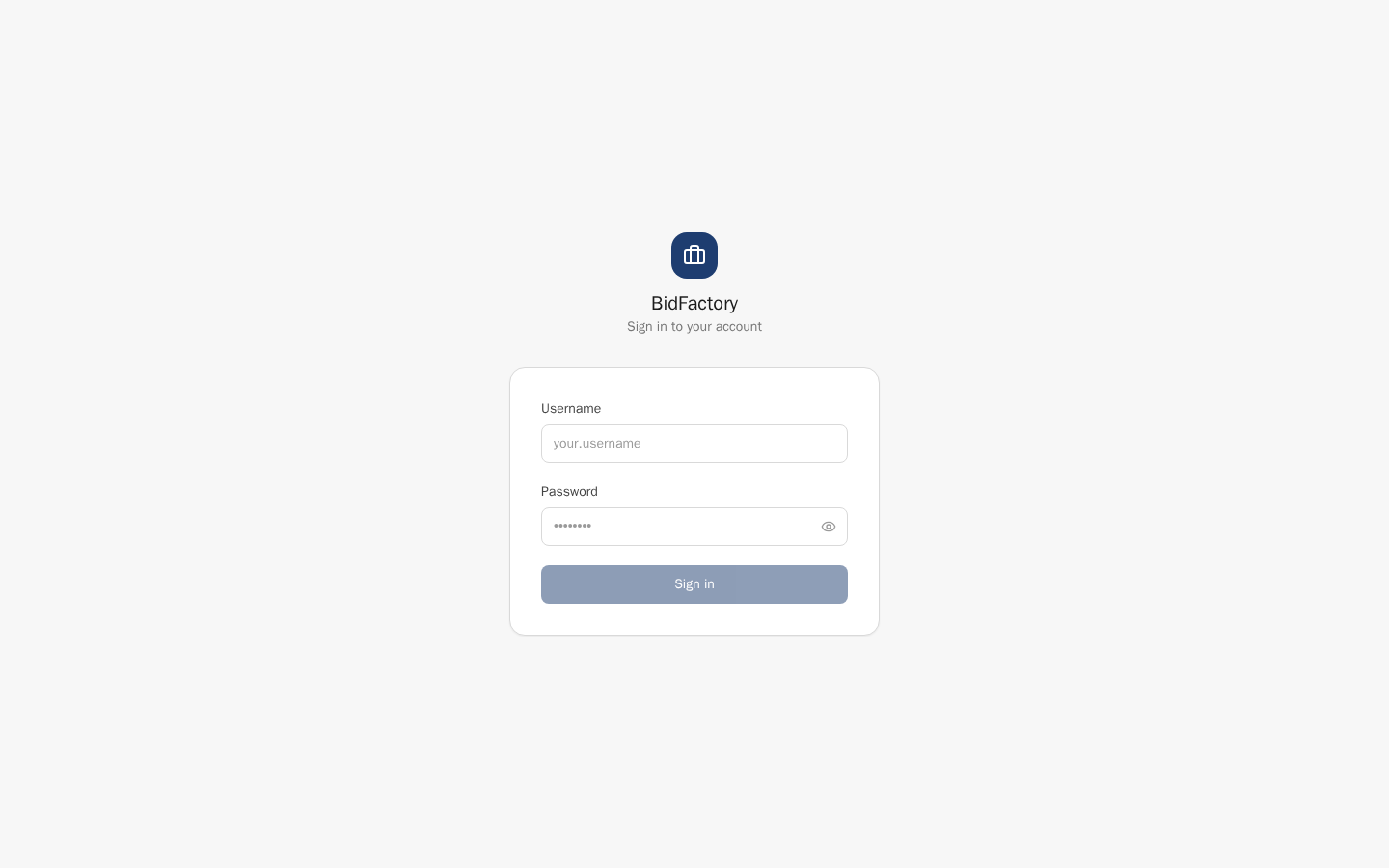
Your administrator will provide your username and temporary password. To log in:
- Open the BidFactory URL provided by your administrator.
- Enter your username and password. Use the eye icon to toggle password visibility.
- Click “Sign In” to access the platform.
- On first login, you will be prompted to change your temporary password. Choose a strong, unique password.
Interface Overview
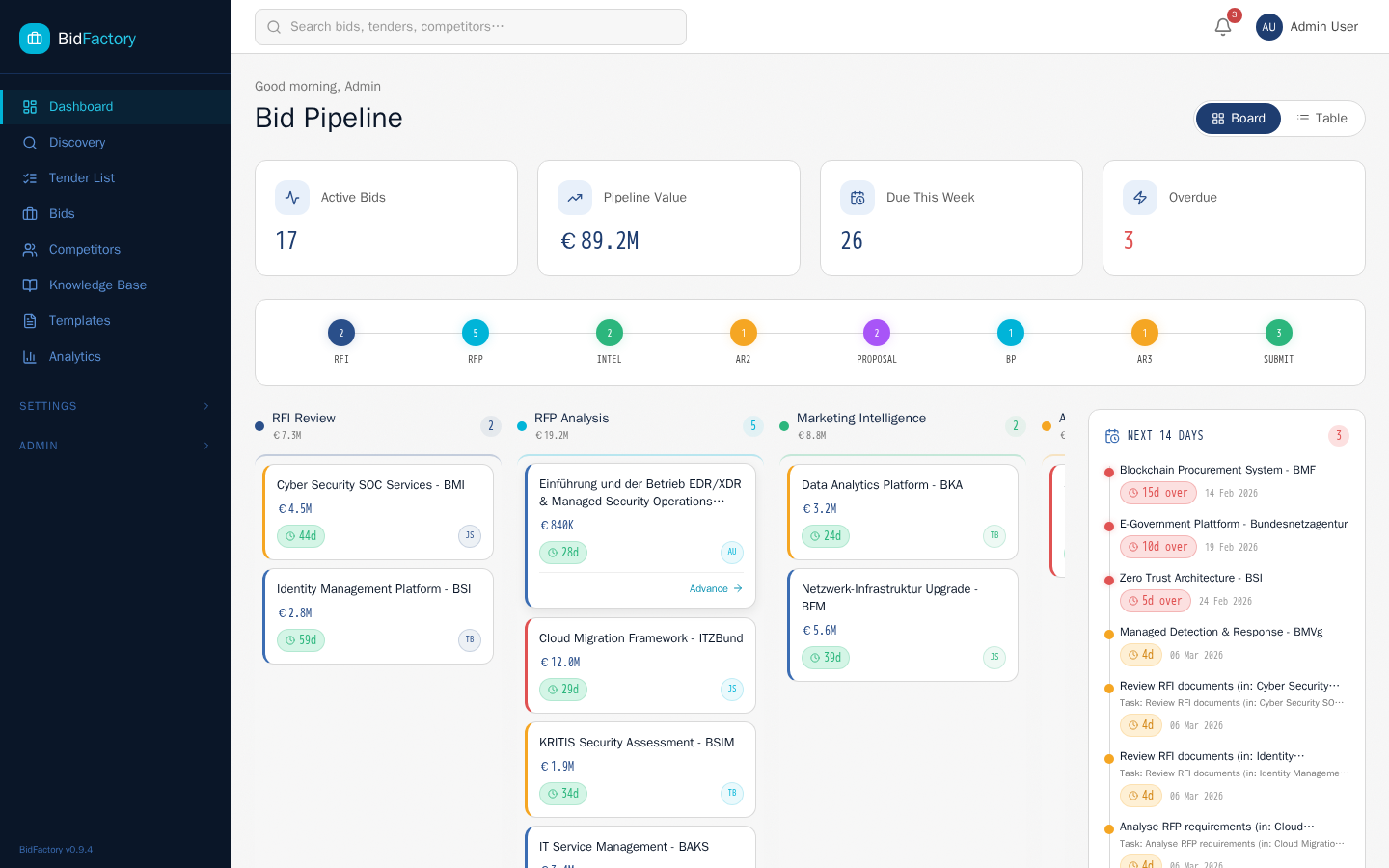
BidFactory uses a three-area layout. Your session is secured with JWT authentication and auto-refreshes while you are active. After extended inactivity, you will be signed out automatically.
- Left Sidebar — Dark navy navigation panel. As a Bid Manager, you have access to: Dashboard, Discovery, Bids, Competitors, Analytics, Knowledge Base, Templates, and Notifications.
- Top Header Bar — Contains the global search field (Ctrl+K / Cmd+K), a notification bell with unread count badge, and your user avatar with dropdown for profile settings and logout.
- Main Content Area — The central workspace that adapts to your current navigation selection.
Dashboard
The Dashboard is your command center. It gives you an instant overview of the entire bid pipeline, highlights approaching deadlines, and allows you to initiate phase transitions without leaving the page. The dashboard refreshes automatically every 60 seconds.
Metric Cards and Pipeline Tracker
At the top of the dashboard, four metric cards display:
| Metric | Description |
|---|---|
| Active Bids | Total bids currently progressing through the pipeline |
| Pipeline Value | Combined estimated contract value of all active bids (EUR) |
| Due This Week | Bids with submission deadlines in the next 7 days |
| Overdue | Bids that have passed their deadline (pulsing red indicator) |
Below the cards, a visual pipeline bar shows 9 phase nodes with the count of bids in each phase, giving you a rapid read on where effort is concentrated.
Kanban Board
The default Kanban view organizes bids as cards in columns by phase. Each card displays: bid title, estimated contract value, deadline urgency chip, priority indicator, and assigned manager avatar. Click any card to open the full bid detail page. As a Bid Manager, an Advance Phase button is available directly on each card — use it to progress a bid to the next phase without navigating away from the dashboard.
Table View
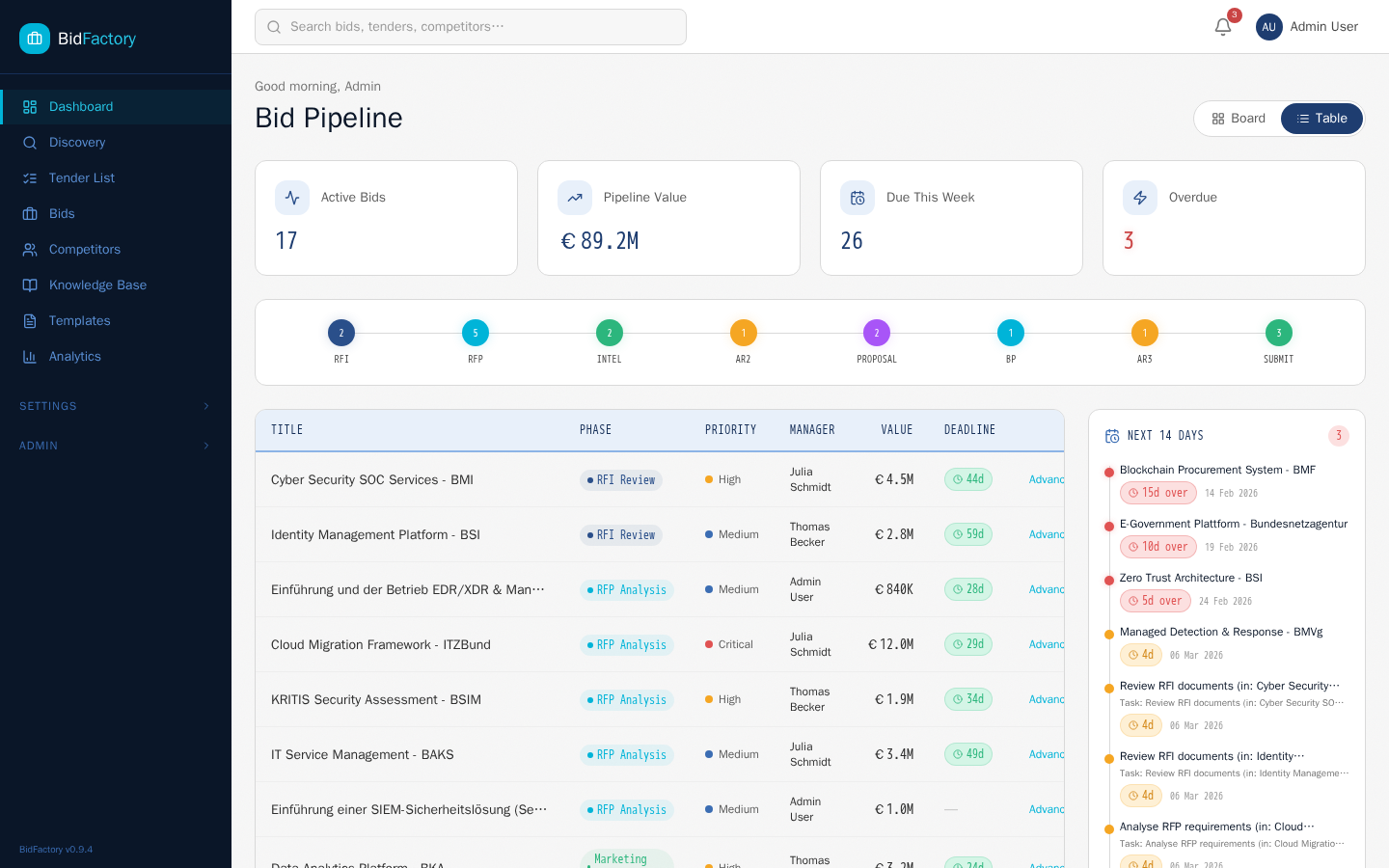
Toggle to Table view for a compact, sortable list of all bids. Click any column header to sort. Click a bid title to open the detail page. Table view is particularly useful when managing a large pipeline and you want to compare deadlines, values, or phase distributions across many bids at once.
Deadline Sidebar
The right panel lists all upcoming milestones for the next 14 days, including both bid submission deadlines and individual task due dates. Color-coded urgency indicators help you prioritize:
- Overdue — Past the deadline; immediate action required
- 0–3 days — Urgent; escalate if needed
- 4–7 days — Approaching; confirm team progress
- 7+ days — On track
Tender Discovery
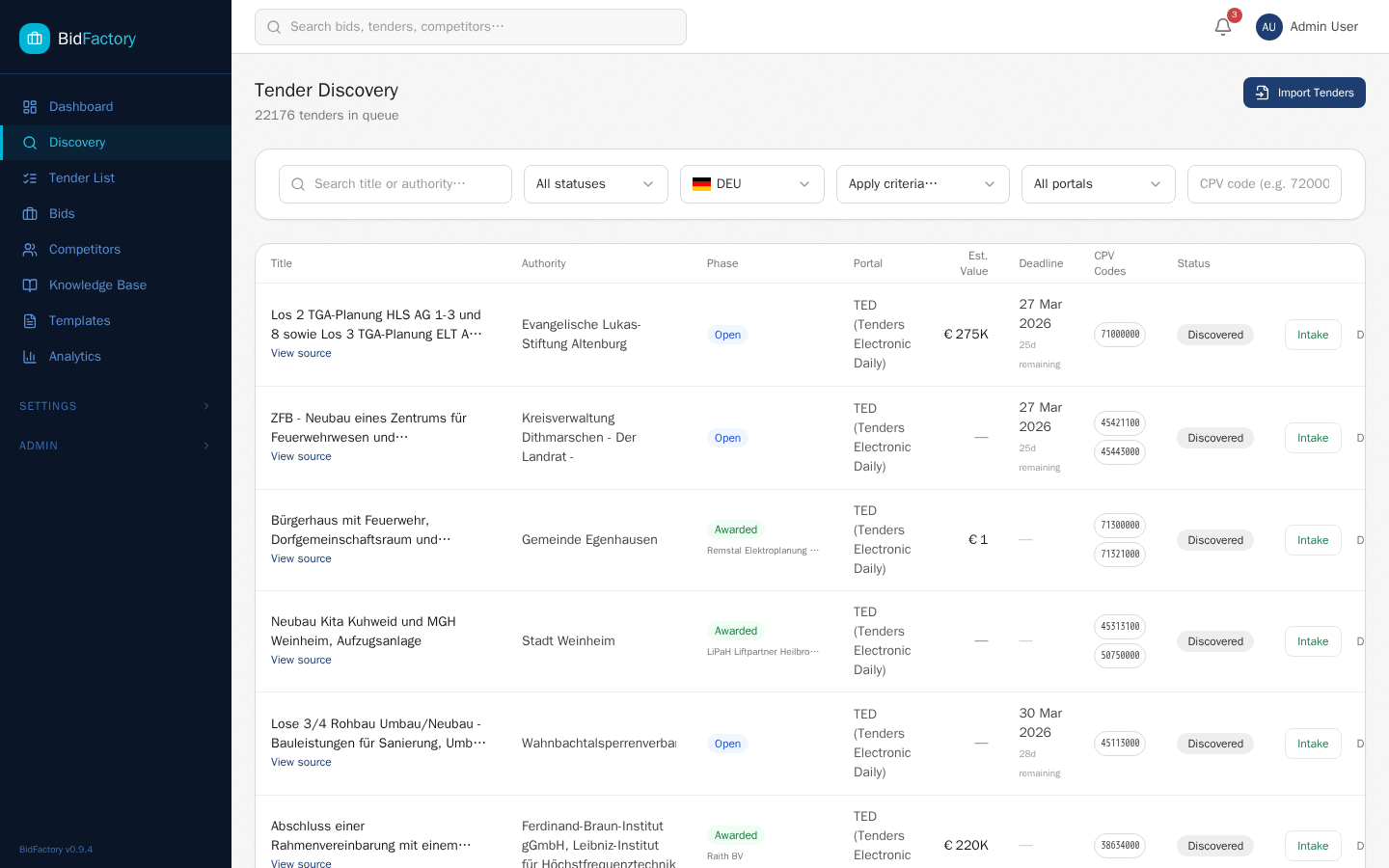
The Discovery queue is populated automatically by the platform’s ingestion engine, which pulls notices from TED (Tenders Electronic Daily) and the Bekanntmachungsservice (Germany). As a Bid Manager, you review these incoming opportunities and decide whether to pursue them as bids or dismiss them.
The Discovery Queue
Navigate to Discovery in the sidebar to open the queue. Use the filter bar to narrow results:
- Text search — Filter by title, description, or contracting authority name
- Status — New, Reviewed, Intaked, Dismissed
- Country — Filter by country of the contracting authority
- Award Criteria — Lowest price, Most economically advantageous tender (MEAT), or other criteria
- Portal — TED or Bekanntmachungsservice
- CPV code — Filter by Common Procurement Vocabulary sector code
The queue table shows these columns for each tender:
| Column | Description |
|---|---|
| Title | Tender title as published in the notice |
| Authority | Name of the contracting authority |
| Country | Country of the contracting authority |
| CPV | Primary CPV sector code and label |
| Value | Estimated contract value (where published) |
| Deadline | Submission or expression of interest deadline |
| Portal | Source: TED or BKMS |
| Status | New / Reviewed / Intaked / Dismissed |
Results are paginated at 20 items per page. Use the page controls at the bottom to navigate. Click any row to expand a detail panel with the full notice summary, CPV codes, and linked documents.
Intaking a Tender
When a tender looks promising, intake it to create a new bid in the pipeline:
- Click the tender row to expand the detail panel.
- Review the summary, CPV codes, estimated value, deadline, and contracting authority details.
- Click “Intake” to open the intake form.
- Set the Assigned Manager (defaults to you; can be reassigned).
- Set the Priority: Low, Medium, High, or Critical.
- Optionally check “Skip RFI Phase” if no Request for Information was issued and you want to start directly at RFP Analysis.
- Add any intake notes (rationale, initial risk flags, stakeholder context).
- Click “Confirm Intake”. The tender is converted to a bid and appears in the pipeline at phase 1 (RFI Review) or phase 2 (RFP Analysis) if RFI was skipped.
Dismissing a Tender
When a tender is out of scope, beyond capacity, or otherwise unsuitable:
- Click the tender row to expand the detail panel.
- Click “Dismiss” to open the dismiss form.
- Select or enter a reason (required): Out of scope, Capacity constraints, No competitive advantage, Deadline too tight, Geographic exclusion, or Other.
- Add any supplementary notes for audit trail purposes.
- Click “Confirm Dismiss”. The tender is marked Dismissed and removed from the active queue.
Managing Bids
Bids List
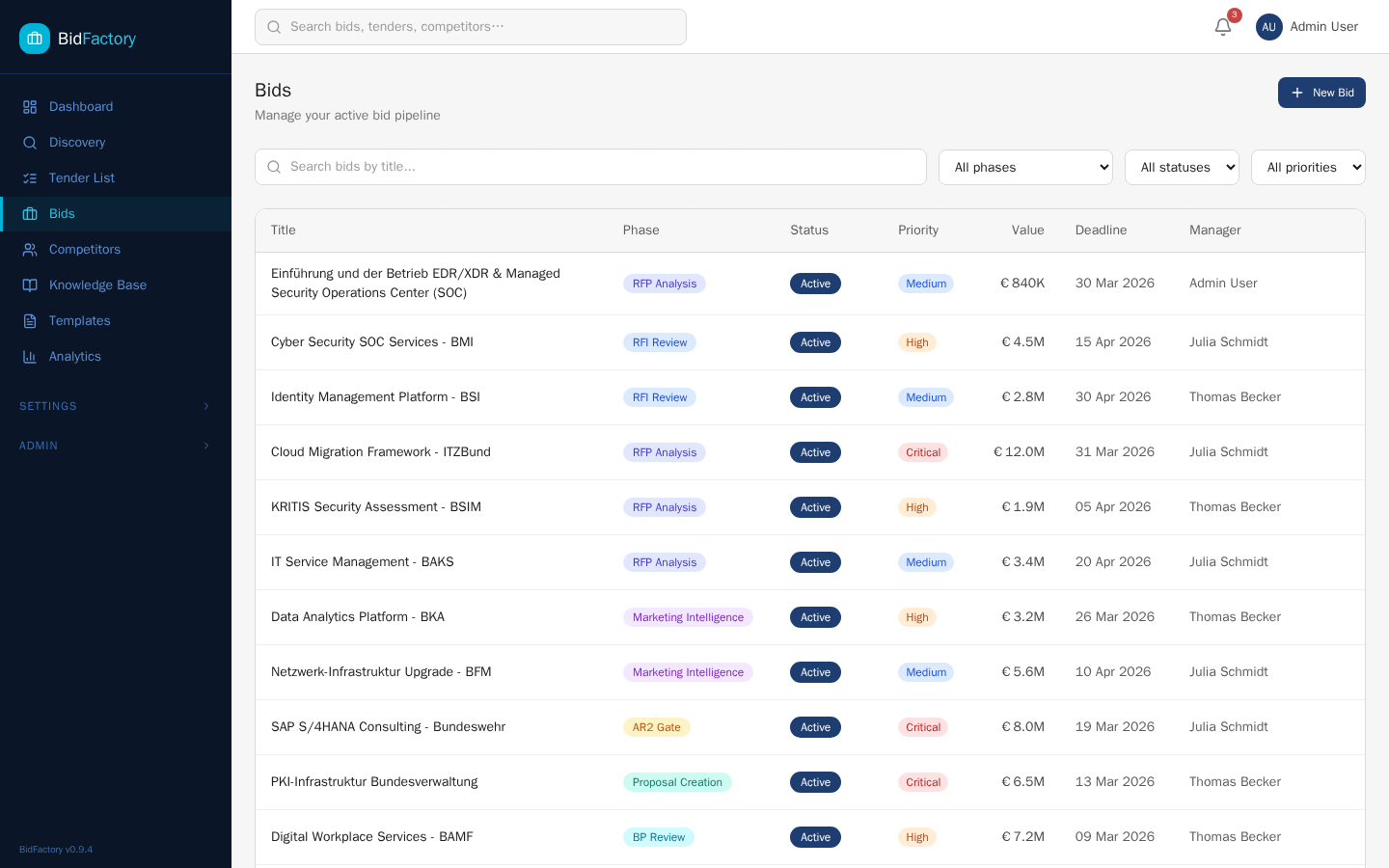
Navigate to Bids in the sidebar to see all bids in the system. The filter bar lets you narrow by:
- Search — Title keywords
- Phase — Any of the 9 pipeline phases
- Status — Active, No Bid, Won, Lost, Withdrawn, On Hold
- Priority — Low, Medium, High, Critical
- Manager — Filter to bids assigned to a specific team member
Click any bid title to open its detail page. Click “New Bid” in the top-right to create a bid manually (for opportunities discovered outside the automated queue).
Creating a New Bid
To create a bid manually, click “New Bid” and fill in the form:
- Title — Descriptive name for the opportunity (required)
- Contracting Authority — Name of the issuing organization
- Contract Value — Estimated value in EUR (or original currency)
- Submission Deadline — Date and time of the tender deadline
- Priority — Low / Medium / High / Critical
- Assigned Manager — Defaults to you
- CPV Codes — One or more relevant CPV sector codes
- Notes — Initial context, rationale, or stakeholder information
Bid Detail Page
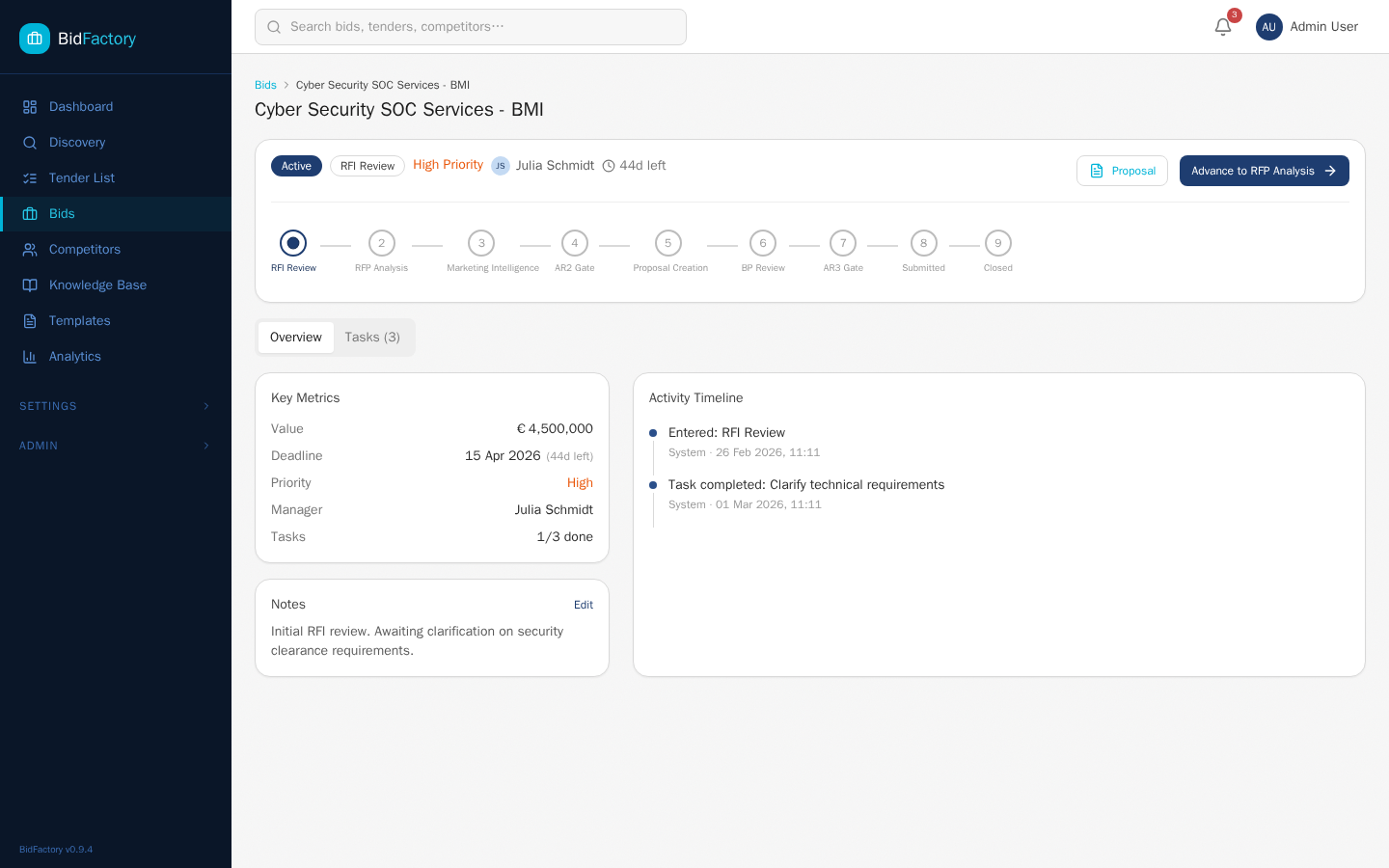
The bid detail page is the central hub for a single bid. Key elements:
Status Bar
At the top of the page: current phase badge, priority indicator, assigned manager name, and a live deadline countdown. An “Advance Phase” button (Bid Manager and above) is prominently placed here.
9-Phase Stepper
A horizontal progress bar showing the bid’s position in the lifecycle. Completed phases display a checkmark, the current phase is highlighted in blue, and future phases appear in gray.
Overview Tab
- Key Metrics — Contract value, deadline, priority, assigned manager, task completion percentage.
- Notes — Record observations, decisions, risks, and context for the bid team. Notes are editable by Bid Managers.
- Activity Timeline — Chronological log of all events: phase transitions, task completions, document uploads, notes added, and gate decisions.
Tasks Tab
All tasks associated with this bid. Create new tasks, assign them to team members, and update statuses. Tasks assigned to SMEs show the SME’s name and current completion status.
Bid Resources Card
A set of 14 navigation tiles providing quick access to all sub-pages for this bid:
- Documents — Tender documents uploaded to this bid
- Extraction — AI-extracted structured data from documents
- RFI Responses — Auto-filled responses to RFI questions
- Proposal — Generated proposal sections
- Competitor Analysis — SWOT and benchmarking for this bid
- Market Intelligence — Sector context and award history
- Compliance Checklist — Mandatory requirements tracking
- Evaluation Criteria — Extracted scoring breakdown
- Team Requirements — Extracted staffing and qualification requirements
- Budget — Extracted budget constraints and pricing format
- Key Dates — Extracted milestones and deadlines
- Scope — Extracted scope of work summary
- Qualifications — Extracted mandatory and scored qualifications
- Tasks — Direct link to the tasks tab
The 9 Pipeline Phases
| # | Phase | Bid Manager Actions |
|---|---|---|
| 1 | RFI Review | Upload RFI documents, trigger extraction, assign SME feasibility tasks, decide whether to proceed to RFP or exit. |
| 2 | RFP Analysis | Upload RFP/tender documents, run AI extraction across all 9 sections, review and approve extracted data. |
| 3 | Marketing Intel | Conduct competitor analysis, generate SWOT, run market benchmarking to assess win probability. |
| 4 | AR2 Gate | Prepare and present the Bid/No-Bid case. Gate approval requires an Approver role. |
| 5 | Proposal Creation | Generate proposal (Quick or Guided), edit sections, assign SME writing tasks, build the complete response. |
| 6 | Best Practices | Quality review of the proposal against evaluation criteria and compliance requirements. |
| 7 | AR3 Gate | Prepare the Submit/No-Submit case. Gate approval requires an Approver role. |
| 8 | Submitted | Track submission confirmation, manage clarification requests, maintain contact log. |
| 9 | Closed | Record outcome (Won/Lost), capture lessons learned, update competitor records with award data. |
Bid Statuses and Priorities
Bids carry both a phase (where in the lifecycle) and a status (the overall disposition):
| Status | Meaning |
|---|---|
| Active | Bid is progressing through the pipeline |
| No Bid | AR2 gate decision: not pursuing this opportunity |
| No Submit | AR3 gate decision: proposal not submitted |
| Won | Contract awarded to your organization |
| Lost | Contract awarded to a competitor |
| Withdrawn | Bid withdrawn from the procurement process |
| On Hold | Bid paused; awaiting external event or decision |
Priority levels control urgency and visibility across the pipeline:
| Priority | Guidance |
|---|---|
| Low | Background monitoring; minimal immediate resource commitment |
| Medium | Standard pursuit; normal resourcing |
| High | Strategic opportunity; prioritize team time and resources |
| Critical | Must-win; full team focus, escalate blockers immediately |
Document Processing & AI Extraction
One of BidFactory’s most powerful features is its ability to automatically extract structured intelligence from tender documents. Upload a PDF or DOCX, trigger extraction, and the platform populates 9 structured sections with information parsed directly from the document — no manual data entry required.
Uploading Documents
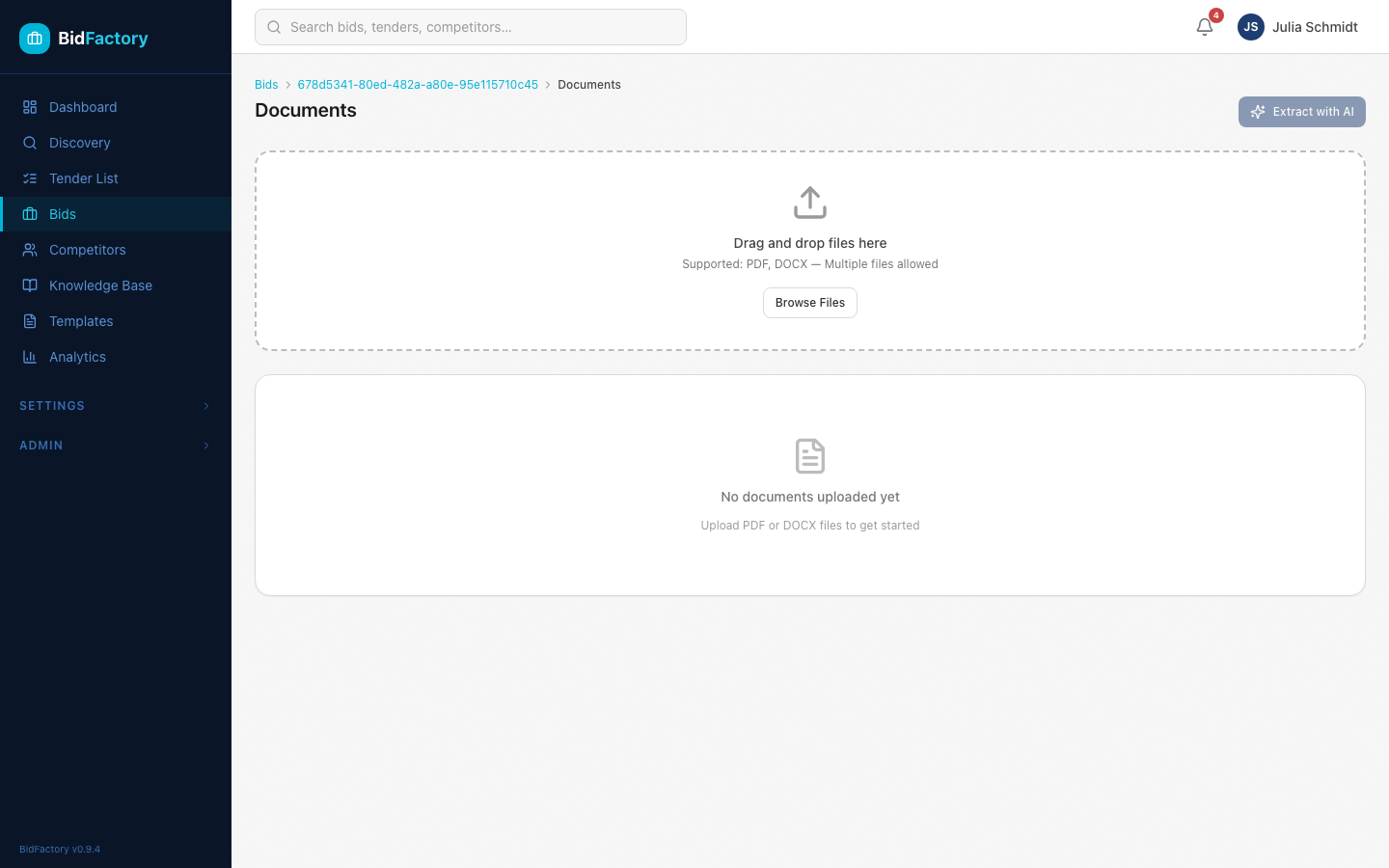
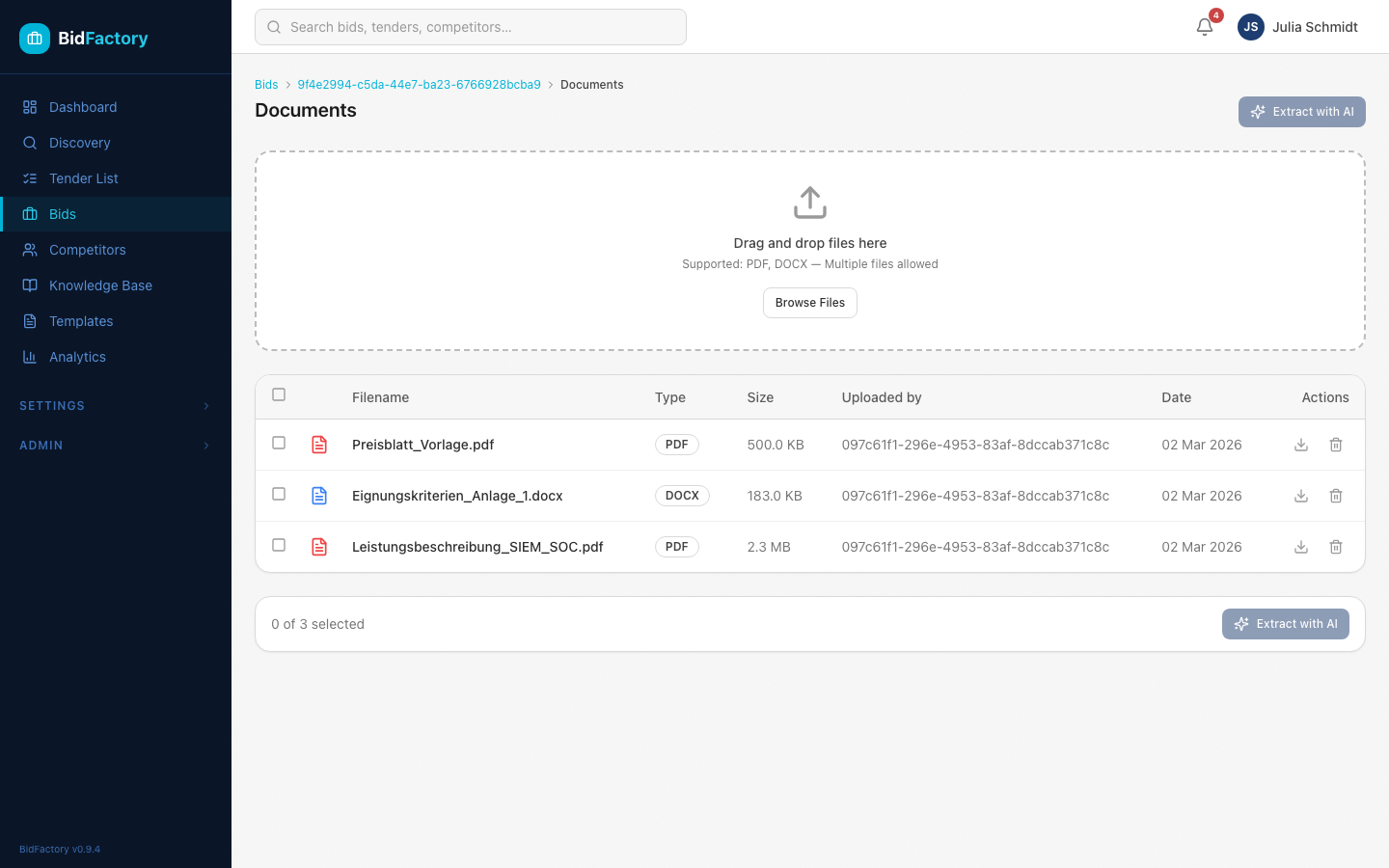
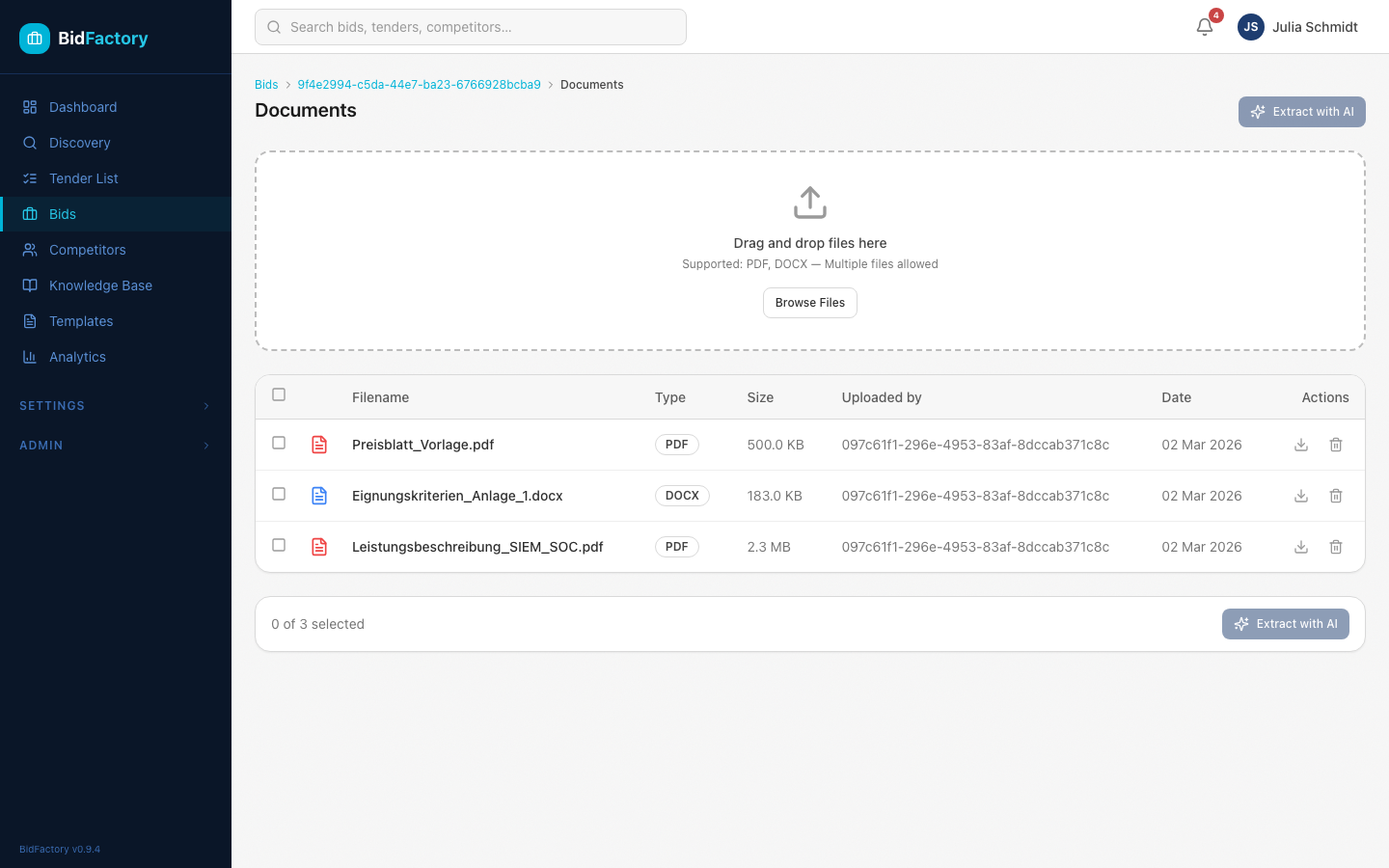
From the bid detail page, click Documents in the Bid Resources card to open the documents tab. To upload tender documents:
- Drag and drop files onto the upload area, or click “Browse files” to select from your file system.
- Supported formats: PDF, DOCX, XLSX, ODT, ZIP (containing documents), EML (email with attachments).
- A progress bar shows upload status. Multiple files can be uploaded simultaneously.
- Once uploaded, each document appears in the list with its filename, size, upload timestamp, and status badge.
Document statuses:
| Status | Meaning |
|---|---|
| Pending | Uploaded but extraction not yet triggered |
| Processing | Extraction is running (typically 30–120 seconds) |
| Completed | Extraction finished successfully; results available for review |
| Failed | Extraction encountered an error; see the error detail and re-upload if needed |
| Approved | Extraction results reviewed and approved by a Bid Manager |
Running AI Extraction
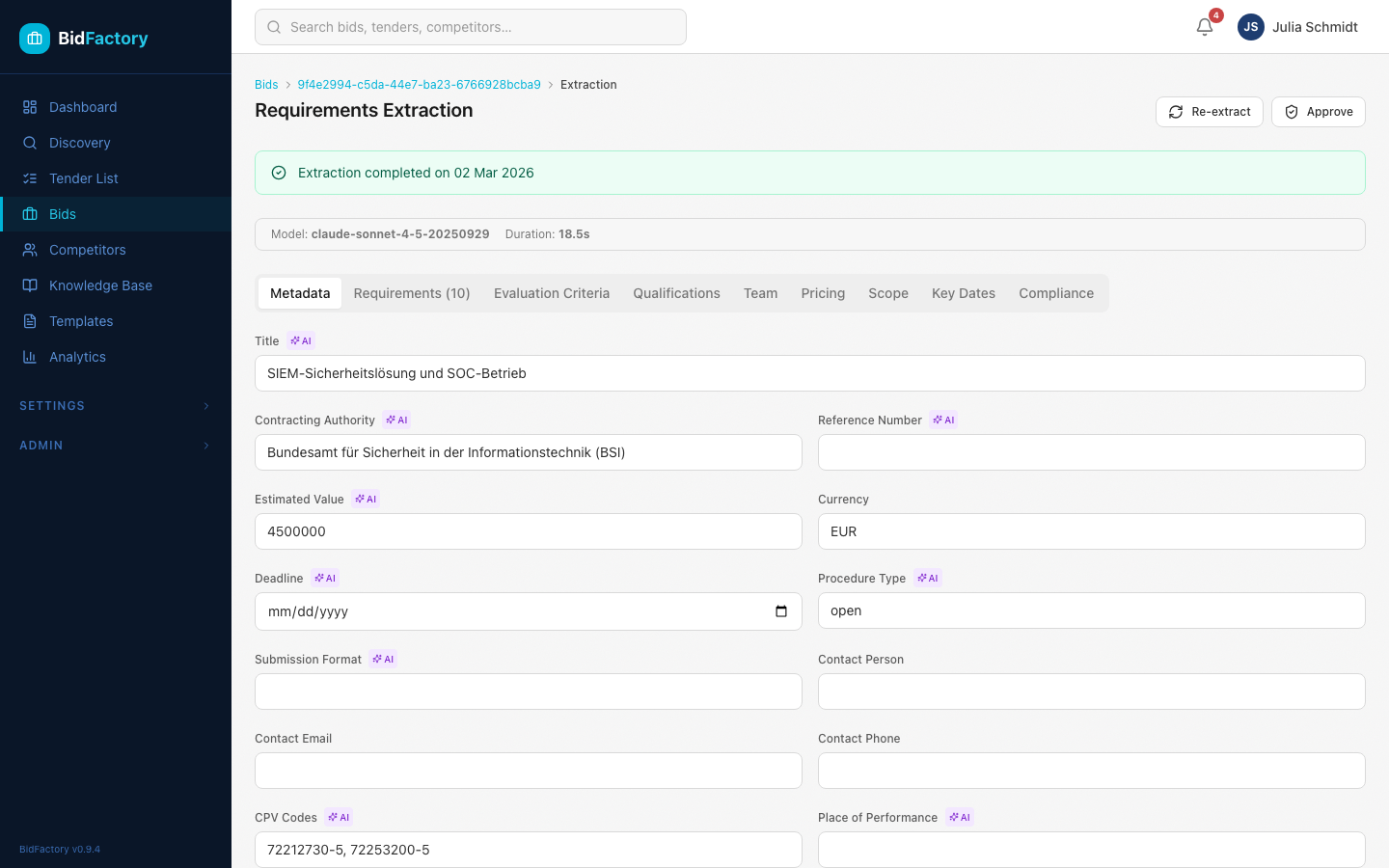
Once documents are uploaded, click “Run Extraction” to trigger the AI parsing pipeline. Extraction analyzes all documents associated with the bid and populates 9 structured sections:
| Section | What is Extracted |
|---|---|
| Metadata | Title, authority, reference number, CPV codes, country, contract type, value |
| Evaluation Criteria | Scoring criteria, weightings, sub-criteria, award methodology |
| Qualifications | Mandatory and scored qualifications, certifications, minimum standards |
| Team Requirements | Key expert profiles, minimum experience, language requirements, FTE commitments |
| Pricing Format | Required pricing structure, unit rates, price breakdowns, currency |
| Key Dates | Submission deadline, clarification deadlines, site visits, evaluation timeline |
| Scope | Objectives, deliverables, workpackages, geographic scope, duration |
| Compliance | Mandatory requirements, exclusion criteria, declarations, insurance requirements |
| Budget | Maximum budget, indicative budget, budget notes, co-financing requirements |
Sections with an [AI] indicator were populated by automated extraction. Sections without this indicator were pre-populated from the tender metadata available at intake.
Reviewing and Approving Extracted Data
After extraction completes, navigate to the relevant Bid Resources sub-page (e.g., Evaluation Criteria, Scope) or use the Extraction tab for the unified 9-tab review interface.
- Open the Extraction tab from the Bid Resources card.
- Each of the 9 sections has its own tab. Navigate through them in order.
- For each section, review the extracted values. Editable fields can be corrected inline — click any field to edit.
- In the Qualifications and Team Requirements sections, use the filter and sort controls to organize requirements by type, priority, or status.
- When a section is accurate and complete, click “Mark Reviewed”. The tab shows a green checkmark and records the reviewer name and timestamp.
- Once all sections are reviewed, click “Approve Extraction” to lock the results and make them available for proposal generation.
RFI Auto-Fill
When a tender includes a Request for Information (RFI) questionnaire, BidFactory can automatically generate responses to each question by drawing on your Knowledge Base content and extracted document data. This dramatically reduces the time required to produce RFI responses while maintaining accuracy.
Triggering Auto-Fill
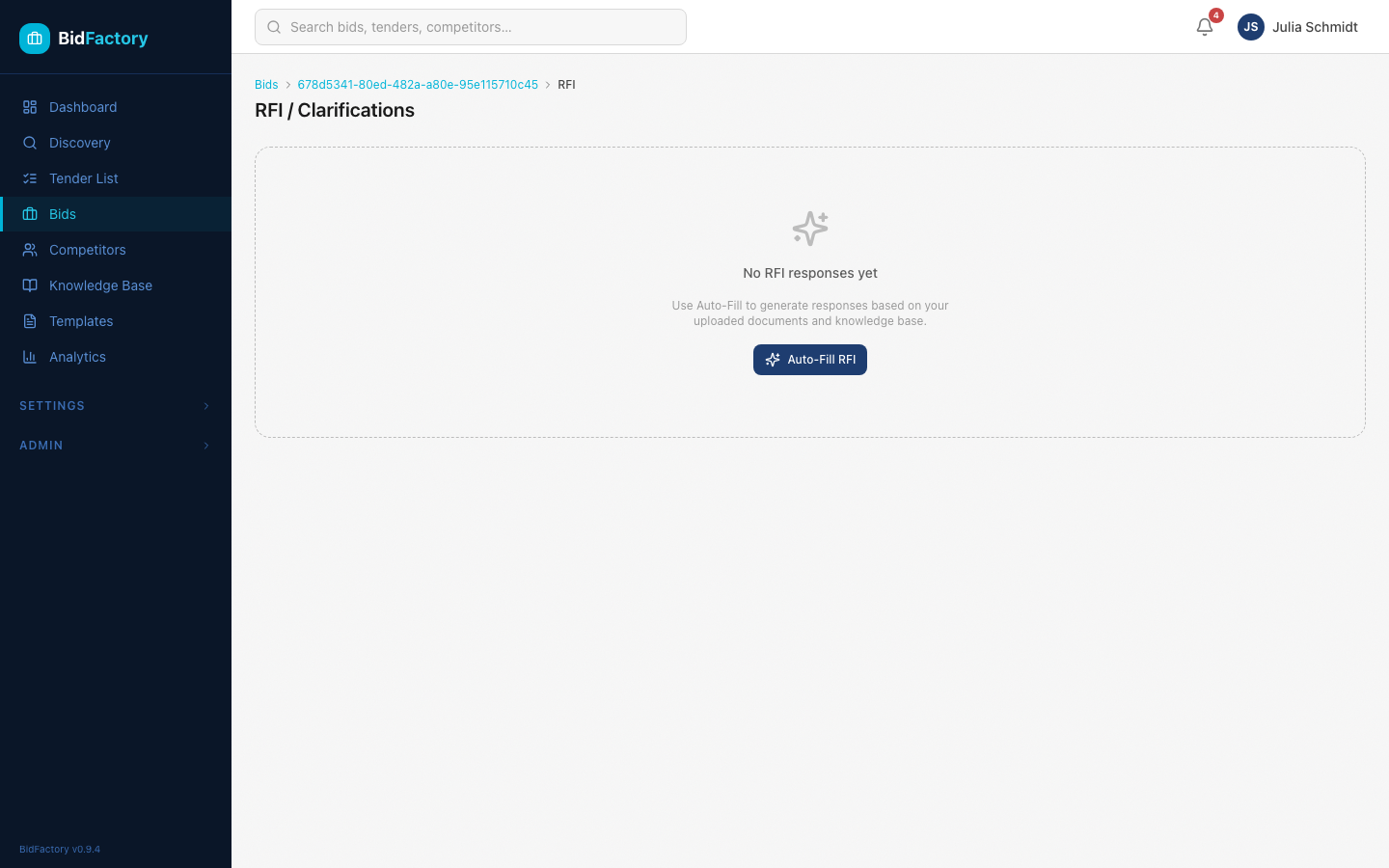
From the bid detail page, click RFI Responses in the Bid Resources card. The RFI tab shows the list of questions parsed from the uploaded RFI document. To generate responses:
- Confirm that the RFI document has been uploaded and extraction has completed (status: Completed or Approved).
- Click “Auto-Fill RFI”. The system generates responses for all questions simultaneously.
- A progress indicator shows generation status. Depending on the number of questions and Knowledge Base size, this typically takes 15–60 seconds.
Reviewing RFI Responses
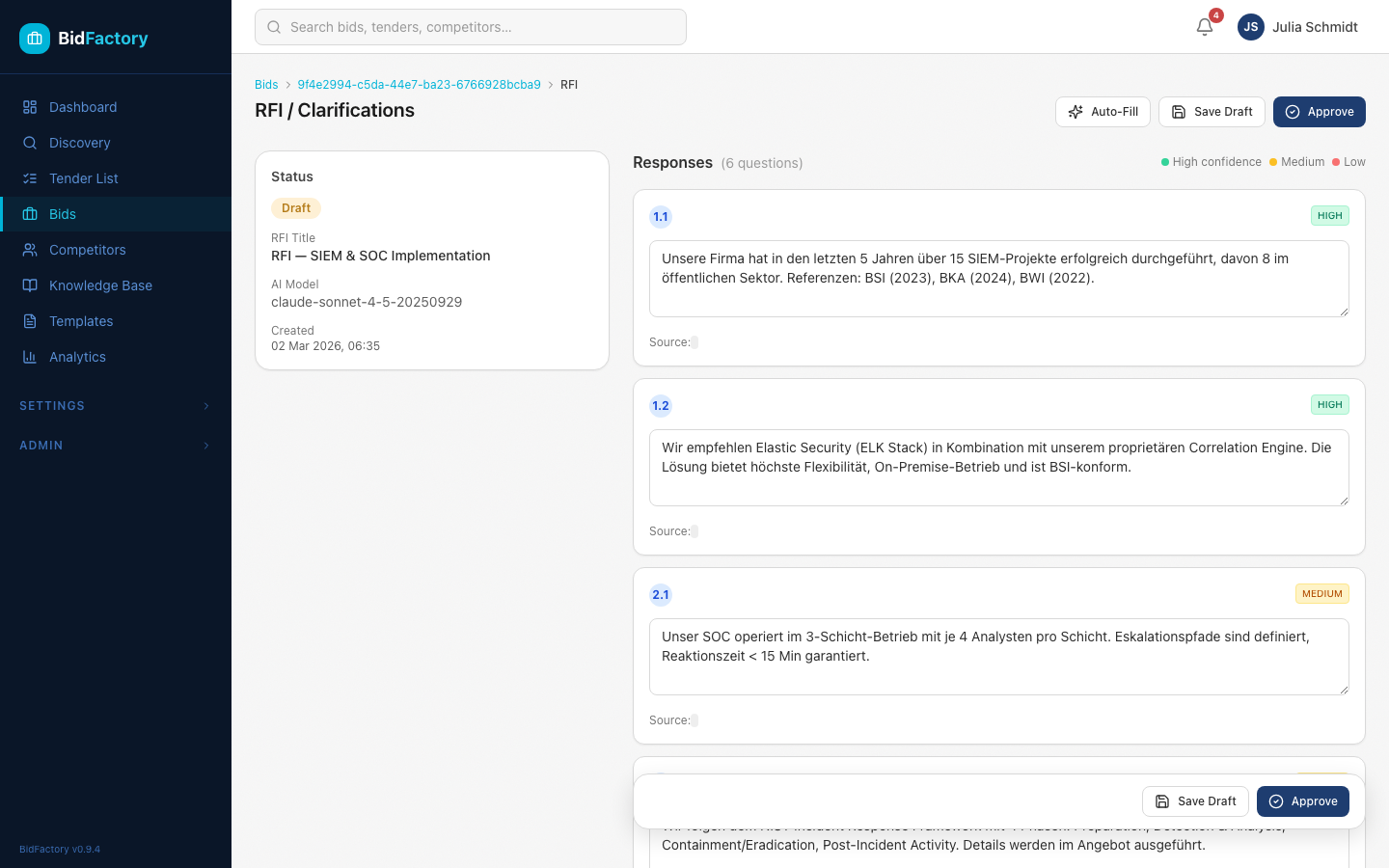
The RFI review interface uses a split-view layout: questions appear on the left panel; the generated response with metadata appears on the right panel. Selecting a question on the left updates the right panel.
Confidence Badges
Each response carries a confidence badge based on how well the generated response is grounded in source content:
- HIGH — Response is strongly supported by multiple Knowledge Base sources; minimal review needed
- MEDIUM — Response is partially supported; verify accuracy and consider supplementing
- LOW — Response has limited source support; manual authoring or KB enrichment recommended
Source Mapping
Below each response, a Sources Used panel lists the specific Knowledge Base assets that contributed to the answer (e.g., “Capability Statement — Digital Transformation.docx”, “ISO 27001 Certificate.pdf”). Click any source to view the original KB asset.
Missing Information Panel
If the system could not generate a confident response for one or more questions, a Missing Information panel appears at the top of the review interface listing the affected questions and suggesting which KB asset types could resolve the gap. Use this as a checklist to enrich the Knowledge Base before finalizing.
All responses are editable inline. Click any response text to modify it. Changes are auto-saved.
Approving the RFI
Once all responses have been reviewed and edited to your satisfaction:
- Click “Approve RFI”. This locks the responses and records your name and timestamp as the approver.
- The RFI status updates to Approved.
- Approved RFI responses are available for reference during proposal creation and can be pulled into proposal sections by the generation engine.
Proposal Creation
BidFactory offers two modes for generating proposals: Quick Generate for a fast, one-click proposal draft, and Guided Experience Mode (GEM) for a structured step-by-step wizard that gives you fine-grained control over every section. Both modes draw on your approved extraction data and Knowledge Base content.
Quick Generate
Quick Generate produces a complete proposal draft in a single action. It is ideal when you have a well-populated Knowledge Base and thoroughly reviewed extraction data, and need a first draft rapidly:
- Navigate to the bid detail page and click Proposal in the Bid Resources card.
- Click “Quick Generate”.
- A shimmer progress bar appears while the system assembles all KB content and auto-selects templates appropriate to the bid’s CPV sector and language.
- The complete proposal appears section by section as each one is generated. You can begin reviewing early sections while later ones are still generating.
- Generation typically completes in 30–90 seconds depending on proposal size.
Guided Generate (GEM)
The Guided Experience Mode wizard walks you through the proposal structure section by section, allowing you to make deliberate choices at each step:
- Click “Guided Generate” from the Proposal page.
- Step 1 — Structure: Review and adjust the proposed section outline. Add, remove, or reorder sections before generation begins.
- Step 2 — Source Selection: For each section, select which KB assets to draw from. The system suggests the most relevant assets; you can override.
- Step 3 — Generation Options: Choose tone (formal/technical/balanced), language, and any section-specific instructions.
- Step 4 — Review & Generate: Confirm your choices and click Generate. Sections are produced one at a time; you review each before proceeding.
- Step 5 — Finalize: Review the complete draft, make any final edits, and publish the proposal.
Multi-Language Support
BidFactory supports proposal generation in English (EN), German (DE), and French (FR). Language selection is available in both Quick and Guided modes:
- Select the target language using the flag toggle bar above the proposal sections (EN / DE / FR).
- Use “Generate then Translate” to first generate in English and then auto-translate to additional languages. This is faster than generating natively in each language.
- Once translated, all language versions are independently editable. Switch between languages using the language filter bar.
- The PDF export will render only the language version currently displayed in the filter bar.
Editing Proposal Sections
After generation, every section is editable. The proposal editor supports the following operations:
| Section Type | Description |
|---|---|
| Executive Summary | High-level overview of your organization and the bid proposition |
| Technical Approach | Detailed methodology for delivering the scope of work |
| Team & Qualifications | Key expert profiles, CVs summary, team structure |
| Relevant Experience | Case studies and references most relevant to this opportunity |
| Quality Assurance | QA/QC methodology, certifications, standards compliance |
| Risk Management | Identified risks and proposed mitigation measures |
| Work Plan & Timeline | Phase-by-phase work plan, milestones, and delivery schedule |
| Commercial Proposal | Pricing, day rates, cost breakdown per deliverable |
For each section you can:
- Click the section text to edit inline. All edits are auto-saved.
- Sections marked with [AI] were AI-generated. This indicator is removed when you make manual edits.
- Use the drag handle (left edge of each section card) to reorder sections.
- Click “Add Section” to insert a new section at any position.
- Click the trash icon on a section card to delete it (confirmation required).
- Click “Regenerate” on any section to re-run AI generation for that section only, leaving others unchanged.
PDF Export
To export the finished proposal as a branded PDF:
- Ensure the correct language is selected in the language filter bar.
- Click “Export PDF”.
- The export includes: branded cover page (company logo, bid title, date), auto-generated Table of Contents, all proposal sections in the selected language, and page numbers.
- The file is saved automatically using the format: BidTitle_ProposalLanguage_Date.pdf.
Template System
BidFactory ships with 16 built-in templates (8 section types × EN and DE language variants). Templates define the structure, placeholders, and default tone for each section type. Placeholder syntax uses double curly braces, for example: {{company_name}}, {{project_title}}, {{submission_deadline}}. Custom templates can be created and edited in the Templates section of the platform (see Chapter 10 for Knowledge Base; Templates are accessible from the sidebar separately).
Competitor Intelligence
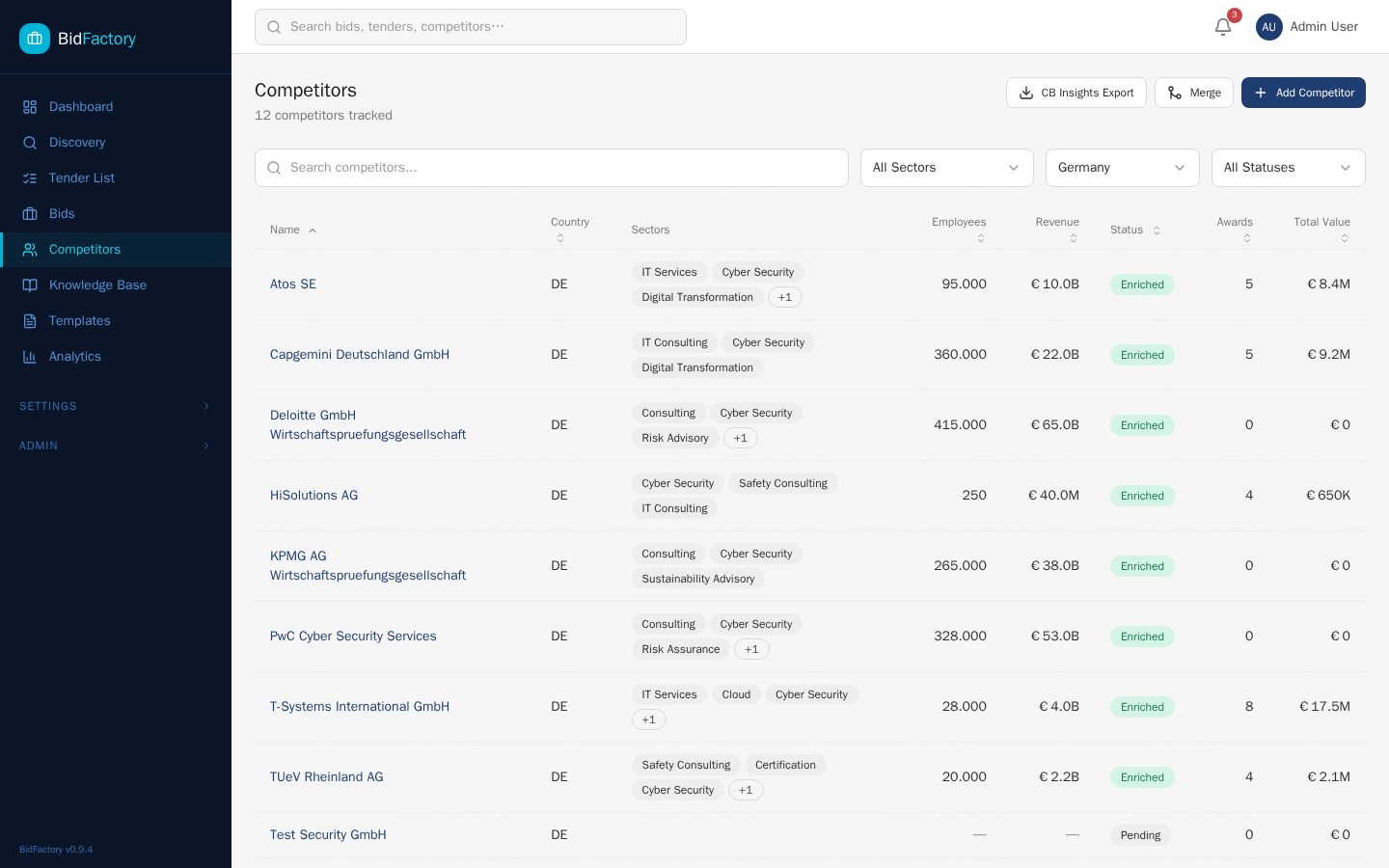
The Competitors section centralizes intelligence on organizations that compete for the same contracts as your firm. Use it to understand the competitive landscape, identify win/loss patterns, and develop differentiated bid strategies.
Competitors List
Navigate to Competitors in the sidebar. The list supports filtering by:
- Name search — Full or partial company name
- Country — Competitor’s country of registration
- Sector — CPV-aligned sector classification
- Enrichment status — Enriched, Not Enriched, Enrichment Pending
Table columns: Company Name, Country, Primary Sector, Last Award Date, Total Awards Value, Enrichment Status, Last Enriched Date, Actions.
Adding a Competitor
Click “Add Competitor” and fill in the form:
- Company Name (required) — Full legal name
- Country (required) — Country of registration
- Website — Primary website URL for enrichment
- Primary Sector — CPV-aligned sector classification
- Notes — Any initial intelligence or context
Merging Competitor Records
Duplicate competitor records may arise when the same company appears under slightly different names in different notices. To consolidate them:
- Open the competitor record you want to merge (the source).
- Click “Merge into…”.
- Search for and select the target record (the one that will survive the merge).
- Review the merge preview showing all data from both records.
- Confirm the merge.
AI Enrichment
Enrichment uses web search combined with Claude AI analysis to populate a competitor’s profile with publicly available intelligence. To trigger enrichment:
- Open the competitor record.
- Click “Enrich with AI”.
- The system performs a web search and analyzes the results. Enrichment typically completes in 30–60 seconds.
- On completion, the following fields are populated or updated:
- Sectors — CPV-aligned sector classifications inferred from their work
- Employee count — Approximate headcount range
- Revenue — Approximate annual revenue range
- Description — Summary of the company’s capabilities and market positioning
- Geographic footprint — Countries and regions where they operate
CB Insights Export
The competitor list can be exported to CSV in CB Insights–compatible format for import into external intelligence tools. Click “Export” at the top of the competitors list and select “CB Insights CSV”.
SWOT Analysis per Bid
For each bid, BidFactory generates a competitor-specific SWOT analysis. Navigate to Competitor Analysis in the Bid Resources card. For each key competitor on this bid:
- Strengths — Areas where the competitor outperforms your organization (based on award history and enrichment data)
- Weaknesses — Known gaps or limitations in their offering
- Opportunities — Market conditions or bid-specific factors your organization can exploit
- Threats — Risks posed by this competitor in the context of this specific bid
- Win Probability — AI-estimated probability (shown as a percentage) based on historical win/loss patterns against this competitor in similar CPV sectors
- Recommended Strategy — Narrative guidance for differentiating your bid against this competitor
Market Benchmarking
The Market Benchmarking view (accessible from the Competitor Analysis tab) provides statistical context on award values in your CPV sector over the past 2 years:
| Statistic | Description |
|---|---|
| Minimum | Lowest contract value awarded in this sector/period |
| Maximum | Highest contract value awarded |
| Mean | Average contract value |
| Median | Midpoint value (less sensitive to outliers) |
| P25 | 25th percentile — lower bound of the typical range |
| P75 | 75th percentile — upper bound of the typical range |
| P90 | 90th percentile — indicates high-value outliers |
| Day Rates | Indicative expert day rates extracted from awarded contracts (where published) |
Use benchmarking data to validate your pricing assumptions and ensure your commercial proposal is competitive without being unrealistically low.
Knowledge Base
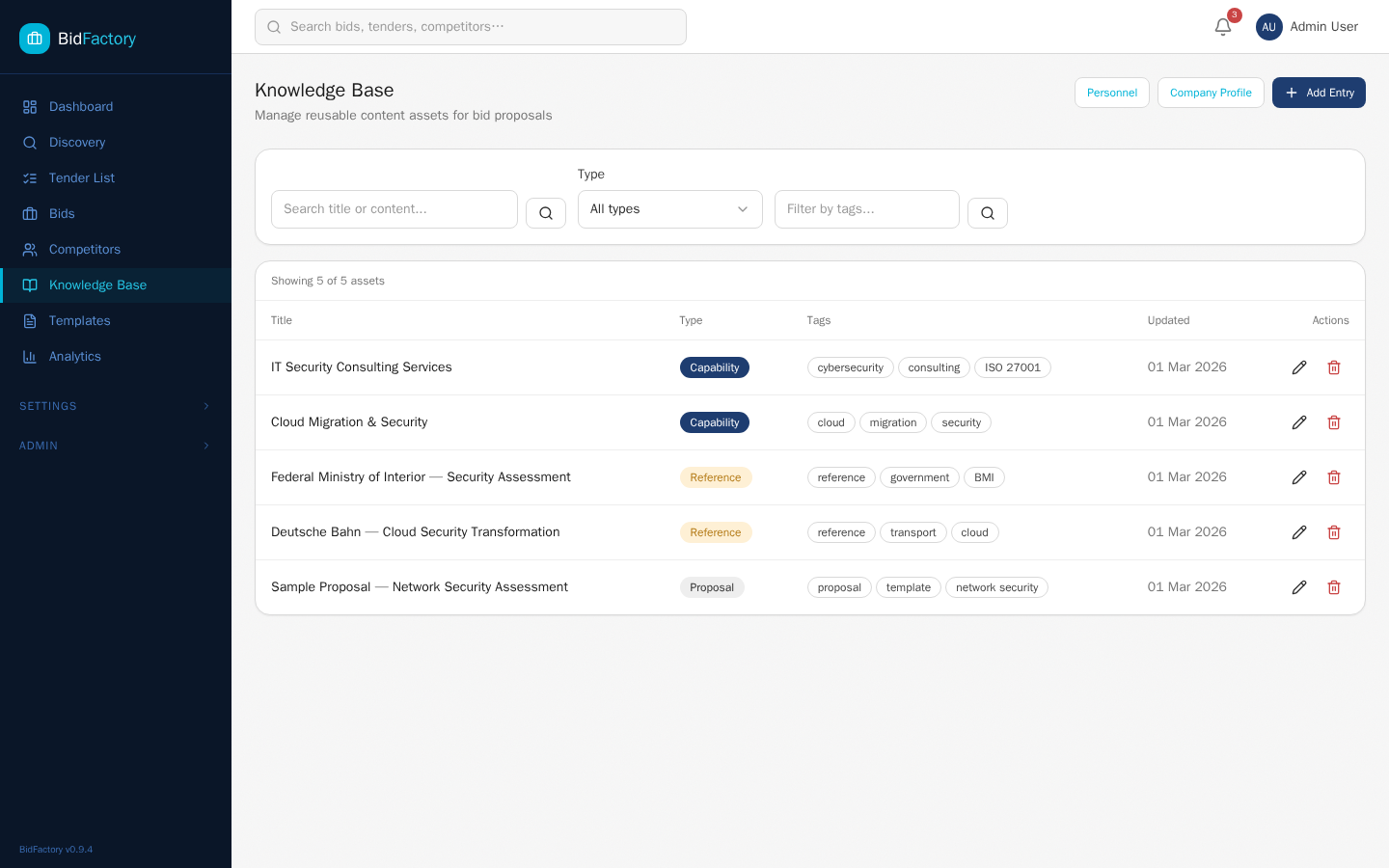
The Knowledge Base (KB) is the central repository of reusable content that powers proposal generation, RFI auto-fill, and competitor intelligence. The richer and more current your KB, the better the quality of all AI-assisted outputs.
Assets
The Assets tab organizes your reusable content library. BidFactory supports 12 asset types:
| Asset Type | Description |
|---|---|
| Capability Statement | Descriptions of your organization’s technical and operational capabilities |
| Case Study | Structured project references with outcomes, client, value, and sector |
| Methodology | Documented approaches, frameworks, and processes you use in delivery |
| CV / Biography | Expert profiles: qualifications, experience, language skills |
| Certificate | ISO, sector-specific, or other certifications with expiry dates |
| Boilerplate | Standard pre-approved text blocks (legal disclaimers, company descriptions) |
| Template | Reusable proposal section templates with placeholder syntax |
| Financial Statement | Annual reports, audited accounts, or financial capability evidence |
| Insurance Document | Professional indemnity, public liability, and other insurance certificates |
| Reference Letter | Client testimonials and performance evaluations |
| Partnership Agreement | Consortium or sub-contractor agreements for complex bids |
| Other | Miscellaneous supporting documents |
Uploading and Managing Assets
- Click “Add Asset” to upload a file and fill in the asset metadata (title, type, language, tags, expiry date where applicable).
- Existing assets can be downloaded, replaced, or deleted from the asset row actions menu.
- Use the full-text search bar to find assets by title, tags, or content keywords (content search applies to PDF and DOCX assets that have been indexed).
- Filter by asset type, language, or expiry status to manage your library efficiently.
Personnel Profiles
The Personnel tab manages expert profiles for your team. Each profile includes:
- Full name, title, and contact details
- Professional summary and areas of expertise
- Education and qualification history
- Project experience (linked to KB case studies where available)
- Language skills and levels
- Attached CV document
As a Bid Manager, you can add new personnel profiles, edit existing ones, and link CVs to their profiles. Personnel profiles are used by the proposal generation engine when building Team & Qualifications sections.
Company Profile
The Company Profile tab contains your organization’s master profile: legal name, registration details, registered address, primary sectors, certifications, financial standing summary, and a company description for use in proposals.
Workflow & Phases
Understanding the BidFactory workflow flow is essential for keeping bids moving efficiently. This chapter explains how phases connect, how to make transitions, and how the platform enforces process discipline at critical decision points.
Phase Flow
Bids progress through phases in the following sequence:
RFI Review → RFP Analysis → Marketing Intel → AR2 Gate → Proposal Creation → Best Practices → AR3 Gate → Submitted → Closed
Phases must be completed in order. You cannot skip phases except via the “Skip RFI” option at intake (which advances directly from intake to RFP Analysis).
Making Phase Transitions
To advance a bid to the next phase:
- Open the bid detail page.
- Verify that all tasks in the current phase are either Completed or Cancelled. The system will warn you if open tasks exist.
- Click “Advance Phase” in the status bar.
- A transition confirmation dialog appears summarizing the current phase completion state and the next phase name.
- Confirm to advance. The phase stepper updates and a timeline entry is recorded.
Auto-Generated Tasks
When a bid enters a new phase, BidFactory automatically creates a standard set of tasks to guide the team’s work for that phase. Examples:
| Phase | Auto-Created Tasks (examples) |
|---|---|
| RFI Review | Upload RFI documents; Run extraction; SME feasibility assessment; Bid/No-bid recommendation |
| RFP Analysis | Upload RFP documents; Run extraction; Review evaluation criteria; Confirm compliance requirements |
| Marketing Intel | Identify key competitors; Generate SWOT analysis; Run market benchmarking; Assess win probability |
| Proposal Creation | Generate proposal draft; Assign SME section tasks; Review technical approach; Compile team CVs |
| Best Practices | Review proposal against evaluation criteria; Compliance check; Proofread; Final sign-off |
Auto-created tasks are a starting point. Add, edit, or delete tasks as needed for the specific bid.
Decision Gates (AR2 and AR3)
Two mandatory gates require Approver involvement:
- AR2 — Bid/No-Bid Gate (between Marketing Intel and Proposal Creation): The Approver reviews the opportunity assessment and decides whether to invest proposal effort. If No Bid, the status is set to No Bid and the bid is closed. If Bid approved, the pipeline continues to Proposal Creation.
- AR3 — Submit/No-Submit Gate (between Best Practices and Submitted): The Approver reviews the finished proposal and decides whether to submit. If No Submit, the status is set to No Submit. If Submit approved, the bid advances to Submitted.
As a Bid Manager, your role at gates is to prepare the gate pack: a summary of the opportunity, win probability assessment, resource commitment, and the completed proposal or preliminary analysis. Present this to the Approver and coordinate their decision. Gate decisions are recorded in the activity timeline with the approver’s name and timestamp.
Deadline Reminders
BidFactory automatically generates reminders for approaching deadlines:
- 48 hours before — Notification to assigned Bid Manager and task owners
- 24 hours before — Escalation notification; also appears as an urgent item in the deadline sidebar
- Overdue — Pulsing red indicator on the bid card and dashboard metric; daily reminder notifications until resolved
Task Management
Tasks are the mechanism through which you coordinate all bid work. They track what needs to be done, by whom, and by when. BidFactory supports both automatically created phase tasks and manually created ad hoc tasks.
Auto-Created Tasks
When a bid enters a new phase, standard tasks are created automatically (see Chapter 11). These appear in the Tasks tab of the bid detail page immediately after the phase transition. Review the auto-created tasks and:
- Assign each task to the appropriate team member (Bid Manager or SME).
- Adjust due dates to align with the bid’s submission deadline.
- Delete any tasks that are not relevant to this specific bid.
- Add missing tasks that are specific to this opportunity.
Manual Task Creation
To create a task manually, click “Add Task” from the Tasks tab. Fill in the Add Task modal:
| Field | Notes |
|---|---|
| Title | Concise description of the work (required; max 200 characters) |
| Description | Detailed instructions, context, links to relevant documents, or acceptance criteria |
| Status | Not Started (default), In Progress, Completed, Cancelled |
| Priority | Low, Medium, High, Critical — affects urgency display and notifications |
| Assignee | Select a team member from the dropdown. Only users with access to this bid are shown. |
| Due Date | Must be on or before the bid’s submission deadline. Use the date picker. |
Updating Task Status
Tasks can be updated in-line directly from the Tasks tab without opening a modal. Click the status badge on any task row to cycle through statuses: Not Started → In Progress → Completed. Alternatively, open the task to set any status including Cancelled.
When a task assignee (e.g., an SME) updates the status of their task, the Bid Manager receives a notification. When all tasks in a phase reach Completed or Cancelled status, the platform prompts the Bid Manager to consider advancing to the next phase.
Analytics
The Analytics section provides data-driven insight into your bid program performance. Use these dashboards to identify trends, optimize resource allocation, and continuously improve your win rate.
Date Range Filter
All charts respond to the date range selector at the top of the Analytics page. Select a predefined range (Last 30 days, Last 90 days, Last 12 months, All time) or set a custom date range using the calendar picker.
Summary Cards
Four headline metrics appear at the top of the Analytics page:
| Metric | Description |
|---|---|
| Win Rate | Percentage of submitted bids that resulted in Won status within the selected period |
| Total Pipeline Value | Aggregate estimated value of all bids in the selected period |
| Average Bid Duration | Mean time from intake to Closed status (in calendar days) |
| Proposals Generated | Count of proposals created using Quick or Guided generation |
Charts and Visualizations
- Win Rate Trend — Monthly win rate over the selected period, displayed as a line chart with a rolling 3-month average overlay
- Bids by Phase — Current distribution of all active bids across the 9 phases, displayed as a horizontal bar chart
- Pipeline Funnel — Count and value of bids at each pipeline stage, showing attrition from intake to win
- Volume by CPV — Bid count and total value broken down by CPV sector, displayed as a treemap
- Phase Duration — Average number of days spent in each phase, highlighting where bids tend to stall
- No-Bid Reasons — Breakdown of dismiss and No Bid decision reasons, shown as a pie chart
- Conversion Rates — Funnel conversion ratios: Discovery → Intake, Intake → AR2 approval, AR2 → Submitted, Submitted → Won
Notifications
BidFactory keeps you informed of important events through an in-platform notification system. Notifications are delivered to the bell icon in the top header bar. The bell displays a numeric badge showing your unread count. The notification center polls for new events every 30 seconds.
Notification Types
| Type | Trigger |
|---|---|
| Task Assigned | A task has been assigned to you |
| Task Status Update | A task you created has been updated (In Progress or Completed) by the assignee |
| Deadline Approaching | 48 hours and 24 hours before a bid submission deadline or task due date |
| Deadline Overdue | A bid deadline or task due date has passed without completion |
| Phase Transition | A bid you manage has been advanced to the next phase |
| Gate Decision | An AR2 or AR3 gate decision has been made on a bid you manage |
| Enrichment Complete | AI enrichment of a competitor record you triggered has finished |
Notification Center
Click the bell icon to open the notification center slide-out panel. The panel lists your notifications in reverse chronological order. For each notification:
- Click the notification to navigate directly to the relevant bid, task, or competitor record.
- Click the tick icon to mark a single notification as read.
- Click “Mark all read” at the top of the panel to clear all unread indicators.
- Notifications older than 90 days are automatically archived.
Tips & Best Practices
The following guidance is drawn from common patterns observed in high-performing bid programs. These tips will help you get the most from BidFactory and improve your bid outcomes over time.
Glossary
| Term | Definition |
|---|---|
| CPV | Common Procurement Vocabulary — the EU standardized coding system for classifying the subject of public contracts. CPV codes are 8-digit strings (e.g., 72000000 for IT services). |
| TED | Tenders Electronic Daily — the supplement to the Official Journal of the EU where public procurement notices above EU thresholds are published. |
| BKMS | Bekanntmachungsservice — the German public procurement notice publication service (bekanntmachungen.de). Source for Germany-specific tenders including those below EU thresholds. |
| eForms | The structured XML notice format introduced by the EU in November 2022 for all public procurement notices on TED. Replaces the older F-form formats. |
| RFI | Request for Information — a preliminary market engagement document issued by contracting authorities before formal procurement, used to gauge market capability and interest. |
| RFP | Request for Proposal (also: Invitation to Tender, ITT; Call for Tenders, CFT) — the formal procurement document setting out requirements, evaluation criteria, and submission instructions. |
| AR2 | Approval Review 2 — the Bid/No-Bid gate decision point after Marketing Intel phase. Requires Approver sign-off to proceed to Proposal Creation. |
| AR3 | Approval Review 3 — the Submit/No-Submit gate decision point after Best Practices phase. Requires Approver sign-off to proceed to Submitted. |
| SWOT | Strengths, Weaknesses, Opportunities, Threats — a structured analysis framework used in BidFactory to assess your competitive position relative to specific competitors on a given bid. |
| Pipeline | The ordered sequence of 9 phases through which a bid progresses from intake to close. Also used colloquially to refer to the collection of all active bids. |
| Enrichment | The AI-assisted process of augmenting a competitor record with publicly available intelligence (company description, sectors, employees, revenue, geographic footprint) via web search and Claude analysis. |
| Ingestion | The automated process by which BidFactory periodically fetches new tender notices from TED and BKMS APIs and populates the Discovery queue. Triggered on a schedule by the platform; manual triggering is Admin-only. |
| DACH | Germany (Deutschland), Austria, and Switzerland — the primary German-speaking market region relevant to BKMS-sourced tenders. |
| GEM | Guided Experience Mode — the step-by-step proposal generation wizard in BidFactory that allows fine-grained control over section structure, source selection, and generation options. |
Keyboard Shortcuts
| Shortcut | Action |
|---|---|
| Ctrl+K / Cmd+K | Open the global search bar from anywhere in this manual |
| Escape | Close the lightbox (enlarged screenshot overlay) or dismiss the global search |
| ← / → Arrow keys | Navigate between chapters of this manual (when not focused in a text input) |