Overview
Document Processing & AI Extraction is the fourth stage (S04) of the BidFactory pipeline. After creating a bid from a discovered tender, your next step is to upload the original tender documents and let BidFactory's AI engine extract structured data from them.
This module covers three connected capabilities:
- Document Management — Upload, organize, and manage tender documents (PDF, DOCX, DOC)
- AI Extraction — Automatically extract metadata, requirements, evaluation criteria, team needs, pricing formats, and more from uploaded documents
- RFI Auto-Fill — Generate draft responses to Request for Information questions using AI
End-to-End Workflow
Each step builds on the previous one. Documents feed extraction, extraction results inform your bid strategy, and RFI auto-fill uses both documents and extraction results to draft intelligent responses.
Documents Tab
Every bid has a Documents tab accessible from the bid detail page. This is where you manage all tender-related files for the bid.
Navigating to Documents
- Open a bid from the Bids list (or navigate directly via
/bids/{bid-id}/documents) - Click the Documents tab in the bid detail navigation
- If no documents have been uploaded yet, you'll see an empty state with an upload prompt
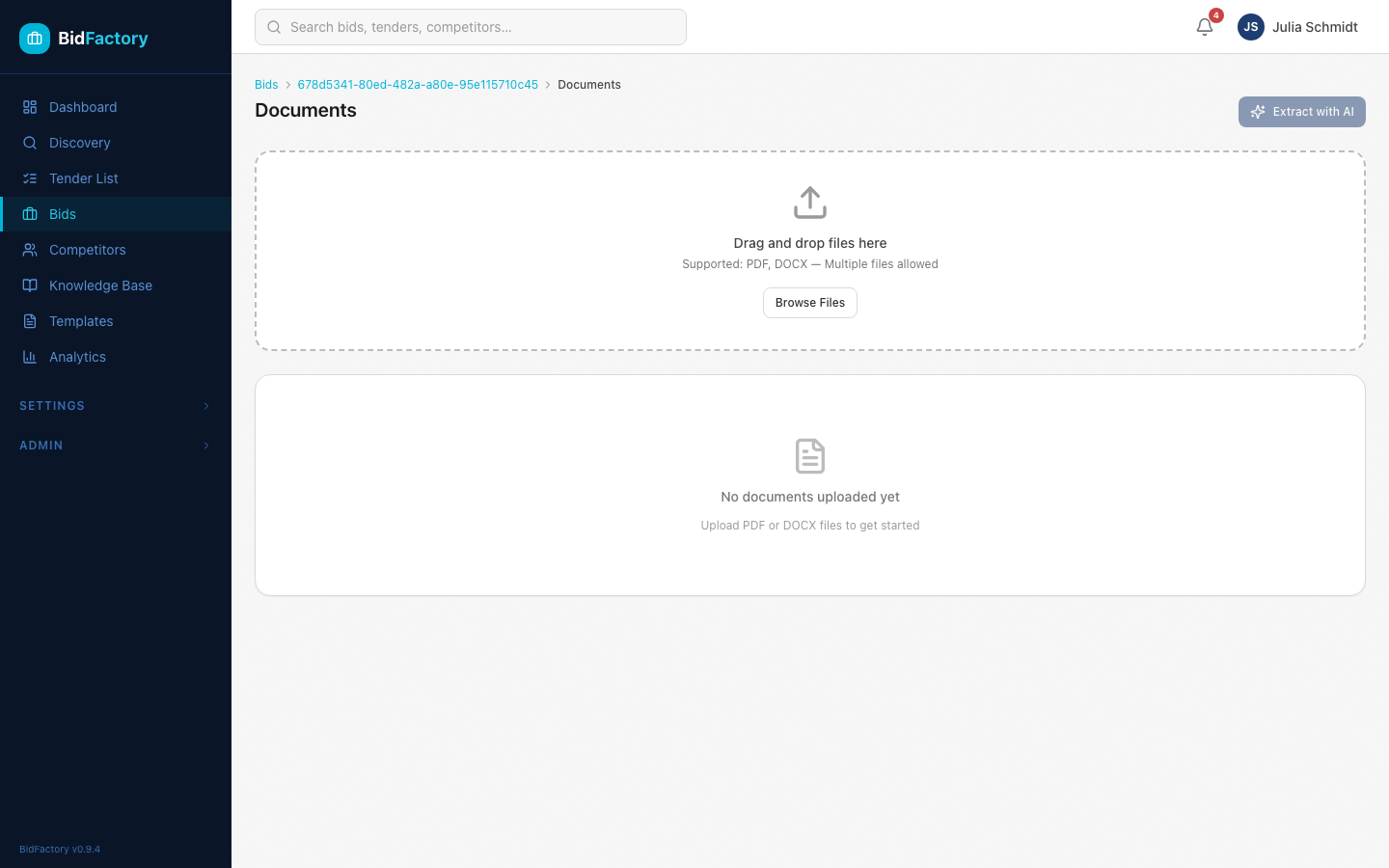
The empty state clearly shows the upload area and lists the accepted file formats. Once documents are uploaded, they appear in a table with checkboxes for batch operations.
Uploading Files
Upload Methods
BidFactory supports two ways to upload documents:
- Drag & Drop — Drag files directly onto the upload zone
- Click to Browse — Click the upload area to open your file picker
Accepted Formats & Limits
| Format | Extension | Max Size |
|---|---|---|
.pdf | 50 MB | |
| Word Document | .docx | 50 MB |
| Legacy Word | .doc | 50 MB |
After Upload
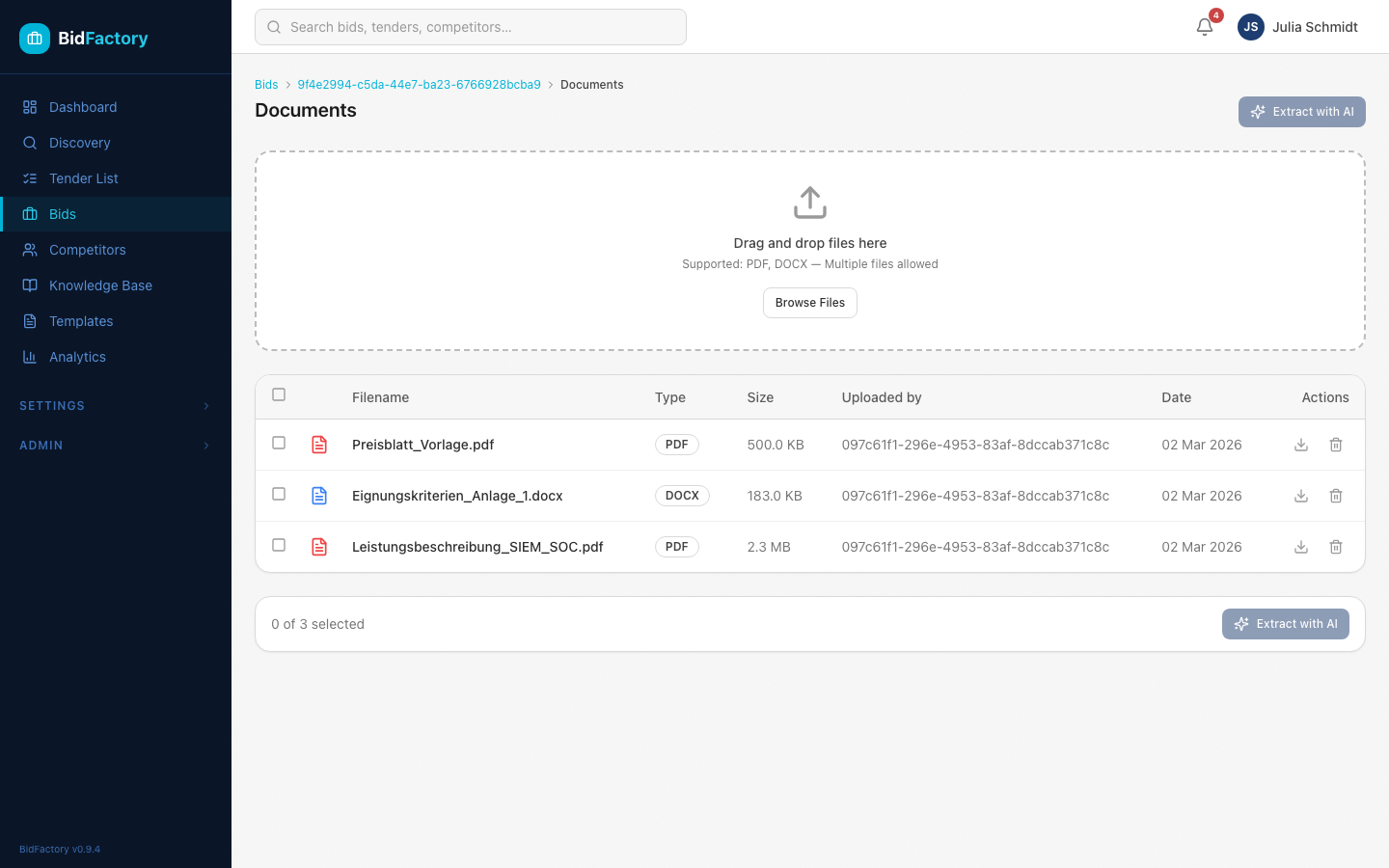
Once files are uploaded, the Documents tab shows them in a table with:
- Checkbox — For selecting documents for extraction
- Filename — The original file name
- Type — File extension / MIME type
- Size — File size in human-readable format
- Uploaded — Timestamp showing when the file was added
Running AI Extraction
AI Extraction is the core intelligence feature of S04. It reads your uploaded tender documents and automatically extracts structured data across nine categories.
Triggering Extraction
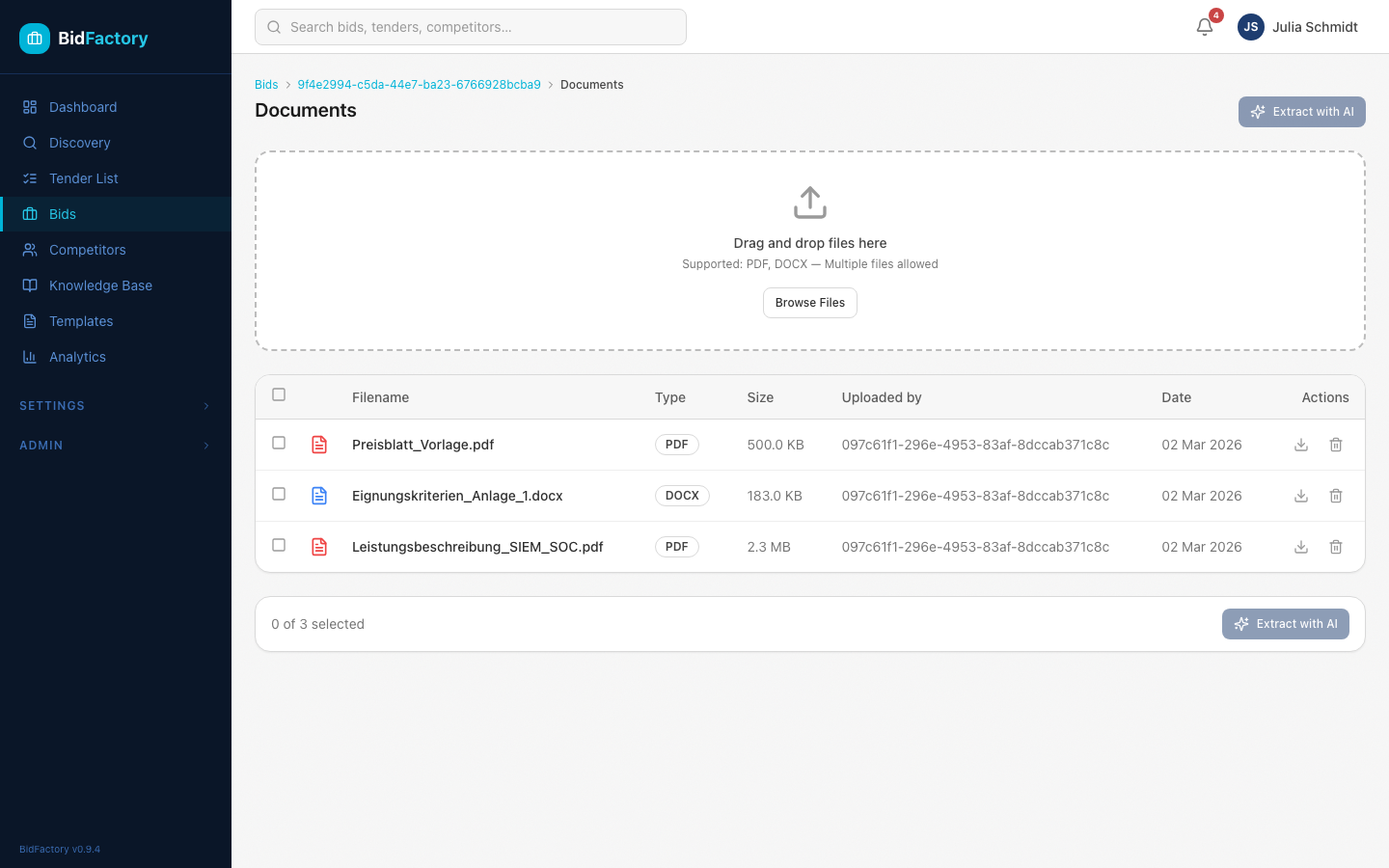
- In the Documents tab, select one or more documents using the checkboxes
- The "Extract with AI" button becomes active when at least one document is selected
- Click the button to start extraction
Extraction Processing
After triggering, the extraction runs as a background task via the ARQ worker. During processing:
- The status shows as Pending or Processing
- A progress message displays the current step (e.g., "Reading documents...", "Analyzing structure...")
- You can navigate away — the extraction continues in the background
- The Extraction tab updates automatically when complete
Extraction Statuses
| Status | Meaning |
|---|---|
| Pending | Extraction queued, waiting for worker |
| Processing | AI is actively analyzing documents |
| Completed | All data extracted successfully |
| Failed | An error occurred — check the error message |
409 Conflict error. Wait for the current extraction to finish first.
Reviewing Extraction Results
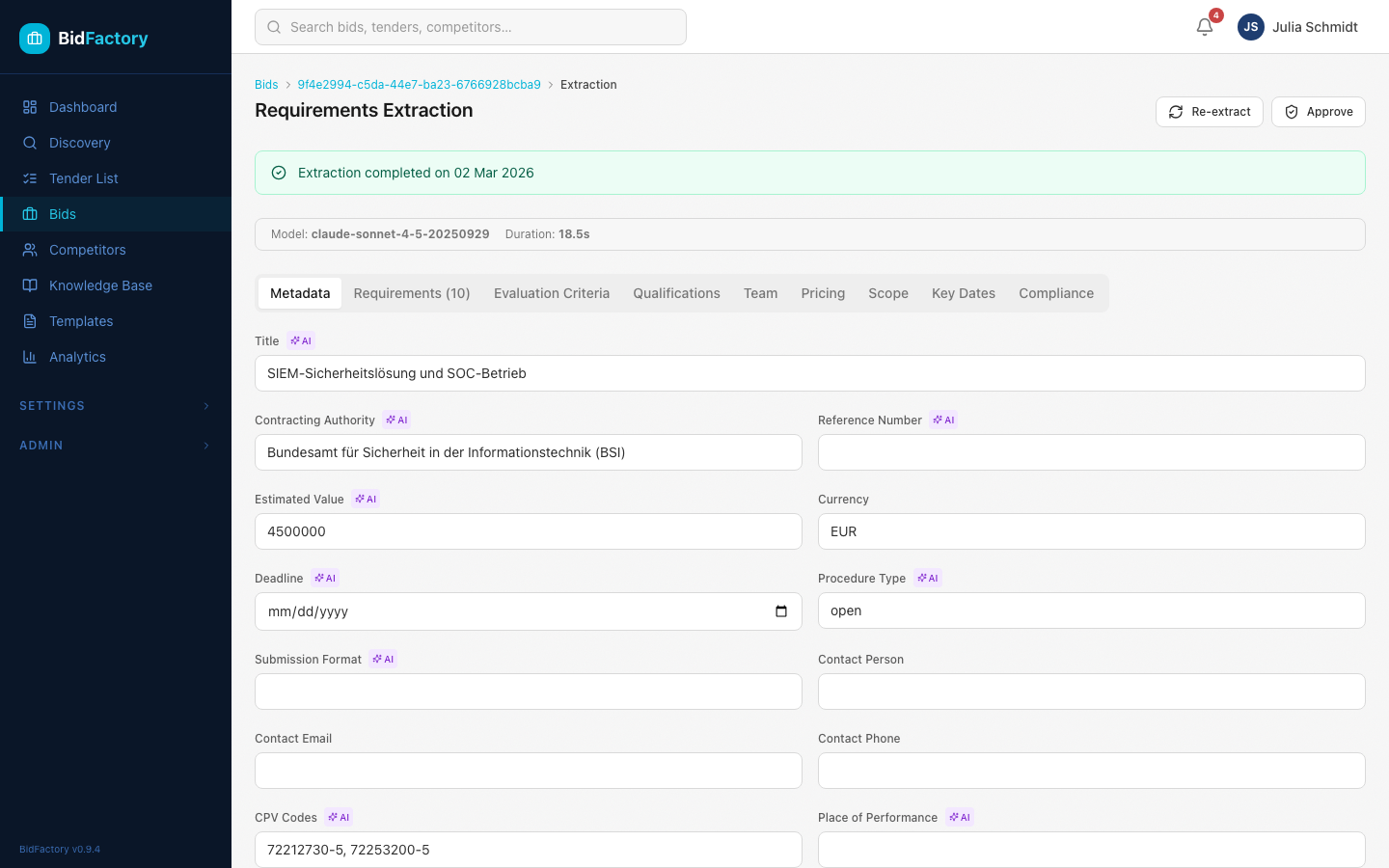
Once extraction completes, navigate to the Extraction tab to review results. The data is organized into nine specialized tabs.
The Nine Extraction Tabs
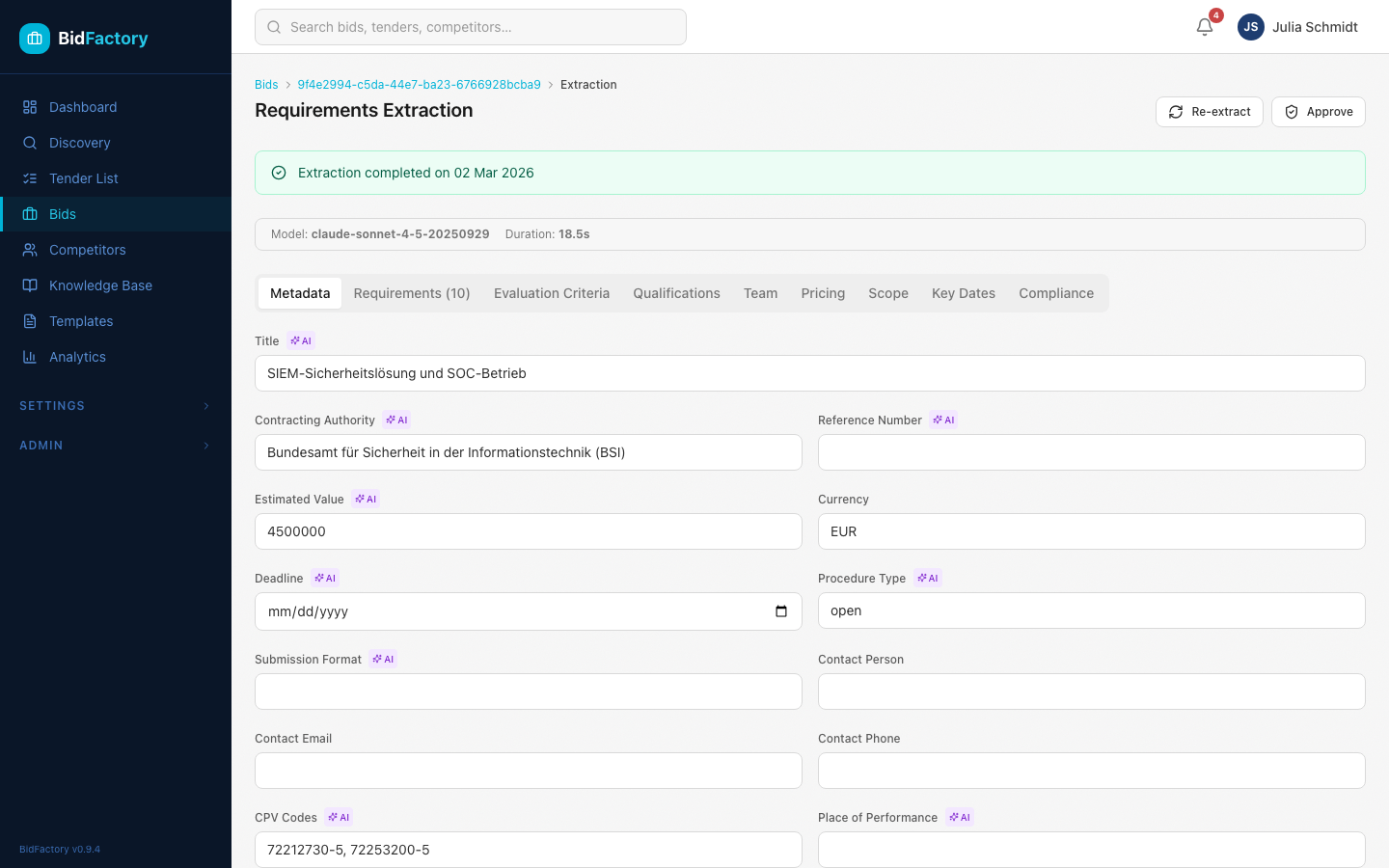
Metadata Tab
The Metadata tab shows the high-level tender information extracted by AI, including:
- Tender title and reference number
- Contracting authority (buyer name and address)
- Contract type (services, supplies, works)
- Estimated value and currency
- Submission deadline
- AI model used and extraction cost
Requirements Tab
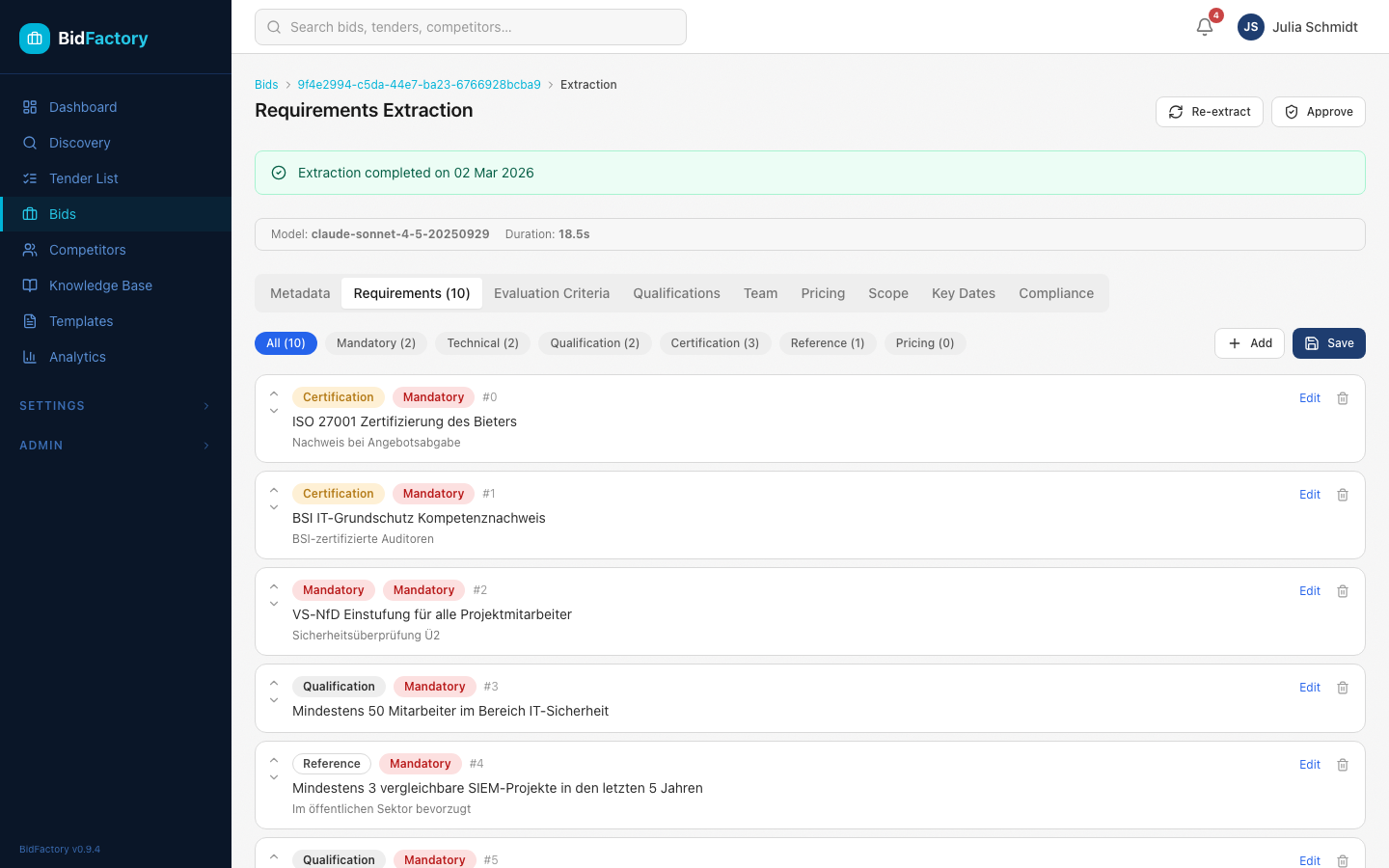
The Requirements tab lists all extracted requirements, each categorized and marked as mandatory or optional:
- Mandatory — Must be met for a compliant bid
- Optional — Nice-to-have, may improve scoring
Requirements are grouped by category: Technical, Qualification, Certification, Reference, and Mandatory.
Other Extraction Tabs
The remaining tabs provide specialized views:
- Evaluation Criteria — Scoring methodology (price/quality ratio, weights for technical criteria)
- Qualifications — Minimum experience, certifications, financial standing required
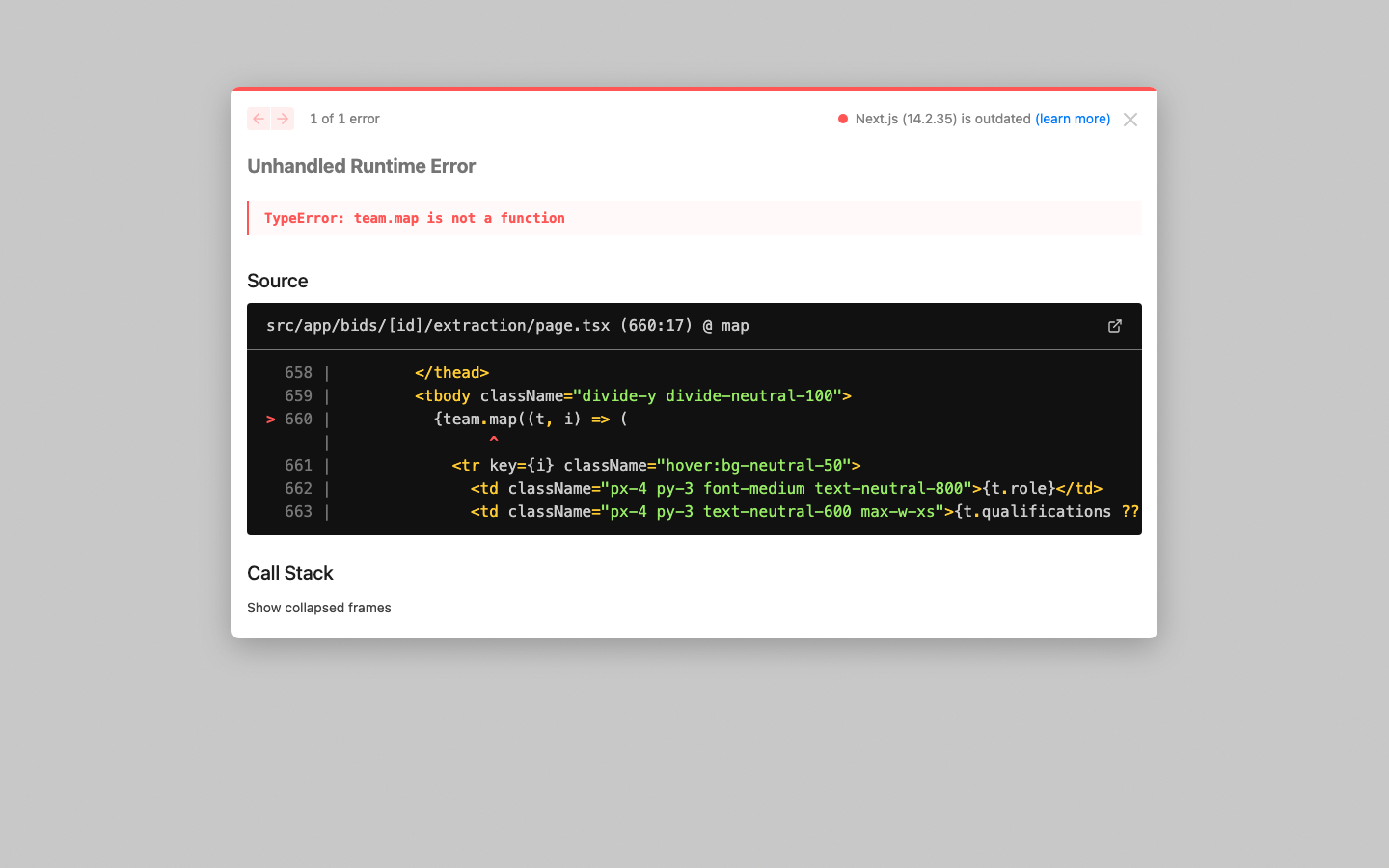
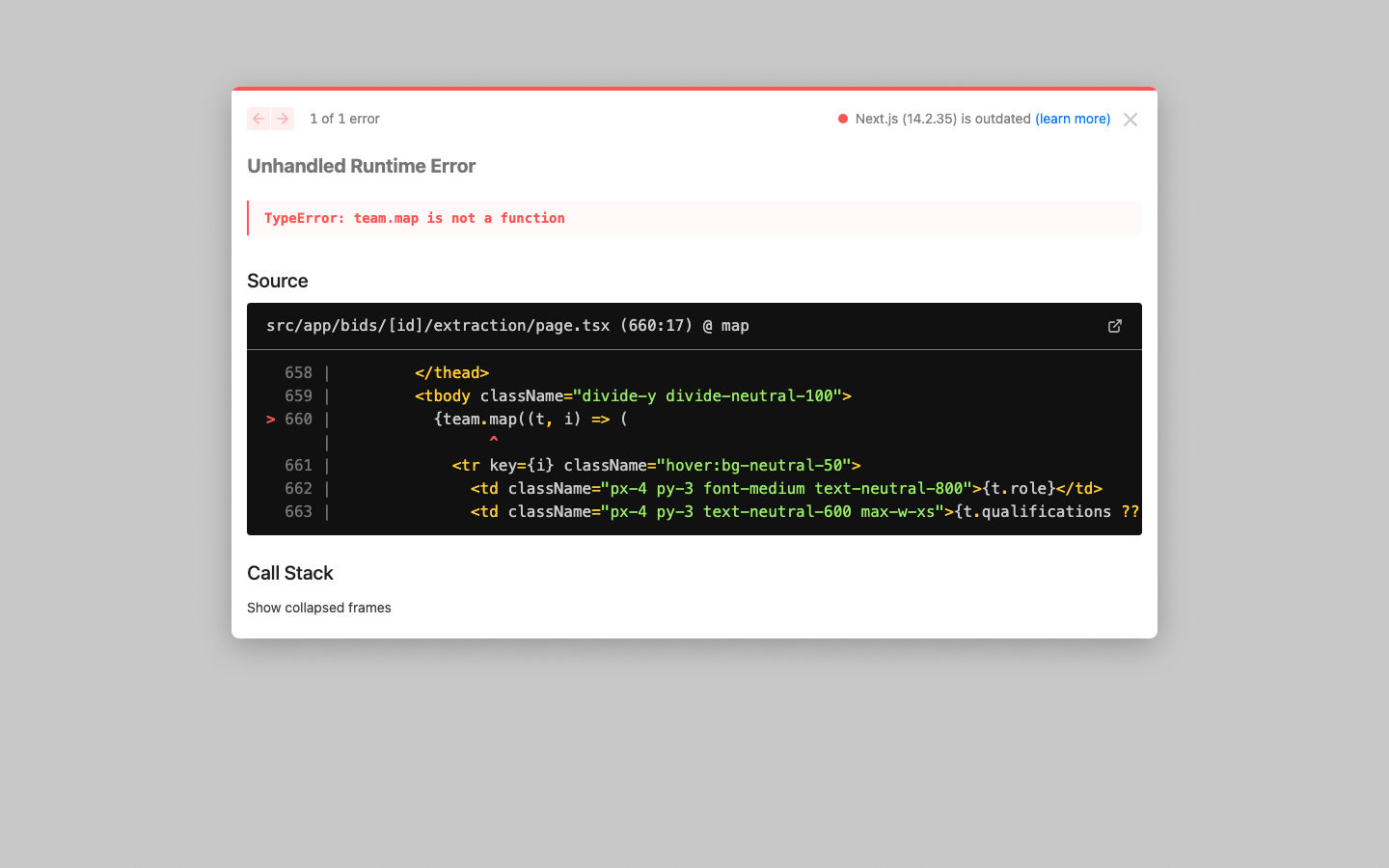
- Team Requirements — Roles, skill profiles, and minimum FTEs the buyer expects
- Pricing Format — How to structure your pricing (fixed, T&M, rate card, etc.)
- Scope Summary — AI-generated summary of the project scope and key deliverables
- Key Dates — Timeline of important milestones (Q&A deadline, submission, contract start)
- Compliance Items — Specific regulatory, legal, and procedural requirements
Editing & Approving Extraction
AI extraction provides an excellent starting point, but you should always review and refine the results. BidFactory supports inline editing for all extracted data.
Editing Metadata & Sections
On any extraction tab, you can edit the AI-generated content:
- Click on any field value to enter edit mode
- Make your corrections or additions
- Click Save to persist changes
All edits are saved via PUT /api/v1/bids/{bid_id}/extract and the reviewed_by field is automatically set to your user ID.
Managing Requirements
The Requirements tab has full CRUD capabilities:
- Add — Create new requirements the AI may have missed
- Edit — Change the text, category, or mandatory flag
- Delete — Remove incorrectly extracted requirements
- Reorder — Adjust the sort order to match document structure
PUT /api/v1/bids/{bid_id}/extract/requirements. You can add, edit, and delete multiple requirements in a single operation.
Approving the Extraction
After reviewing and editing, mark the extraction as approved:
- Ensure all sections have been reviewed
- Click the Approve button
- The extraction status changes to Approved
- Your name and timestamp are recorded as the reviewer
RFI Auto-Fill
The RFI (Request for Information) module helps you draft responses to tender questionnaires. Using the uploaded documents and extraction results, AI generates initial answers for common RFI questions.
Navigating to RFI
- Open the bid detail page
- Click the RFI tab in the navigation
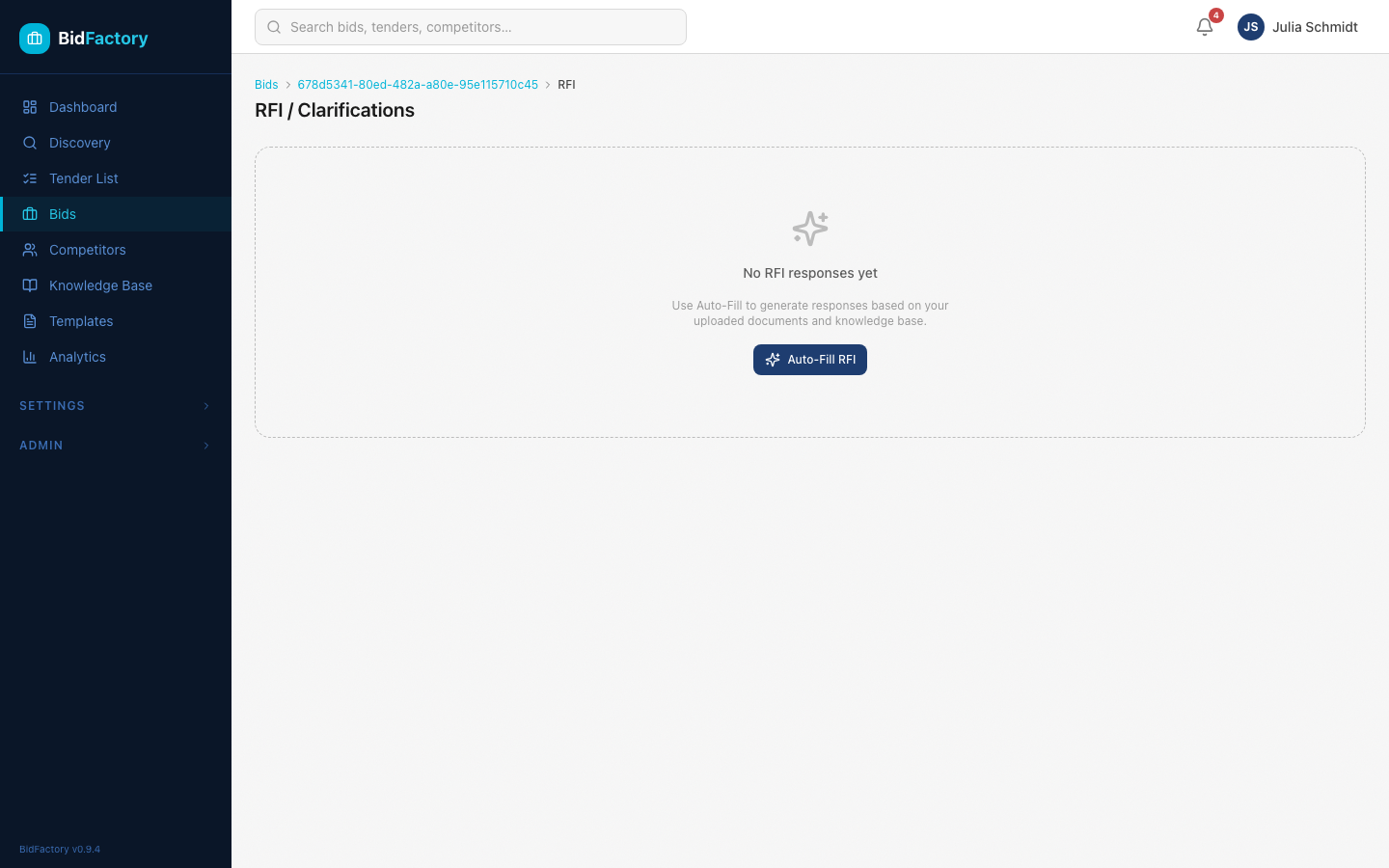
- If no RFI has been generated yet, you'll see the empty state with an auto-fill button
Triggering Auto-Fill
- Select the documents to analyze (the same documents used for extraction)
- Click "Auto-Fill RFI"
- The AI processes the documents and generates draft responses
- Processing happens in the background via the ARQ worker
Reviewing RFI Responses
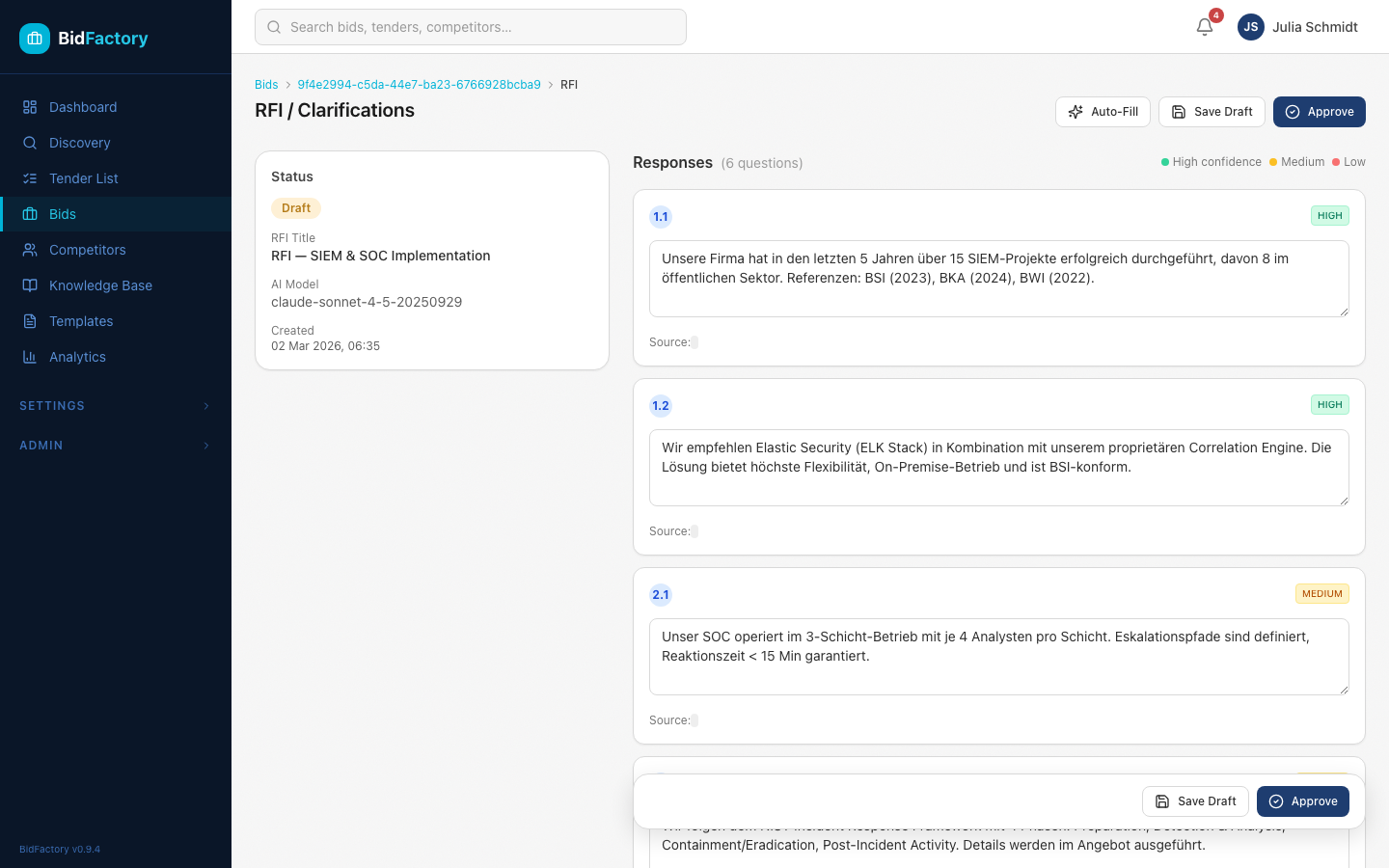
Once RFI auto-fill completes, the page shows the generated responses in a structured format.
Response Layout
Each RFI response includes:
- Question — The original RFI question extracted from the tender
- Answer — The AI-generated draft response
- Confidence — How confident the AI is in the response:
- High — Strong match with source documents
- Medium — Partial match, may need manual refinement
- Low — Limited source data, requires significant manual input
- Source — Which document and section the answer was derived from
Editing Responses
Review and refine each response:
- Click on any answer to enter edit mode
- Improve the language, add specifics, or correct inaccuracies
- Save your changes
Finalizing the RFI
RFI Statuses
| Status | Meaning |
|---|---|
| Draft | Auto-filled, awaiting review |
| Reviewed | Human-reviewed and approved |
| Submitted | Finalized and sent to the contracting authority |
Approving the RFI
- Review all responses and ensure accuracy
- Change the status to Reviewed
- Your user ID and timestamp are recorded
PUT /api/v1/bids/{bid_id}/extract/rfi. Updates can include changed form data, generated documents, and status transitions.
Roles & Permissions
S04 features are governed by BidFactory's role-based access control. The table below shows what each role can do:
| Action | Bid Manager | SME | Approver | Admin |
|---|---|---|---|---|
| Upload documents | ✓ | ✓ | ✗ | ✓ |
| Delete documents | ✓ | ✗ | ✗ | ✓ |
| View documents | ✓ | ✓ | ✓ | ✓ |
| Trigger AI extraction | ✓ | ✓ | ✗ | ✓ |
| View extraction results | ✓ | ✓ | ✓ | ✓ |
| Edit extraction data | ✓ | ✓ | ✗ | ✓ |
| Approve extraction | ✓ | ✗ | ✓ | ✓ |
| Trigger RFI auto-fill | ✓ | ✓ | ✗ | ✓ |
| Edit RFI responses | ✓ | ✓ | ✗ | ✓ |
| Approve RFI | ✓ | ✗ | ✓ | ✓ |
401 Unauthorized response.
Troubleshooting
Common Issues
Individual files are limited to 50 MB. If your document exceeds this limit:
- Split large PDFs into smaller parts using a PDF splitter
- For DOCX files, remove embedded images that aren't needed for extraction
- Contact your administrator if you regularly need to upload larger files
Extraction can fail for several reasons:
- Corrupted PDF — The document may be password-protected or damaged. Try re-saving it
- Empty document — The file contains no extractable text (e.g., scanned image without OCR)
- AI service unavailable — The Claude API may be temporarily down. Wait a few minutes and retry
- Worker overloaded — The background worker queue may be full. Check the error message for details
Check the error_message field in the extraction status for specific details.
This means an extraction is already in progress for this bid. Wait for the current extraction to complete (or fail) before triggering a new one. You can check the current status on the Extraction tab.
RFI auto-fill quality depends on the source documents:
- Ensure you've uploaded all relevant tender documents, not just the main notice
- Run AI Extraction first — the RFI module uses extraction results for context
- Check the confidence badges: Low confidence answers need manual input
- Supplement AI-generated answers with your own domain expertise
AI extraction is powerful but not perfect. Common reasons for inaccuracies:
- Complex layouts — Tables, multi-column layouts, and footnotes can confuse the parser
- Domain jargon — Highly specialized terminology may be misinterpreted
- Multiple languages — Mixed-language documents may have inconsistent extraction
Always review and correct extraction results before approving. The edit capabilities are designed for exactly this purpose.
API Reference Quick Links
| Endpoint | Method | Description |
|---|---|---|
/api/v1/bids/{id}/documents/ | POST | Upload documents |
/api/v1/bids/{id}/documents/ | GET | List documents |
/api/v1/bids/{id}/documents/{doc_id} | DELETE | Soft-delete a document |
/api/v1/bids/{id}/extract/ | POST | Trigger AI extraction |
/api/v1/bids/{id}/extract/ | GET | Get latest extraction |
/api/v1/bids/{id}/extract/ | PUT | Update extraction data |
/api/v1/bids/{id}/extract/requirements | PUT | Batch update requirements |
/api/v1/bids/{id}/extract/rfi | POST | Trigger RFI auto-fill |
/api/v1/bids/{id}/extract/rfi | GET | Get latest RFI |
/api/v1/bids/{id}/extract/rfi | PUT | Update RFI responses |