Your Role as Subject Matter Expert
As a Subject Matter Expert (SME) in BidFactory, you bring specialized domain knowledge to the bid process. Your technical expertise is a critical ingredient in creating accurate, competitive, and credible proposals. This manual guides you through everything you need to contribute effectively.
Key Responsibilities
SMEs are engaged at multiple stages of the bid lifecycle. Your core contributions include:
- Technical Feasibility Assessment — Review tender requirements and evaluate whether your organization can realistically deliver the scope of work.
- Task Completion — Complete assigned tasks such as drafting technical sections, reviewing extracted requirements, or validating proposal content.
- Knowledge Base Contribution — Add and maintain reusable content assets: capabilities, case studies, methodologies, CVs, certifications, and more.
- Template Authoring — Create and maintain proposal section templates in your domain to accelerate bid writing.
- Proposal Review — Review AI-generated proposal sections for technical accuracy and suggest improvements.
- Competitive Awareness — Use competitor intelligence to understand the competitive landscape and tailor your technical content to highlight differentiators.
What You Can Do
The SME role has access to the following platform capabilities:
- View all bids and their details (read access to the full pipeline)
- View and complete tasks assigned to you
- View and edit Knowledge Base assets (capabilities, references, case studies, CVs, certifications, boilerplate, methodologies, etc.)
- Add new Knowledge Base entries and upload supporting files
- Manage personnel profiles in the Knowledge Base
- Create, edit, and save proposal templates
- View competitor profiles and award history
- Browse the Discovery queue (read-only)
- View Analytics dashboards
- Manage your personal notifications
What You Cannot Do
The SME role is scoped to contribution and review activities. The following actions require a Bid Manager, Approver, or Admin role:
- Create or edit bids
- Intake or dismiss tenders from the Discovery queue
- Advance bids through pipeline phases
- Approve gate decisions (AR2 Bid/No-Bid, AR3 Submit/No-Submit)
- Merge or delete competitors
- Trigger competitor enrichment
- Manage system users or configuration
- Delete bids or competitors
- Update the Company Profile (Approver role required)
- Configure monitoring criteria or trigger ingestion runs
Getting Started
Logging In
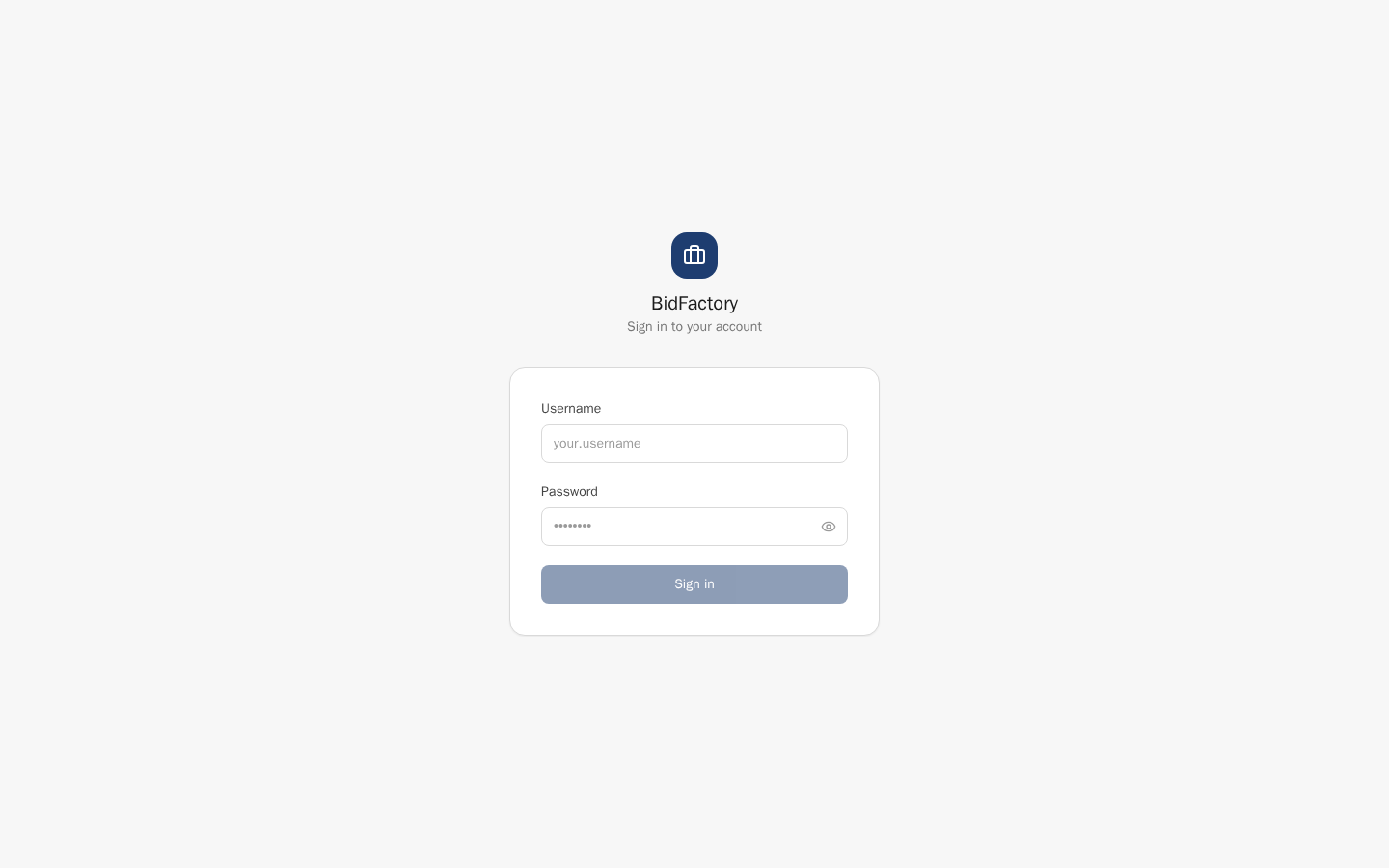
Your administrator will provide your username and temporary password. To log in:
- Open the BidFactory URL provided by your administrator (e.g., your organization’s internal deployment address).
- Enter your username and password. Use the eye icon to toggle password visibility.
- Click “Sign In” to access the platform.
- On first login, you may be prompted to change your temporary password. Choose a strong, unique password.
Session Management
BidFactory uses secure JWT-based authentication. Your session auto-refreshes seamlessly while you are actively using the platform. You do not need to re-login during normal work sessions. After an extended period of inactivity, you will be logged out automatically for security and will need to sign in again.
Interface Overview
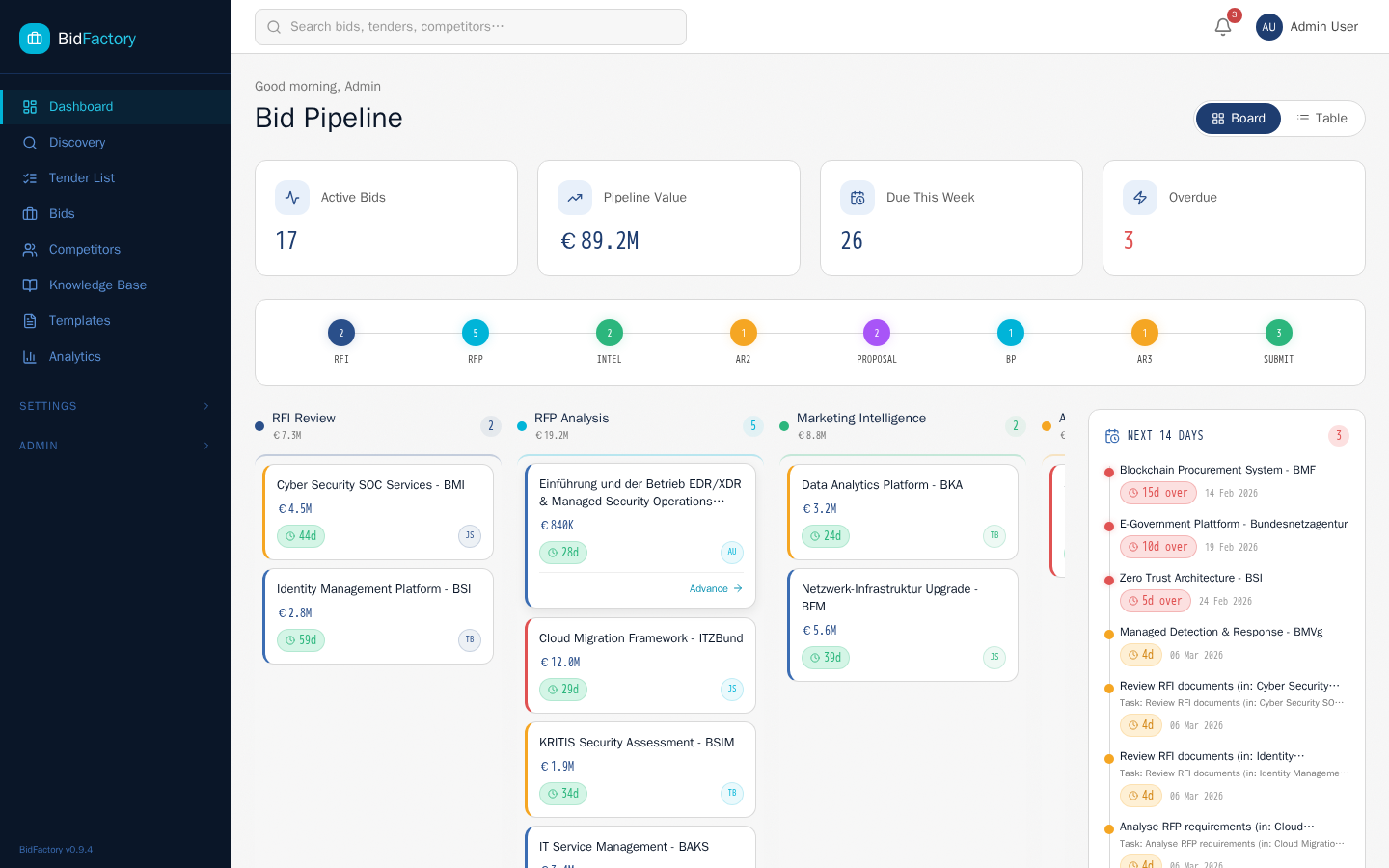
The BidFactory interface has three main areas:
- Left Sidebar — Dark navy navigation panel with links to Dashboard, Discovery, Bids, Competitors, Analytics, Knowledge Base, Templates, and Notifications. Your role determines which actions are available within each section.
- Top Header Bar — Contains the global search field (Ctrl+K / Cmd+K), a notification bell with unread count badge, and your user avatar with a dropdown for profile settings and logout.
- Main Content Area — The central workspace where page content is displayed. This area adapts based on your current navigation selection.
Dashboard Overview
The Dashboard gives you a bird’s-eye view of the entire bid pipeline. As an SME, you use the dashboard primarily to understand the current state of active bids and identify which ones have tasks requiring your contribution.
Metric Cards
At the top of the dashboard, four metric cards show the current state of your pipeline:
| Metric | Description |
|---|---|
| Active Bids | Total number of bids currently in progress through the pipeline |
| Pipeline Value | Combined estimated contract value of all active bids (in EUR) |
| Due This Week | Bids with submission deadlines in the next 7 days |
| Overdue | Bids that have passed their deadline (shown with a pulsing red indicator) |
Phase Pipeline Tracker
Below the metric cards, a visual pipeline displays 9 nodes representing each bid phase. Each node shows the count of bids currently in that phase. This gives you an instant view of where the team’s effort is concentrated across the pipeline.
Kanban Board
The default view displays bids as cards organized in columns by phase. Each card shows the bid title, estimated value, deadline urgency chip, and assigned manager avatar. Click any card to navigate to the full bid detail page.
Table View
Toggle to Table view for a compact, sortable list of all bids. All columns are clickable to sort. Click a bid title to open the detail page. This view is especially useful when you want to scan for bids in phases where SME input is typically needed (such as Proposal Creation or Best Practices Review).
Deadline Sidebar
On the right side of the dashboard, a deadline panel shows upcoming milestones for the next 14 days. Both bid submission deadlines and individual task deadlines are listed with color-coded urgency indicators:
- Overdue — Past the deadline
- 0–3 days — Urgent
- 4–7 days — Approaching
- 7+ days — On track
Working with Bids
The Bids section is where you find context for the work you’re being asked to contribute to. As an SME, you have full read access to all bids and their associated details.
Bids List
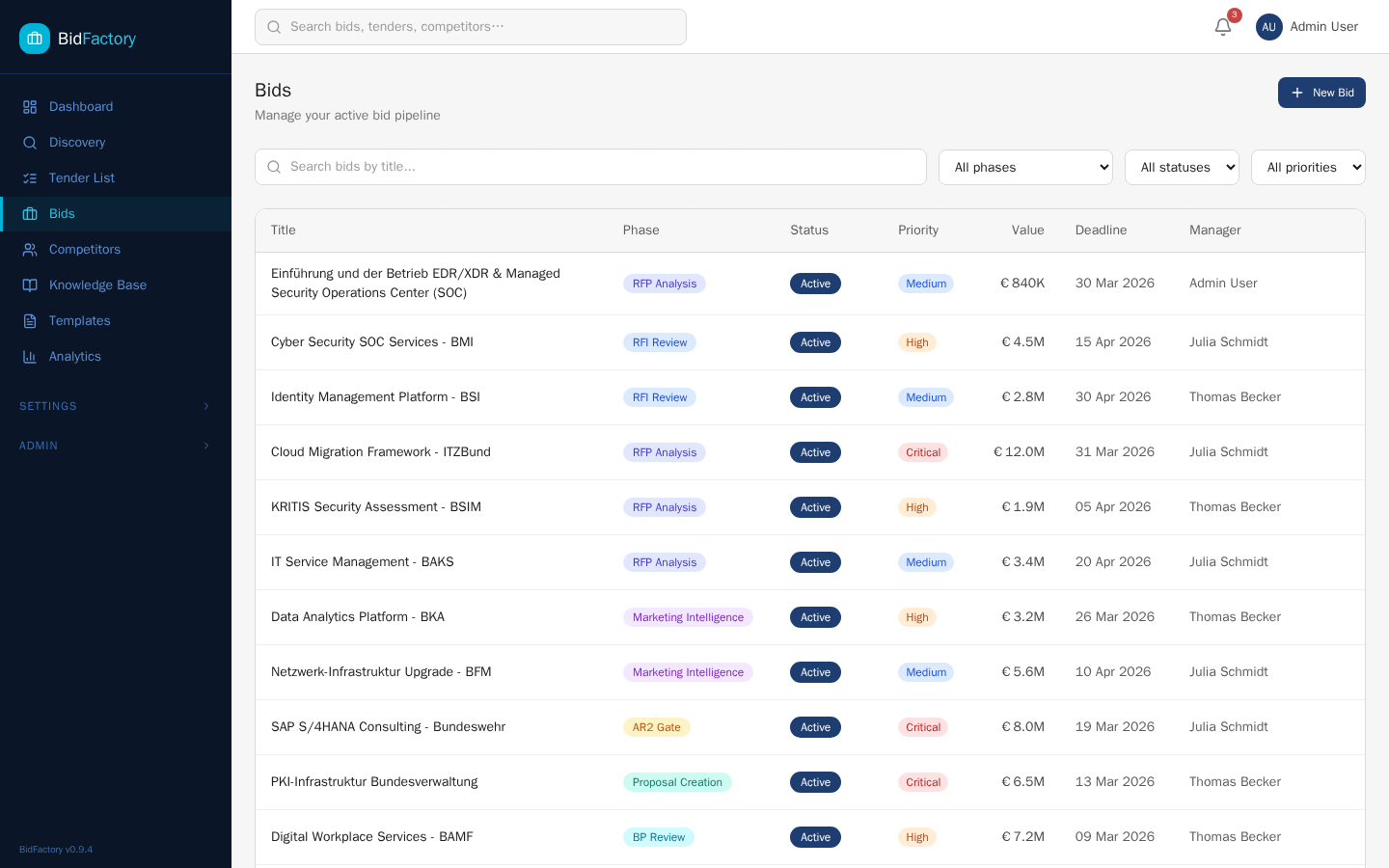
Navigate to Bids in the sidebar to see all bids in the system. Use the filters to narrow down the list:
- Search — Filter by bid title or keywords.
- Phase — Select one of the 9 pipeline phases (e.g., show only bids in Proposal Creation).
- Status — Filter by Active, No Bid, Won, Lost, Withdrawn, or On Hold.
- Priority — Focus on High or Critical priority bids where your input is most urgent.
Click any bid title in the list to open its detail page.
Bid Detail Page
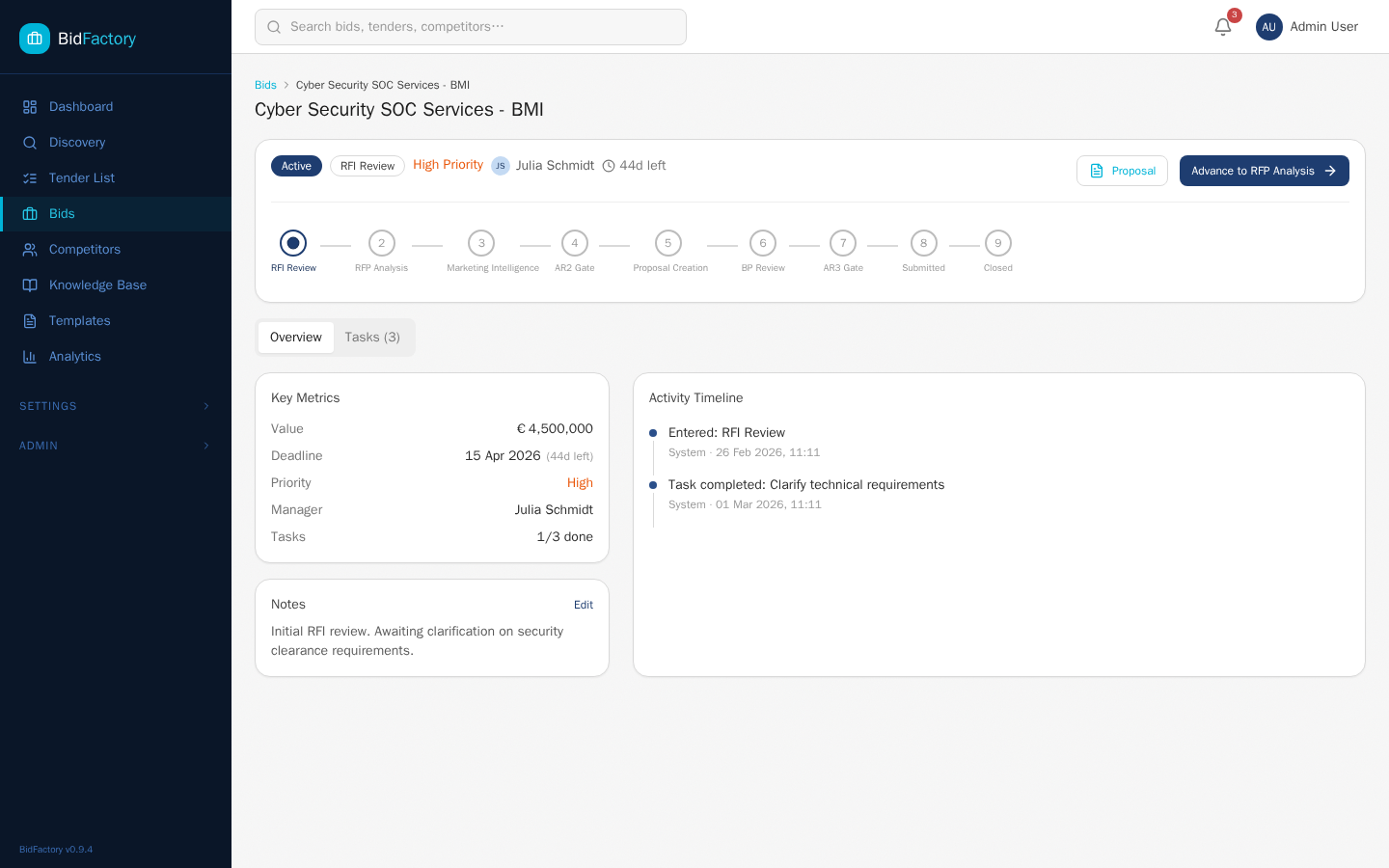
The bid detail page is the central hub for a single bid. Key elements include:
Status Bar
At the top of the page: the current phase badge, priority indicator, assigned manager, and a deadline countdown. This gives you immediate context on the bid’s urgency and ownership.
9-Phase Stepper
A visual progress bar showing where the bid currently sits in the pipeline. Completed phases display a checkmark, the current phase is highlighted in blue, and future phases appear in gray. This tells you at a glance how far the bid has progressed.
Overview Tab
- Key Metrics — Contract value, deadline, priority, manager, and task completion progress.
- Notes — Important context, decisions, or observations recorded by the bid team. As an SME, you can read notes but not edit them directly.
- Activity Timeline — A chronological history of all events on this bid (phase transitions, task completions, notes added).
Tasks Tab
All tasks associated with this bid are displayed here. Your assigned tasks are highlighted. You can update the status of tasks assigned to you directly from this tab. See Chapter 5 for full task management guidance.
Bid Resources
Navigation cards linking to sub-pages for this bid: documents, proposals, intelligence reports, and other supporting materials. These provide additional context for completing your tasks.
Understanding the 9 Phases
Knowing which phase a bid is in helps you understand what is expected of you at each stage:
| # | Phase | SME Involvement |
|---|---|---|
| 1 | RFI Review | May be asked to assess technical requirements in the RFI and evaluate feasibility. |
| 2 | RFP Analysis | Review the RFP document for technical feasibility and identify areas of strength or risk. |
| 3 | Marketing Intel | Provide domain expertise to support competitive analysis and SWOT input. |
| 4 | AR2 Gate | Your feasibility analysis and domain input may inform the Bid/No-Bid decision. |
| 5 | Proposal Creation | Most active SME phase — draft technical sections, review content, compile team inputs. |
| 6 | Best Practices | Review the proposal against quality standards and technical best practices in your domain. |
| 7 | AR3 Gate | Your review may inform the Submit/No-Submit decision. Flag any remaining technical concerns. |
| 8 | Submitted | May assist with clarification questions or technical queries from the contracting authority. |
| 9 | Closed | Participate in lessons learned — share what worked and what can be improved for next time. |
Bid Statuses
Bids can have the following statuses throughout their lifecycle:
- Active — Bid is progressing through the pipeline.
- No Bid — Decision made not to bid (at AR2 gate). No further SME work required.
- No Submit — Decision made not to submit (at AR3 gate). Proposal work stops.
- Won — Contract awarded to your organization.
- Lost — Contract awarded to a competitor. Review for lessons learned.
- Withdrawn — Bid has been withdrawn from the process.
- On Hold — Bid temporarily paused. Check back for updates.
Your Tasks — Where You Contribute
Tasks are the primary mechanism through which Bid Managers coordinate your contributions. When a Bid Manager needs your expertise for a specific bid activity, they create a task and assign it to you. You receive a notification, complete the work, and update the task status.
Viewing Your Tasks
There are two ways to find tasks assigned to you:
- From a specific bid — Navigate to the bid detail page, then click the Tasks tab. Tasks assigned to you are highlighted at the top or with a visual indicator.
- From notifications — When a task is assigned, you receive a notification. Click the notification to go directly to the relevant bid and task.
Task Properties
Every task has the following attributes:
| Property | Description |
|---|---|
| Title | A short description of the work to be done (e.g., “Draft technical approach section”) |
| Description | Detailed instructions, context, or references provided by the Bid Manager |
| Status | Current state: Not Started, In Progress, Completed, or Cancelled |
| Priority | Low, Medium, High, or Critical — indicates urgency |
| Assignee | The team member responsible for completing the task (you) |
| Due Date | The deadline by which the task must be completed |
Updating Task Status
As you work on a task, keep the status updated so the Bid Manager can track progress. Click the status toggle on the task to move through the workflow:
- Not Started — Default state when a task is created and assigned to you.
- In Progress — Update to this status as soon as you begin working on the task. This signals to the Bid Manager that the work is underway.
- Completed — Mark the task complete once your contribution is finished. This may trigger notifications to the Bid Manager and advance related workflow steps.
- Cancelled — Only a Bid Manager can cancel a task. If a task is no longer needed, the Bid Manager will cancel it.
Common Task Types for SMEs
Bid Managers typically assign these types of tasks to SMEs:
- “Review RFI document” — Assess the RFI against your domain expertise. Note technical requirements, feasibility concerns, and capability gaps.
- “Assess technical requirements” — Evaluate whether your organization has the technical capability to deliver the specified scope.
- “Review extraction results” — Validate that the AI-extracted requirements and metadata from the tender document are accurate and complete.
- “Provide domain input for SWOT” — Contribute your knowledge of competitor strengths and your organization’s differentiators to the SWOT analysis.
- “Identify key competitors for this tender” — Based on your domain knowledge, suggest which competitors are likely to bid on this opportunity.
- “Draft technical approach section” — Write the technical approach content for the proposal, drawing on relevant Knowledge Base assets.
- “Draft methodology section” — Describe the delivery methodology and how it aligns with the tender requirements.
- “Compile team section” — Identify suitable team members from the Personnel Knowledge Base for this bid and compile their profiles.
- “Select relevant case studies” — Choose the most compelling case studies from the Knowledge Base that demonstrate relevant past performance.
- “Review proposal sections” — Read through the full draft proposal and check technical accuracy, completeness, and alignment with tender requirements.
- “Validate technical claims” — Confirm that capability statements and technical assertions in the proposal are factually accurate.
Priority Levels
Pay close attention to task priority when managing your workload:
- Low — Standard priority. Complete within normal timelines.
- Medium — Normal business priority. Schedule and complete as planned.
- High — Elevated priority. This task needs your attention soon — escalate scheduling conflicts with the Bid Manager.
- Critical — Immediate action required. Drop other work if necessary. Critical tasks are typically deadline-driven or blocking.
Knowledge Base — Your Content Library
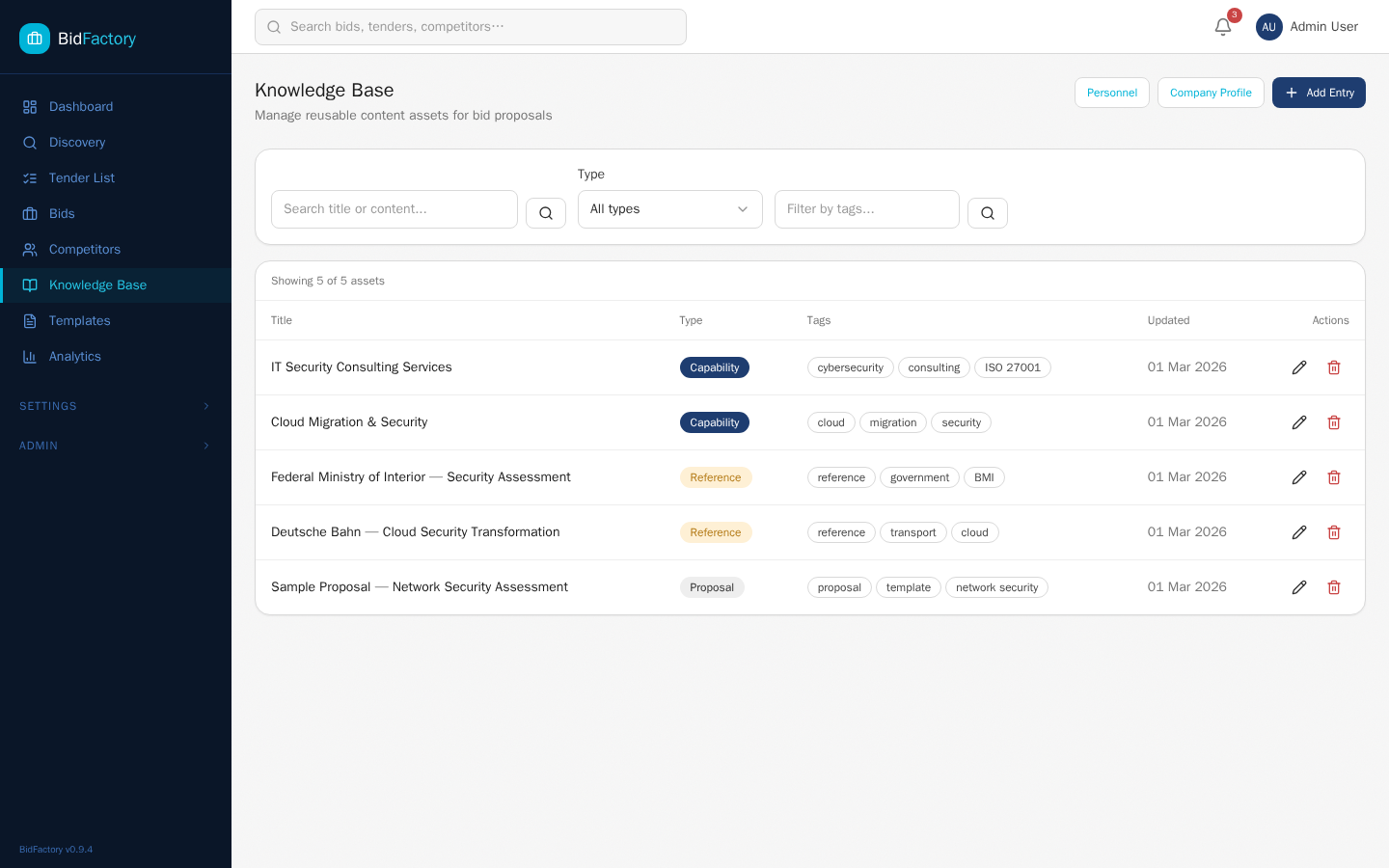
The Knowledge Base is the central repository for reusable content that powers your proposals. As an SME, you are a primary contributor to this library. The richer and more current your Knowledge Base, the better your AI-generated proposals will be and the faster your team can assemble bid responses.
Assets Tab
Navigate to Knowledge Base in the sidebar. The Assets tab is the main view, showing all stored content organized by type. You can:
- Browse — Scroll through all assets or filter by type using the type selector.
- Search — Type in the search box to find assets by title, content, or tags. Full-text search makes it easy to locate relevant content quickly.
- Add new entries — Click “+ Add Entry” to create a new asset.
- Edit existing entries — Click any asset to open it and edit the content, tags, or attached files.
- Download files — Any asset with an attached file shows a download icon.
Asset Types
BidFactory supports 12 asset types. As an SME, you are responsible for maintaining content in all types relevant to your domain:
| Asset Type | Description & SME Use |
|---|---|
| Capability | Descriptions of your organization’s core competencies in your domain. These are used to demonstrate that you can deliver the required scope. Keep these current and specific to your area of expertise. |
| Case Study | Detailed accounts of past projects that demonstrate successful delivery. Include project scope, your role, outcomes, and quantifiable results. Strong case studies are among the most persuasive proposal elements. |
| Methodology | Descriptions of your delivery methodologies (e.g., Agile, ITIL, PRINCE2, etc.). Explain how your approach addresses the specific requirements of typical tenders in your domain. |
| Reference | Client references and testimonials that can be cited in proposals. Include contact information (subject to client permission) and a description of the engagement. |
| Asset Type | Description & SME Use |
|---|---|
| CV | Team member CVs formatted for procurement proposals. Include relevant project experience, qualifications, and certifications. These are used in the “Team” section of proposals. |
| Certification | Quality certifications, ISO standards, and professional accreditations held by your organization or team members. Certifications often meet mandatory requirements in tenders. |
| Partner Profile | Profiles of consortium partners or subcontractors your organization frequently works with. Include their capabilities, certifications, and relevant experience. |
| Asset Type | Description & SME Use |
|---|---|
| Boilerplate | Standard text blocks that appear frequently in proposals: company overview paragraphs, legal disclaimers, standard approach descriptions, GDPR statements, etc. |
| Proposal | Complete or partial proposal documents from previous bids that can be adapted and reused. Especially valuable for recurring tender types in your domain. |
| Whitepaper | Technical whitepapers, research papers, or thought leadership content that demonstrates domain expertise and can be referenced in proposals. |
| Pricing Benchmark | Pricing data, rate cards, and market benchmarks for your domain. These inform the pricing strategy without being included verbatim in proposals. |
| Marketing | Marketing collateral, brochures, and promotional materials that may be attached to proposals or referenced for capability descriptions. |
Adding a New Asset
To add a new Knowledge Base entry:
- Click “+ Add Entry” in the Assets tab.
- Select the asset type from the dropdown.
- Enter a descriptive title that makes the asset easy to find in search.
- Write or paste the content using the rich text editor. Use clear headings and concise language.
- Add relevant tags (e.g., CPV codes, technology names, industry sectors) to improve searchability.
- Optionally attach a file (PDF, Word document, etc.) for assets that have a formatted version.
- Click Save.
Personnel Tab
Navigate to the Personnel tab within the Knowledge Base to manage team member profiles. You can add and edit profiles for team members in your area.
Each personnel profile includes:
- Name and job title
- Professional qualifications and certifications
- Languages spoken
- Areas of expertise and domain specializations
- Years of experience
- Linked project references and relevant past work
Personnel profiles are used by Bid Managers when building the team section of a proposal. Keeping these profiles accurate and up-to-date ensures your team members are selected for the right opportunities.
Company Profile Tab
The Company Profile tab shows your organization’s foundational information: legal name, registered address, legal form, number of employees, annual revenue, and certifications held. This information is used to pre-fill standard sections in RFI responses and proposals.
As an SME, this tab is read-only. Updates to the Company Profile require the Approver role. If you notice outdated information, notify your administrator.
Templates
Templates are pre-written proposal section skeletons that standardize the structure and quality of your bids. As an SME, you can create templates for sections in your domain so the same high-quality approach is applied consistently across multiple bids.
Viewing Templates
Navigate to Templates in the sidebar to see all available templates. Templates are organized by section type and language. You can filter by type or search by title to find specific templates.
Section Types
BidFactory supports eight proposal section types for templates:
| Section Type | Description |
|---|---|
| Executive Summary | High-level overview of the bid, your organization, and the proposed solution |
| Technical Approach | Detailed description of how your organization will technically deliver the requirements |
| Methodology | The delivery methodology and project management approach to be applied |
| Team | Key personnel, their roles, qualifications, and relevant experience |
| References | Past project references demonstrating relevant experience |
| Management | Project management structure, governance, and escalation processes |
| Quality | Quality assurance processes, standards compliance, and acceptance criteria |
| Pricing | Pricing structure, rate breakdown, and commercial terms |
Language Support
Templates can be authored in multiple languages. BidFactory supports:
- English (EN) — For tenders published in English (EU-wide, UK, international).
- German (DE) — For tenders from DACH region authorities (Germany, Austria, Switzerland).
When building a proposal, BidFactory selects templates that match the tender’s required language. If you work on German-language tenders, ensure your templates have a DE version.
Creating a Template
To create a new template:
- Click “+ New Template” from the Templates page.
- Select the section type (e.g., Technical Approach).
- Select the language (EN or DE).
- Enter a descriptive title for the template (e.g., “Technical Approach — IT Security Services”).
- Write the template content using the rich text editor. Use placeholder syntax for dynamic values (see below).
- Click Save to make the template available for use.
Placeholder Syntax
Templates support placeholders that are resolved automatically when a proposal is generated. Use double curly braces around the placeholder name:
{{client_name}}— The name of the contracting authority{{project_title}}— The title of the tender or project{{submission_deadline}}— The bid submission deadline date{{contract_value}}— The estimated contract value{{cpv_sector}}— The primary sector derived from CPV codes
When the Bid Manager generates a proposal, these placeholders are replaced with the actual bid and tender data, producing a personalized, professional document.
Reviewing Proposals
At various stages of the bid pipeline, particularly during the Proposal Creation and Best Practices Review phases, you may be asked by the Bid Manager to review AI-generated proposal content for technical accuracy.
Accessing Proposal Content
To view the proposal for a bid:
- Navigate to the bid detail page (via the Bids list or Dashboard).
- Look for the Bid Resources section on the bid detail page.
- Click the Proposal resource card to open the proposal view for that bid.
What You See
The proposal view displays generated sections organized by type. Sections that were created or enhanced by AI are labeled with an [AI] indicator. You may see sections for:
- Executive Summary
- Technical Approach
- Methodology
- Team
- References and Case Studies
- Management Approach
- Quality Assurance
- Pricing (if applicable)
Multi-Language Proposals
Proposals can be generated in multiple languages depending on the tender requirements. Use the language filter bar at the top of the proposal view to switch between available language versions. Languages are displayed as flag pill buttons (e.g., EN, DE, FR). Only the sections generated in the selected language are displayed.
Your Role in Proposal Review
As an SME reviewer, your focus should be:
- Technical accuracy — Are the technical claims, methodologies, and approaches described correctly?
- Completeness — Are all mandatory requirements from the tender addressed?
- Relevance — Are the selected case studies and references the most compelling ones for this specific tender?
- Differentiation — Does the proposal highlight your unique strengths compared to likely competitors?
Share your review feedback through task comments or in direct communication with the Bid Manager. Section-level editing and regeneration are controlled by the Bid Manager.
Viewing Competitors & Intelligence
The Competitors module gives you visibility into the competitive landscape for public procurement in your domain. Understanding which companies are active, what contracts they have won, and what their strengths are helps you write more targeted and differentiated technical content.
Competitors List
Navigate to Competitors in the sidebar to view the full competitors list. Use the filters to narrow down to relevant companies:
- Name search — Search by competitor company name.
- Sector filter — Filter by industry sector to find competitors active in your domain.
- Country filter — Focus on competitors operating in specific geographies.
For each competitor in the list you can see their enrichment status, the number of recorded awards, and their total contract value. Click a competitor name to open their detail profile.
Competitor Detail Page
The competitor detail page shows everything BidFactory knows about a specific company:
- Profile information — Industry sectors, employee count, estimated revenue, and a company description (generated by AI enrichment).
- Award history — A list of public contracts won, including the contracting authority, contract value, date, and associated CPV codes.
- Enrichment data — AI-generated insights summarizing the competitor’s public procurement footprint, strengths, and areas of specialization.
What You Cannot Do
As an SME, the following competitor management actions are restricted:
- Merge duplicate competitor entries (Bid Manager only)
- Trigger AI enrichment runs for a competitor (Bid Manager only)
- Delete competitor records (Admin only)
- Add new competitors manually (Bid Manager only)
How Competitor Intelligence Helps Your Contributions
Use competitor data to sharpen your technical writing:
- Know their strengths — If a key competitor consistently wins on methodology, explicitly address methodology quality and rigor in your proposals.
- Identify gaps — If competitors lack specific certifications or domain depth that you have, make sure these are prominent in your proposal.
- Calibrate pricing context — Award values provide market pricing signals that can inform your pricing strategy discussion with the Bid Manager.
- Tailor case studies — Select case studies that demonstrate successful delivery in areas where key competitors are weaker.
Viewing Discovery
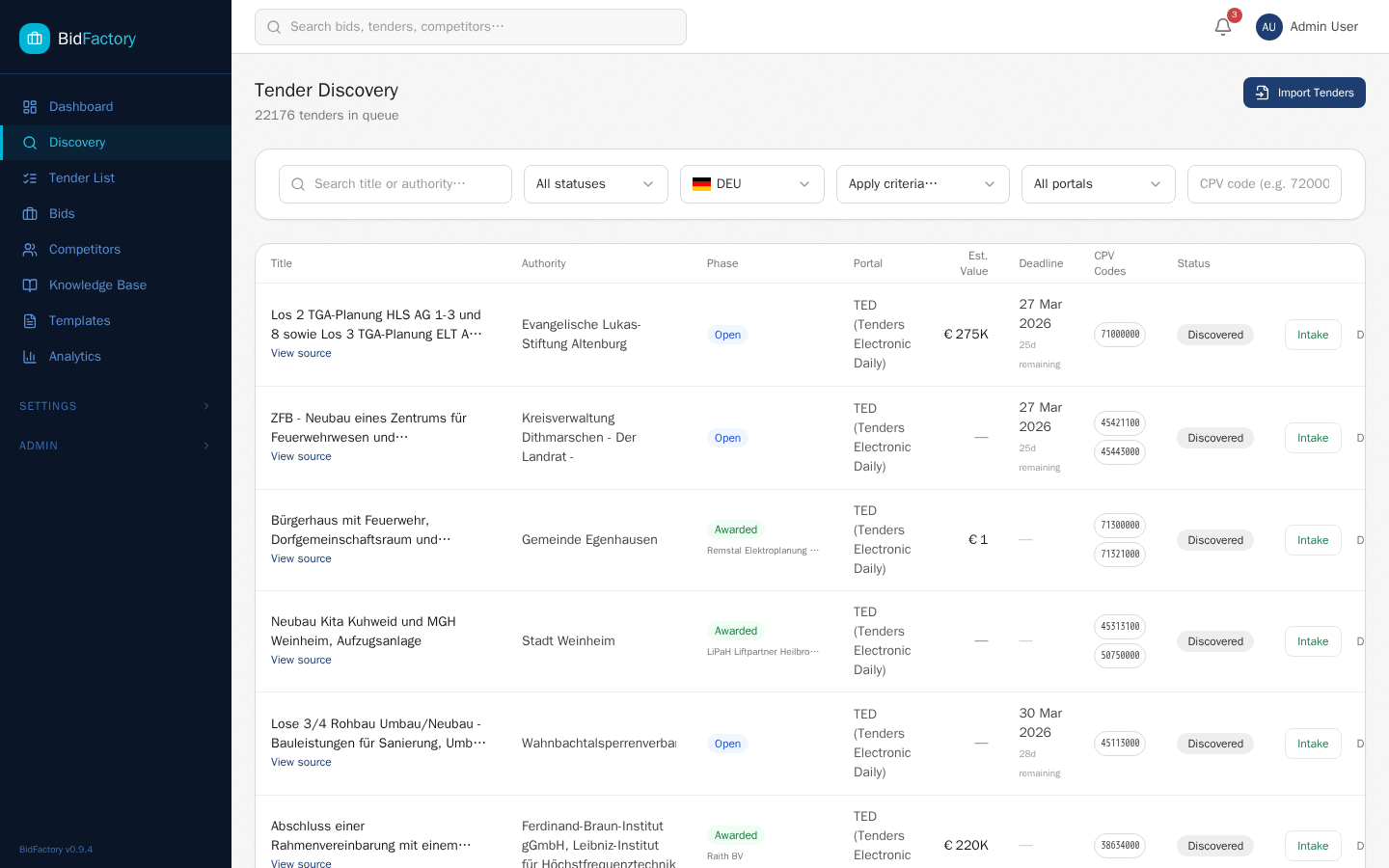
The Discovery module shows all tender opportunities that BidFactory has automatically discovered from EU procurement portals (TED and the German Bekanntmachungsservice). As an SME, you have read-only access to browse the queue and review tender details.
Browsing the Discovery Queue
Navigate to Discovery in the sidebar. You can use the filter bar to find tenders relevant to your domain:
- Text search — Search by tender title, authority name, or description keywords.
- Country — Filter by originating country (Germany, Austria, EU-wide, etc.).
- CPV Code — Filter by Common Procurement Vocabulary code to find tenders in your specific domain.
- Portal — Filter by source portal (TED, Bekanntmachungsservice).
- Status — View Discovered (new), Intake (already processed), or Dismissed tenders.
Viewing Tender Details
Click on any tender in the queue to view its full details, including:
- Full tender title and description
- Contracting authority name and country
- Estimated contract value and currency
- Submission deadline
- CPV codes and their descriptions
- Link to the original notice on the source portal (“View source”)
- Phase (Open or Awarded — with winner name if awarded)
Why Browse Discovery?
Regularly browsing the Discovery queue helps you as an SME in several ways:
- Market awareness — Stay informed about what types of opportunities are being published in your domain.
- Proactive preparation — If you see a tender that is likely to be intaken, you can proactively check the Knowledge Base for relevant content and identify gaps to fill.
- CPV trend monitoring — Observe which CPV codes are generating the most activity in your sector to guide Knowledge Base investments.
Analytics
The Analytics section provides visibility into your organization’s bid performance over time. As an SME, use analytics to understand which types of bids succeed, how your contributions fit into the overall process, and where the team could benefit from stronger Knowledge Base content.
Key Charts and Metrics
| Chart / Metric | What It Shows | How It Helps SMEs |
|---|---|---|
| Pipeline Overview | Distribution of bids across all 9 phases, by count and value | Understand where the team’s effort is concentrated; anticipate upcoming phases requiring your input |
| Win/Loss Ratio | Percentage of bids won vs. lost vs. other outcomes | Understand the overall competitive success rate; inform the priority you give to any single bid |
| Phase Conversion Rates | How many bids move from each phase to the next (funnel view) | Identify where bids are being dropped; high drop-off at AR2 may indicate insufficient technical feasibility assessment |
| Cycle Time | Average time spent in each phase and end-to-end pipeline duration | Understand the typical timeline for tasks assigned to you; plan your availability accordingly |
Using Analytics to Improve Your Contributions
Analytics can guide where to invest your Knowledge Base effort:
- If win rates are low for a specific sector or CPV cluster, review the capabilities and case studies you have for that area — they may need strengthening.
- If proposals in a particular domain consistently score low in technical sections, consider whether your templates for that section type need revision.
- If cycle time in the Proposal Creation phase is long, it may indicate insufficient reusable content in the Knowledge Base for that type of bid.
Notifications
BidFactory’s notification system keeps you informed about events that require your attention. The notification bell in the header shows your unread notification count at a glance.
Notification Types for SMEs
As an SME, you will receive the following types of notifications:
| Notification Type | When It Triggers | Action Required |
|---|---|---|
| Task Assigned | A Bid Manager assigns a task to you | Navigate to the bid, review the task details, and begin work |
| Deadline Reminder | A task deadline assigned to you is approaching (typically 48 hours in advance) | Ensure your task work is on track; communicate delays immediately |
| Phase Transition | A bid you are involved with moves to a new pipeline phase | Review whether any new tasks or contributions are expected from you in the new phase |
| Bid Created | A new bid is created in the pipeline | Informational — review for relevance to your domain; no immediate action required |
Notification Center
To view all notifications, click the bell icon in the header or navigate to /notifications. In the notification center you can:
- View all notifications with their timestamps and status (read/unread).
- Click a notification to navigate directly to the relevant bid or task.
- Mark individual notifications as read.
- Mark all notifications as read at once using the “Mark all read” button.
- Delete individual notifications you no longer need.
Tips for Subject Matter Experts
These guidelines will help you maximize your impact as an SME within BidFactory and your bid team.
Glossary
Key terms you will encounter as an SME using BidFactory:
| Term | Definition |
|---|---|
| AR2 | Approval Review 2 — The Bid/No-Bid decision gate. At this point the team decides whether to invest resources in writing a full proposal. Your technical feasibility assessment often informs this decision. |
| AR3 | Approval Review 3 — The Submit/No-Submit decision gate. Your proposal review and sign-off on technical accuracy is typically required before this gate. |
| BKMS | Bekanntmachungsservice — The German national procurement notification service. Publishes procurement notices from German contracting authorities using the eForms-DE format. |
| CPV Code | Common Procurement Vocabulary — The EU standard classification system for public procurement. CPV codes are 8-digit numbers (e.g., 72000000 for IT services) used to categorize tenders by subject matter. Use CPV codes in the Discovery filter to find tenders in your domain. |
| DACH | Germany (D), Austria (A), and Switzerland (CH) — the German-speaking region of Europe. Many BidFactory users focus on DACH-region procurement. |
| Knowledge Base | BidFactory’s central repository for reusable proposal content: capabilities, case studies, CVs, certifications, methodologies, boilerplate text, and more. You are a primary contributor to this library. |
| Pipeline | The sequence of 9 phases that a bid progresses through: RFI Review → RFP Analysis → Marketing Intel → AR2 Gate → Proposal Creation → Best Practices → AR3 Gate → Submitted → Closed. |
| RFI | Request for Information — A preliminary procurement document used by authorities to gather market information before issuing a formal tender. Phase 1 of the bid pipeline. |
| RFP | Request for Proposal — The formal tender document inviting organizations to submit detailed proposals for a specific contract. Phase 2 of the bid pipeline. |
| SWOT | Strengths, Weaknesses, Opportunities, Threats — A strategic analysis framework used during the Marketing Intelligence phase to assess competitive positioning. SMEs contribute domain expertise to the Strengths and Opportunities sections. |
| TED | Tenders Electronic Daily — The EU-wide portal where all public procurement notices above certain value thresholds are published. Covers all EU member states. One of BidFactory’s two primary data sources. |
| Template | A pre-written proposal section skeleton with placeholders. SMEs create templates in their domain to standardize and accelerate proposal writing across multiple bids. |
BidFactory SME Manual — Version 1.0 — March 2026
For support, contact your system administrator. Return to Manual Hub