Your Role as Administrator
As an Administrator in BidFactory, you have full system access and are responsible for the health, configuration, and governance of the entire platform. You are the single point of authority for user accounts, monitoring configuration, ingestion operations, and system troubleshooting. This manual covers every administrative capability in detail.
Key Responsibilities
Administrators are responsible for the platform across all operational domains:
- User Management — Create, edit, deactivate, and assign roles to all user accounts. Manage password resets and access control.
- System Configuration — Configure monitoring criteria (CPV codes, keywords, value ranges, geographic scope), portal connections (TED, BKMS, Cosinex VMP), and notification settings.
- Ingestion Operations — Trigger and monitor data ingestion runs from TED and BKMS. Review ingestion history, diagnose failures, and manage rate limits.
- System Health Monitoring — Monitor service status for all 5 Docker Compose services. Review logs, diagnose errors, and execute recovery procedures.
- Data Governance — Oversee competitor merges, manage the knowledge base, and ensure data integrity across all entities.
- Security — Enforce JWT token policy, manage CORS configuration, apply rate limiting, and respond to authentication anomalies.
- Bid Lifecycle Oversight — Full read and write access to all bids, tasks, proposals, and competitor records. Can perform any action available to Bid Managers, SMEs, and Approvers.
What You Can Do
The Administrator role has unrestricted access to all platform capabilities:
- All actions available to Bid Managers, SMEs, and Approvers
- Create, edit, deactivate, and delete user accounts
- Assign and change user roles
- Configure monitoring criteria and portal connections
- Trigger ingestion runs and view full ingestion history
- View and manage all bids, tasks, documents, and proposals
- Merge and delete competitors
- Trigger AI enrichment for any competitor
- Approve gate decisions (AR2, AR3)
- Update the Company Profile
- Access Docker Compose diagnostic commands and service logs
- Manage database migrations and system configuration
Admin-Exclusive Capabilities
The following capabilities are restricted to the Administrator role and are not available to Bid Managers, SMEs, or Approvers:
- User Management — The
/admin/userspage and all user CRUD operations - Monitoring Settings — Configuring CPV codes, keywords, value ranges, portal toggles, and ingestion schedules
- AI Provider Settings — Configuring LLM API keys, model routing per role, feature toggles, and monitoring token usage and costs
- Ingestion Triggers — The “Run Now” button and
/api/v1/ingest/triggerendpoint - Ingestion Run History — Full view of all ingestion runs including error messages and partial failure details
- System Diagnostics — Access to Docker service health, container logs, and database status endpoints
- Competitor Deletion and Merging — Permanent data operations that cannot be undone
Installation & Setup
BidFactory runs as a Docker Compose stack of five services. This chapter covers the full installation process from cloning the repository to verifying a running stack.
Installation Steps
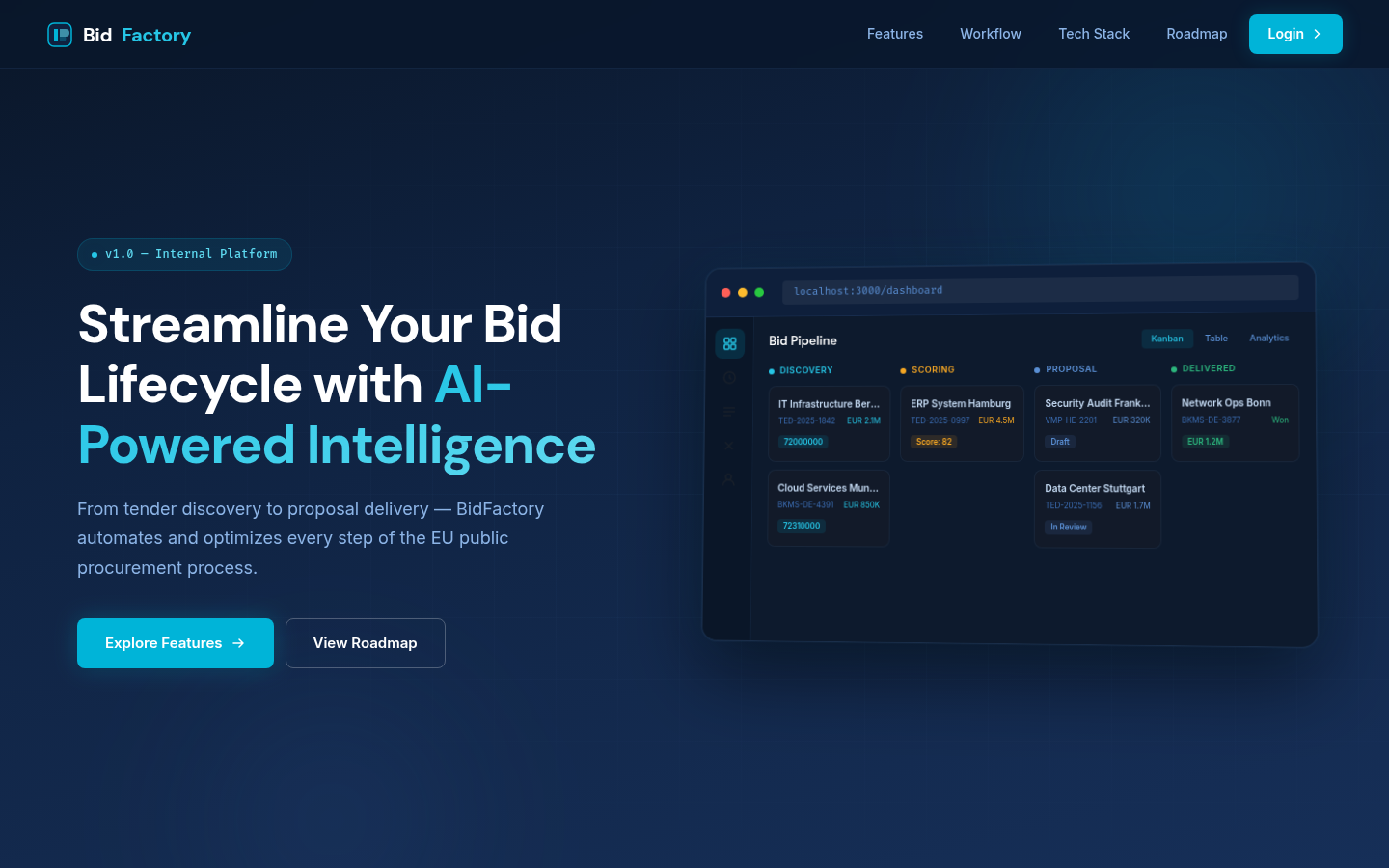
Step 1 — Prerequisites
Ensure the following are installed on the host machine before proceeding:
- Docker 24.0 or later
- Docker Compose v2.20 or later (included with Docker Desktop)
- Git 2.40 or later
- Minimum 4 GB RAM and 10 GB free disk space for the full stack
Step 2 — Clone the Repository
git clone https://github.com/your-org/bidfactory.git
cd bidfactory
Step 3 — Configure Environment Variables
Copy the example environment file and fill in your values:
cp .env.example .envOpen .env in a text editor. The following variables are required before first launch:
SECRET_KEY— A strong random string (at least 64 characters). Used for JWT signing.DATABASE_URL— PostgreSQL connection string (default:postgresql://bidfactory:bidfactory@db:5432/bidfactory)REDIS_URL— Redis connection string (default:redis://redis:6379/0)ANTHROPIC_API_KEY— Your Anthropic API key for AI enrichment and proposal generation featuresCORS_ORIGINS— Comma-separated list of allowed origins (e.g.,http://localhost:3000)ADMIN_EMAIL— Email address for the initial admin user created on first runADMIN_PASSWORD— Initial admin password (change immediately after first login)
.env file contains secrets and is listed in .gitignore. Only .env.example (with placeholder values) is committed to version control. If a secret is accidentally committed, consider it compromised: rotate it immediately.
Step 4 — Build and Start the Stack
From the bidfactory/ directory, run:
docker compose up --buildThe first build will pull base images and compile all services. Subsequent starts use cached layers and are significantly faster. To run the stack in the background (detached mode):
docker compose up --build -dStep 5 — Database Migrations
On first launch, the backend automatically runs Alembic migrations to create the database schema. If you need to run migrations manually:
docker compose exec backend alembic upgrade headVerify the Stack
After startup, verify all services are running correctly:
docker compose psAll five services should show a status of Up or running (healthy).
Service Overview
| Service | Technology | Port | Purpose |
|---|---|---|---|
| frontend | Next.js 14 | 3000 | React UI served to browser clients |
| backend | FastAPI (Python 3.12) | 8000 | REST API, business logic, authentication |
| worker | ARQ (async task queue) | — | Background jobs: ingestion, enrichment, emails |
| db | PostgreSQL 16 | 5432 | Primary relational database |
| redis | Redis 7 | 6379 | Task queue broker, session cache |
Health Check Endpoints
The backend exposes health check endpoints you can poll directly:
# Overall API health
curl http://localhost:8000/health

# Database connectivity
curl http://localhost:8000/health/db

# Redis connectivity
curl http://localhost:8000/health/redis
A healthy response returns {"status": "ok"} for each endpoint.
Access the Platform
- Frontend UI: http://localhost:3000
- Backend API docs (Swagger): http://localhost:8000/docs
- Backend API docs (ReDoc): http://localhost:8000/redoc
Environment Reference
The complete list of supported environment variables is maintained in .env.example at the project root. Key optional settings include:
| Variable | Default | Description |
|---|---|---|
LOG_LEVEL | INFO | Logging verbosity: DEBUG, INFO, WARNING, ERROR |
ACCESS_TOKEN_EXPIRE_MINUTES | 1440 | JWT access token lifetime in minutes (24 hours) |
INGEST_RATE_LIMIT_SECONDS | 300 | Minimum seconds between ingestion trigger calls |
ENRICHMENT_COOLDOWN_DAYS | 90 | Days before a competitor can be re-enriched |
TED_API_BASE_URL | TED production URL | Override to point at a TED sandbox |
BKMS_API_BASE_URL | BKMS production URL | Override to point at a BKMS sandbox |
ENVIRONMENT=development to enable the Swagger UI at /docs, verbose structured logging, and development CORS rules. In production, set ENVIRONMENT=production to disable Swagger, enforce strict CORS, and switch to JSON log output.
First Login & Interface
Logging In
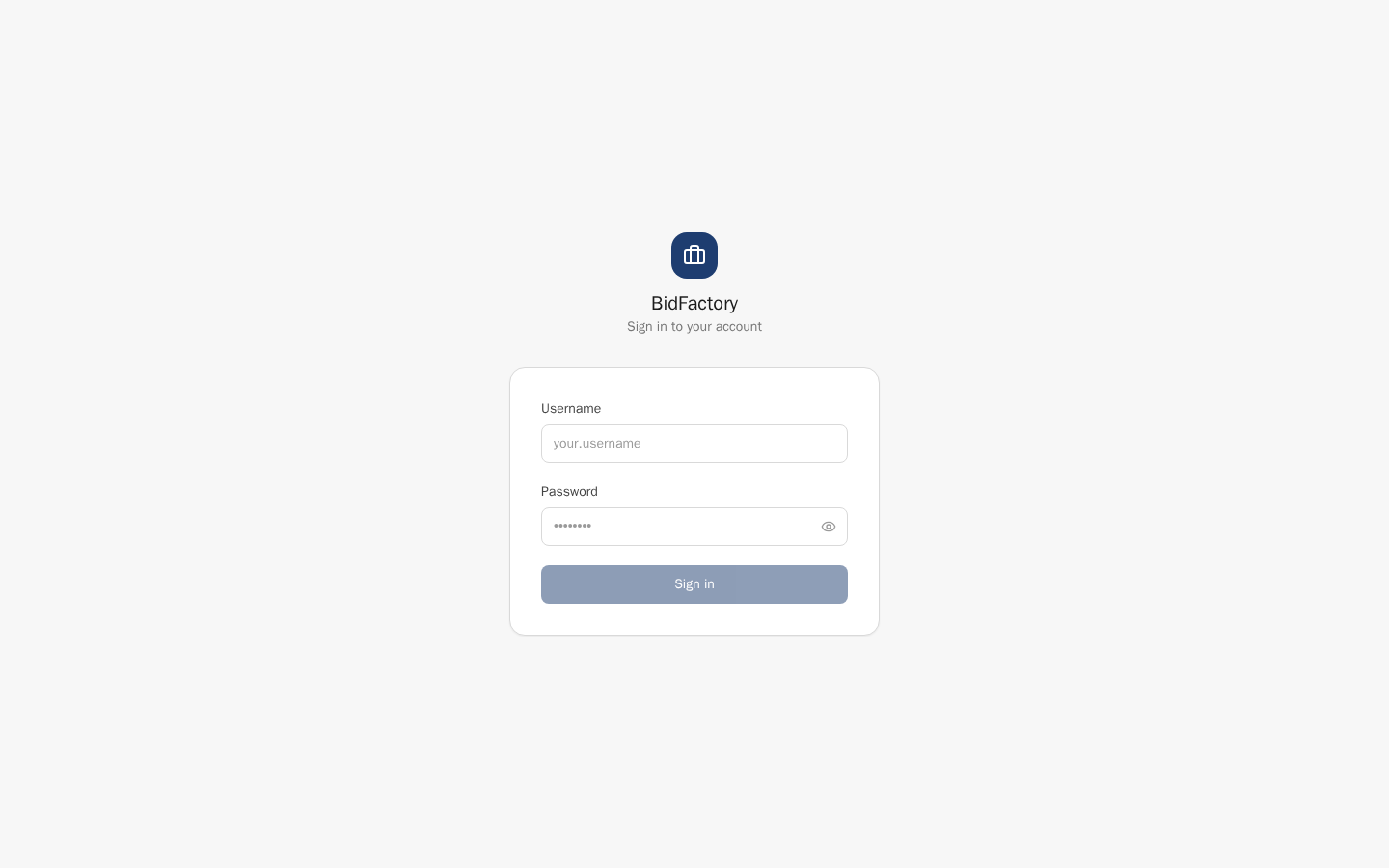
Navigate to http://localhost:3000/login (or your deployment URL). Use the credentials set in your .env file via ADMIN_EMAIL and ADMIN_PASSWORD.
ADMIN_PASSWORD during setup. Navigate to your profile settings and change this password before configuring the rest of the system or creating other users. A strong admin password is your first line of defence.
Authentication Flow
BidFactory uses stateless JWT-based authentication:
- On successful login, the server issues an access token (valid for 24 hours by default, configurable via
ACCESS_TOKEN_EXPIRE_MINUTES) and a refresh token (valid for 7 days). - The frontend stores tokens in HTTP-only cookies — they are not accessible via JavaScript, mitigating XSS risks.
- The refresh token is used automatically to obtain a new access token as it approaches expiry, so active sessions continue seamlessly.
- After 7 days of inactivity (or explicit logout), both tokens expire and the user must log in again.
Interface Layout
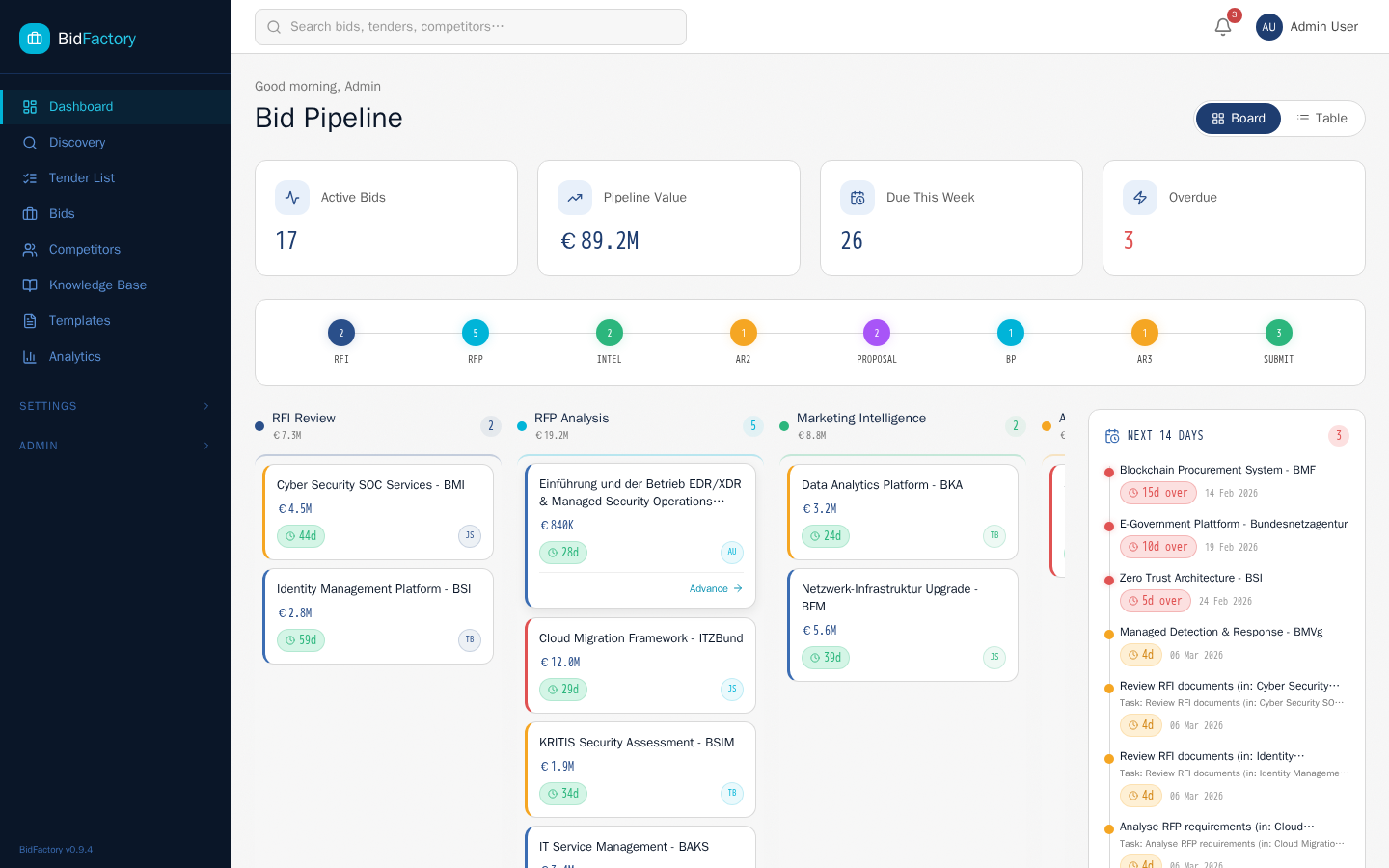
The BidFactory interface consists of four primary areas:
- Left Sidebar — Dark navy navigation panel with links to all sections. As an Administrator, you will see additional items not visible to other roles: Settings (monitoring criteria, portals, and AI provider configuration) and Admin (user management). The sidebar includes a reading progress bar at the bottom.
- Top Header Bar — Contains the global search field (activate with Ctrl+K or Cmd+K), a notification bell with unread count badge, and your user avatar. The avatar dropdown provides quick access to your profile, settings, and the sign-out action.
- Main Content Area — The central workspace displaying the currently selected page. Context-sensitive action buttons and filters appear within this area.
- Deadline Sidebar — On the Dashboard page, a right-hand panel shows upcoming deadlines for the next 14 days with color-coded urgency indicators.
admin role. Other users do not see these items.
User Management
User management is an administrator-exclusive capability. Navigate to Admin → Users (or directly to /admin/users) to access the user management console. From here you can create accounts, edit profiles, assign roles, and deactivate users who should no longer have access.
/admin/users route and all user management API endpoints return 403 Forbidden for any authenticated user without the admin role. There is no way for non-admin users to access this page or its underlying APIs.
Creating a New User
Click the “New User” button to open the user creation form. Complete all required fields:
- Email — Must be a valid, unique email address. Used for notifications and password resets.
- Username — Unique identifier used for login. Alphanumeric characters and underscores only, 3–32 characters.
- Full Name — Display name shown in the interface, task assignments, and bid cards.
- Password — Must meet minimum requirements: at least 8 characters, at least one uppercase letter, one lowercase letter, and one digit. The user should be told to change this on first login.
- Role — Assign one of the four available roles (see the Role Reference table below).
- Active — Toggle to activate or deactivate the account. Inactive accounts cannot log in.
Role Reference
BidFactory has four roles, each providing a distinct set of permissions aligned with a specific job function:
| Role | Intended For | Description |
|---|---|---|
| admin | System Administrator | Full unrestricted access to all platform features including user management, monitoring configuration, ingestion control, and system diagnostics. |
| bid_manager | Bid Manager / Capture Manager | Full bid lifecycle access: create and manage bids, intake and dismiss tenders, advance pipeline phases, assign tasks, generate proposals, trigger enrichment. Cannot manage users or system settings. |
| sme | Subject Matter Expert / Technical Specialist | Contribution and review access: complete assigned tasks, edit Knowledge Base assets, manage personnel profiles, create proposal templates. Read-only on bids and competitor profiles. Cannot intake tenders, advance phases, or manage system settings. |
| approver | Director / Bid Governance Lead | Governance and oversight access: approve AR2 (Bid/No-Bid) and AR3 (Submit/No-Submit) gate decisions, update the Company Profile, view all bid data and analytics. Cannot create bids or manage system settings. |
Permission Matrix
The following table shows which actions are permitted per role across all major platform features:
| Feature / Action | admin | bid_manager | sme | approver |
|---|---|---|---|---|
| View Dashboard & Analytics | Yes | Yes | Yes | Yes |
| View all Bids (read) | Yes | Yes | Yes | Yes |
| Create and edit Bids | Yes | Yes | No | No |
| Advance Bid Phases | Yes | Yes | No | No |
| Approve AR2 / AR3 Gates | Yes | No | No | Yes |
| Intake / Dismiss Tenders | Yes | Yes | No | No |
| View Discovery Queue | Yes | Yes | Yes | Yes |
| Import Tenders | Yes | Yes | No | No |
| Create / Complete Tasks | Yes | Yes | Yes (own) | No |
| Upload & Process Documents | Yes | Yes | No | No |
| Generate Proposals | Yes | Yes | No | No |
| View Competitor Profiles | Yes | Yes | Yes | Yes |
| Add Competitors | Yes | Yes | No | No |
| Merge / Delete Competitors | Yes | No | No | No |
| Trigger AI Enrichment | Yes | Yes | No | No |
| Manage Knowledge Base | Yes | Yes | Yes | No |
| Update Company Profile | Yes | No | No | Yes |
| Manage Templates | Yes | Yes | Yes | No |
| Configure Monitoring Settings | Yes | No | No | No |
| Configure AI Provider Settings | Yes | No | No | No |
| Trigger Ingestion Runs | Yes | No | No | No |
| Manage User Accounts | Yes | No | No | No |
Editing Users
Click the edit icon next to any user in the user list to open their profile for editing. You can change any field including their role. Changes take effect immediately — active sessions using the old role will reflect the new role on their next request.
Deactivating Accounts
Toggle the Active switch to deactivate an account. Deactivated users cannot log in and their existing sessions are invalidated within minutes. Deactivation is reversible — you can reactivate an account at any time. To permanently remove a user, use the Delete action (requires confirmation).
Monitoring Settings
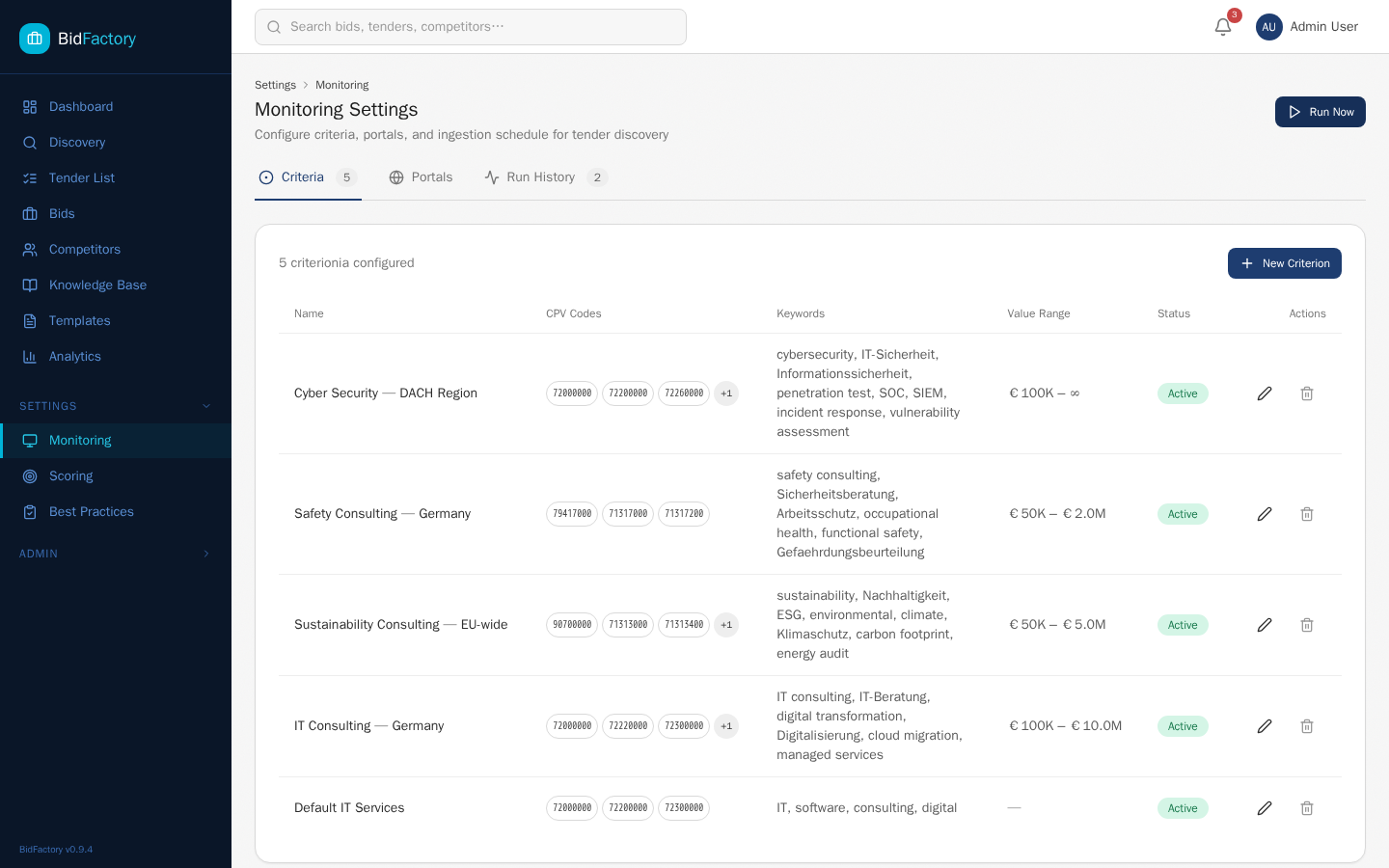
Monitoring Settings is an administrator-exclusive section that controls how BidFactory discovers new tenders. Navigate to Settings → Monitoring to access the three configuration tabs: Criteria, Portals, and Run History.
Criteria Tab
Criteria define the filter conditions applied when scanning tender portals. Each ingestion run uses these criteria to determine which tenders are relevant and should appear in the Discovery queue. Criteria use OR logic — a tender matches if it satisfies any one criterion.
Common Procurement Vocabulary (CPV) codes identify the subject matter of a procurement. Add 8-digit CPV codes (without the check digit) to capture tenders in specific sectors. Examples:
72000000— IT services (all sub-codes matched)72200000— Software programming services73000000— Research and development services
BidFactory matches both the exact code and all sub-codes beneath it in the CPV hierarchy. Entering 72000000 captures all IT-related tenders.
Keyword matching is applied to the tender title, description, and subject fields. Keywords are case-insensitive and support partial word matching. Enter one keyword or phrase per line. Phrases with multiple words are matched as exact substrings. Examples:
digital transformationcybersecuritycloud migration
Keywords complement CPV codes and are useful for catching tenders that are categorized under broad CPV codes but contain your target subject matter in their descriptions.
Set a minimum and/or maximum estimated contract value in EUR. Tenders with a declared value outside this range are excluded from the Discovery queue. Leave blank to disable value filtering. Default currency is EUR; tenders declared in other currencies are converted using the exchange rate at the time of ingestion.
Select one or more countries (ISO 3166-1 alpha-2 codes) to limit ingestion to tenders published in specific geographic regions. Leave empty to capture tenders from all countries served by the enabled portals. For DACH-focused organizations, select DE, AT, CH.
Each criterion set can be individually enabled or disabled using the Active toggle. Disabled criteria are not applied during ingestion runs but are preserved for future use. Use this to temporarily pause a criterion set during quiet periods without losing the configuration.
Portals Tab
The Portals tab controls which procurement data sources are queried during ingestion. Each portal has an individual enable/disable toggle and displays the last successful sync timestamp.
| Portal | Coverage | Data Format | Notes |
|---|---|---|---|
| TED (Tenders Electronic Daily) | EU-wide, all member states | eForms XML + legacy F03/F06 XML; bulk CSV | Primary source for all EU above-threshold procurements. Both pre-Nov 2022 legacy schema and new eForms schema are supported. |
| BKMS (Bekanntmachungsservice) | Germany (federal & state) | eForms-DE XML (German extensions) | Required for German below-threshold and state-level tenders not published to TED. Uses eForms-DE namespace extensions. |
| Cosinex VMP | Germany (municipal & regional) | REST API JSON | Municipal and regional German tenders. Enable if your target market includes German local government procurement. |
Run History Tab
The Run History tab shows a log of all completed and in-progress ingestion runs. Each row represents a single run and displays:
| Column | Description |
|---|---|
| Started | Timestamp when the run was triggered (manual or scheduled) |
| Portal | Which data source was queried |
| Status | completed, running, partial, failed |
| Records Found | Total tenders matching criteria in the source |
| New | Tenders added to the Discovery queue for the first time |
| Updated | Existing tenders refreshed with new data |
| Duration | Wall clock time for the run to complete |
| Error | Error message for failed or partial runs (expand to see details) |
Run Now Button
Click “Run Now” to trigger an immediate ingestion run across all enabled portals. This button is rate-limited: only one manual trigger is allowed per 5-minute window to prevent accidental API hammering. If the button is greyed out, wait for the cooldown to expire.
INGEST_SCHEDULE_CRON environment variable.
Dashboard
The Dashboard is the home screen after login and provides a real-time overview of the entire bid pipeline. It refreshes automatically every 60 seconds to show current status without manual page reloads.
Metric Cards and Pipeline Tracker
At the top of the Dashboard, four metric cards summarize the current pipeline state:
| Metric | Description |
|---|---|
| Active Bids | Total number of bids currently progressing through the pipeline (any phase, active status) |
| Pipeline Value | Combined estimated contract value of all active bids, in EUR |
| Due This Week | Bids with submission deadlines within the next 7 calendar days |
| Overdue | Bids that have passed their submission deadline (shown with a pulsing red indicator) |
Below the cards, a 9-node visual pipeline shows the count of bids in each phase. Nodes are connected by flow lines showing the progression path from Qualification to Submitted/Won/Lost.
Kanban Board
The default Kanban view displays bid cards organized in columns, one per pipeline phase. Each card shows:
- Bid title and reference number
- Estimated contract value
- Submission deadline with color-coded urgency chip
- Priority indicator (Critical, High, Medium, Low)
- Assigned manager avatar
- Advance Phase button (hover to reveal) — available to Admin and Bid Manager roles
Click any card to navigate to the full bid detail page. Hover over a card to see the Advance Phase button, which moves the bid to the next pipeline phase with a confirmation dialog.
Table View
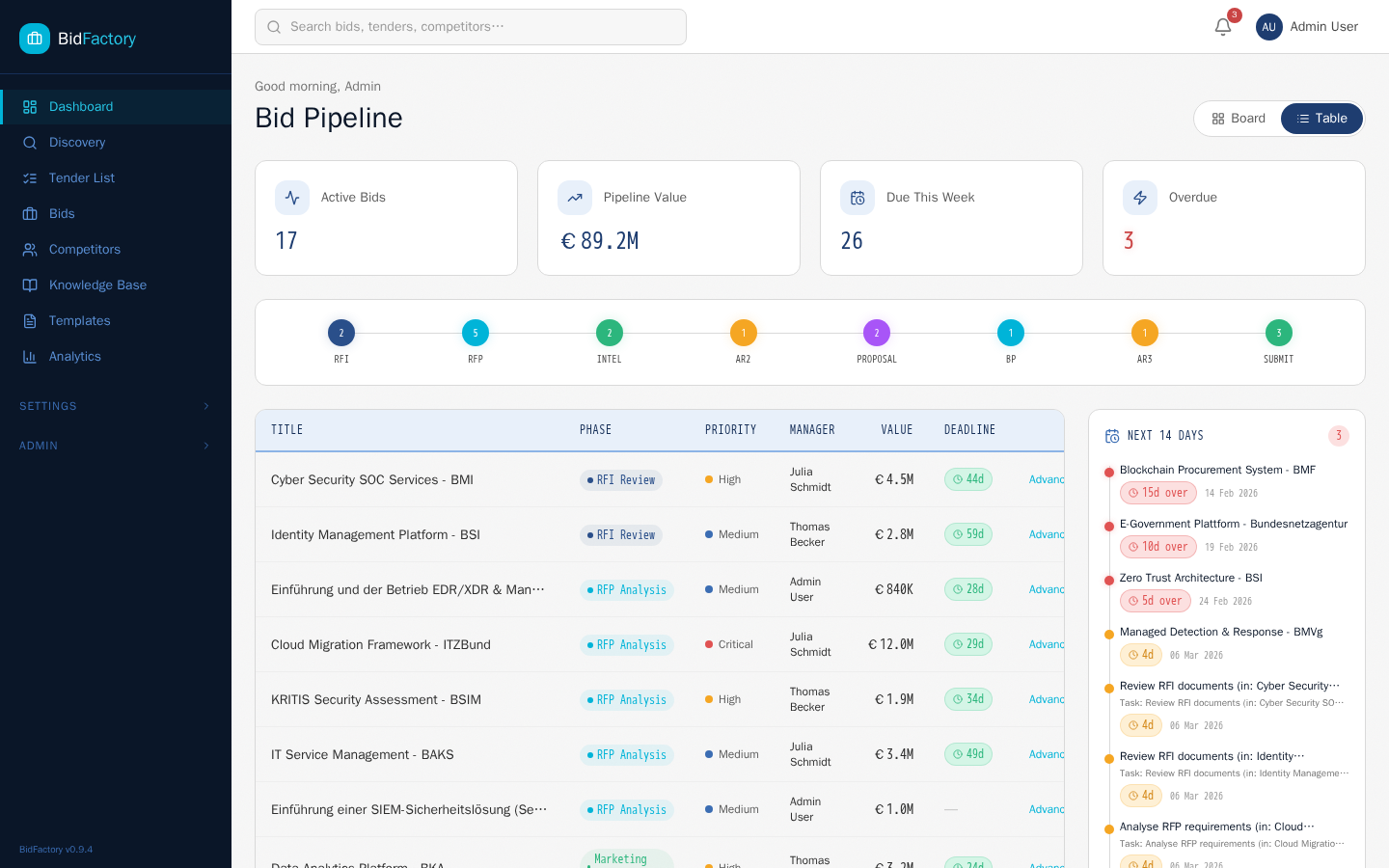
Toggle to Table view using the view-switcher buttons above the Kanban board. The table shows all bids in a compact sortable list with columns for: Title, Phase, Status, Priority, Value, Deadline, and Manager. Click any column header to sort ascending/descending. Click a bid title to open the detail page.
Deadline Sidebar
The right side of the Dashboard shows a Next 14 Days deadline panel listing all bid submission deadlines and task deadlines within the next two weeks. Each item is color-coded:
- Overdue — Past the deadline, requires immediate attention
- 0–3 days — Urgent, needs action today or tomorrow
- 4–7 days — Approaching, plan your work now
- 8–14 days — On track, monitor regularly
As administrator, you see deadlines across all bids and all users, giving you full pipeline visibility for resource management and escalation decisions.
Tender Discovery
The Discovery section is where newly ingested tenders arrive for review and triage. As an administrator, you have full access to all Discovery actions including intake, dismissal, and import.
Discovery Queue
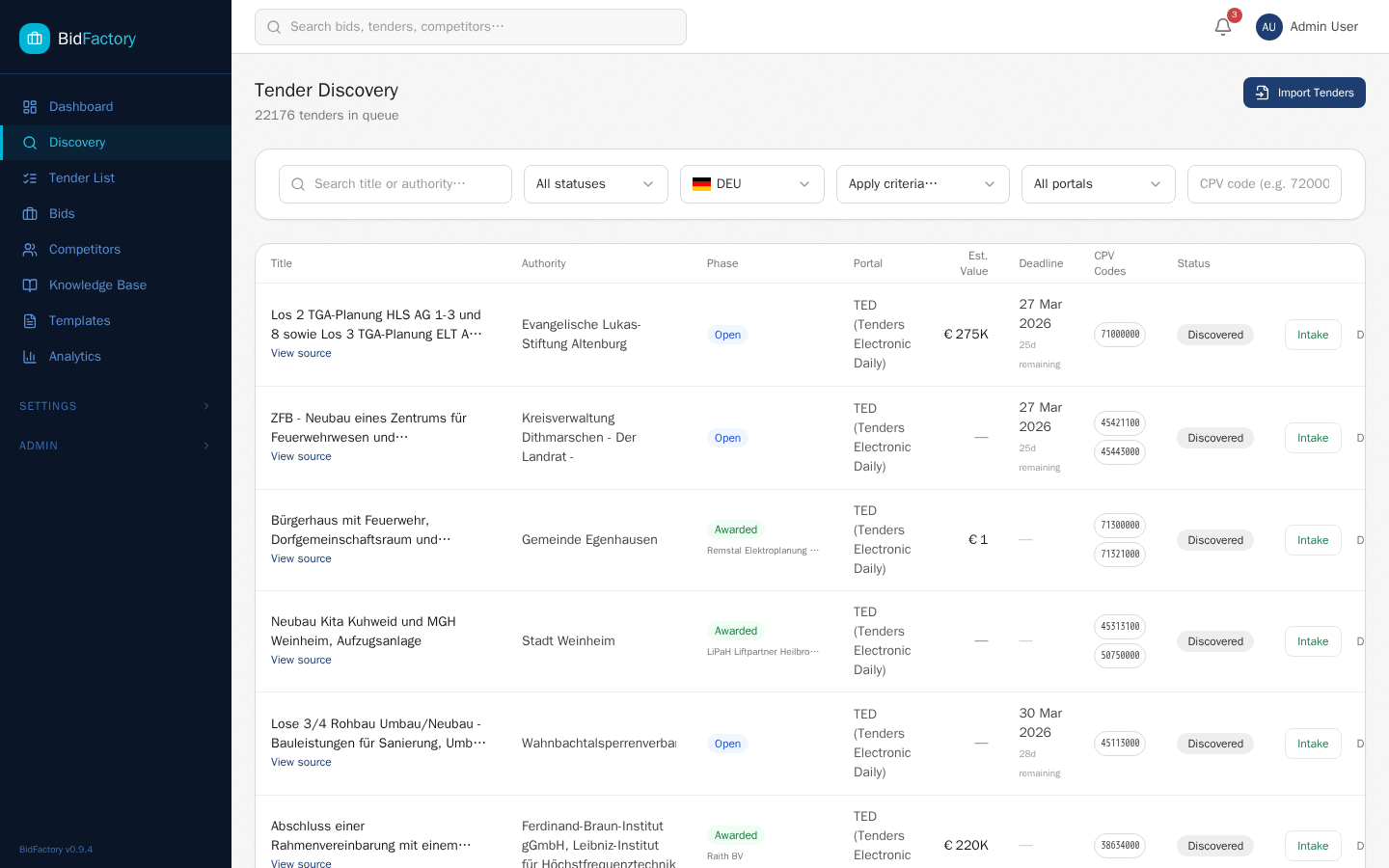
The Discovery queue lists all tenders that have been ingested and match your monitoring criteria but have not yet been intaken into the bid pipeline or dismissed. New tenders appear here within minutes of ingestion completing.
Filters
Six filter controls narrow the queue to the tenders most relevant to your current review:
| Filter | Description |
|---|---|
| Text Search | Searches tender title, description, and contracting authority name |
| Status | New (unreviewed), Reviewed (seen but not actioned), Queued (ready to intake) |
| Country | Filter by publication country (ISO code or full name) |
| Criteria Match | Filter to tenders matching a specific monitoring criterion |
| Portal | Filter by source portal (TED, BKMS, Cosinex VMP) |
| CPV Code | Filter to tenders with a specific CPV code or prefix |
Queue Table Columns
The queue table shows: Title, Contracting Authority, Country, CPV Code, Estimated Value, Publication Date, Deadline, Source Portal, and action buttons. All columns are sortable. Pagination defaults to 20 items per page (max 100).
Intake and Dismiss Workflows
Clicking “Intake” on a tender opens a side panel to configure the new bid before creating it:
- Assign Bid Manager — Select the user responsible for managing this bid through the pipeline. Required field.
- Set Priority — Choose Critical, High, Medium, or Low based on strategic importance and resource requirements.
- Skip RFI Phase — Toggle if the tender does not require a Request for Information stage (e.g., it is a direct RFP with no pre-qualification).
- Notes — Optional free-text notes visible to the assigned bid manager and all team members on the bid.
Click “Confirm Intake” to create the bid. The tender is removed from the Discovery queue and a new bid record is created in the Qualification phase (or RFI phase if not skipped).
Clicking “Dismiss” removes a tender from the active queue. A reason is required before dismissal is confirmed. Choose from:
- Out of scope — does not match our service offering
- Geographic restriction — outside our delivery area
- Value too low — below minimum viable contract size
- Value too high — beyond current delivery capacity
- Incumbent disadvantage — existing supplier has strong advantage
- Resource conflict — cannot staff this bid given current workload
- Other — requires a free-text explanation
Dismissed tenders are archived and visible in the “Dismissed” filter tab. They can be reinstated by an administrator if the original dismissal was made in error.
Manual Import
Navigate to Discovery → Import to manually add a tender that was not captured by automated ingestion. Provide the tender URL or paste the tender reference number to fetch it directly from the source portal API. Manual import is subject to the same rate limits as scheduled ingestion — the backend enforces a minimum interval between requests to a given portal to avoid being throttled.
Bid Management
The Bids section is the core of BidFactory. As an administrator, you have full read and write access to all bids: you can create, edit, advance phases, assign tasks, manage documents, generate proposals, and track progress across the entire pipeline.
Bids List
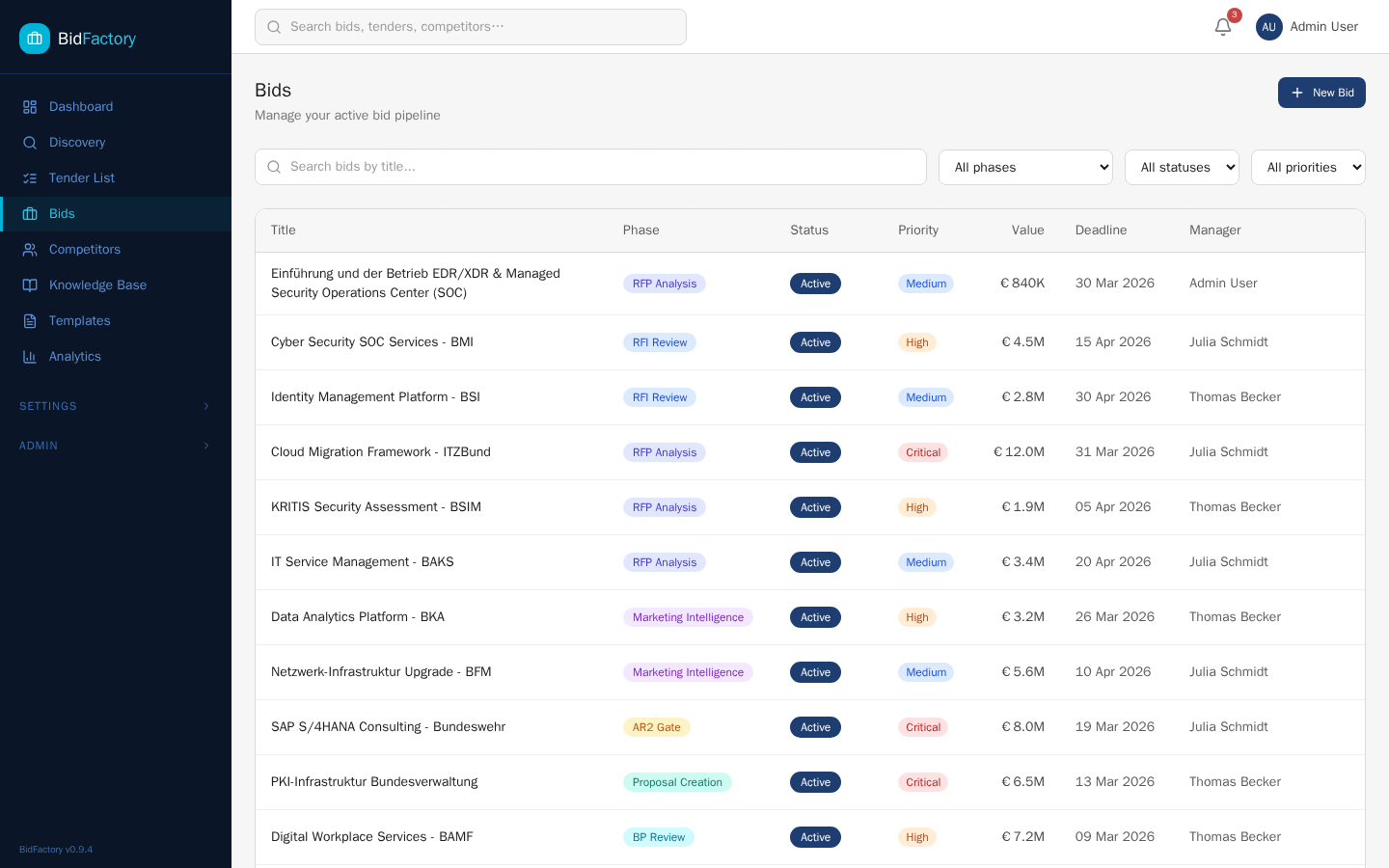
Navigate to Bids in the sidebar to view all bids in the system. Filter controls at the top of the list allow you to narrow results by:
- Search — Bid title or keywords in the description
- Phase — Any of the 9 pipeline phases
- Status — Active, No Bid, Won, Lost, Withdrawn, On Hold, or Submitted
- Priority — Critical, High, Medium, or Low
- Assigned Manager — Filter to bids assigned to a specific user
- Date Range — Filter by intake date or submission deadline
Creating a New Bid
Click “New Bid” to create a bid manually (without going through the Discovery intake flow). Provide: title, contracting authority, estimated value, submission deadline, CPV code, source portal (or “Direct” for bids sourced outside the configured portals), assigned manager, and priority. The bid is created in the Qualification phase.
Bid Detail Page
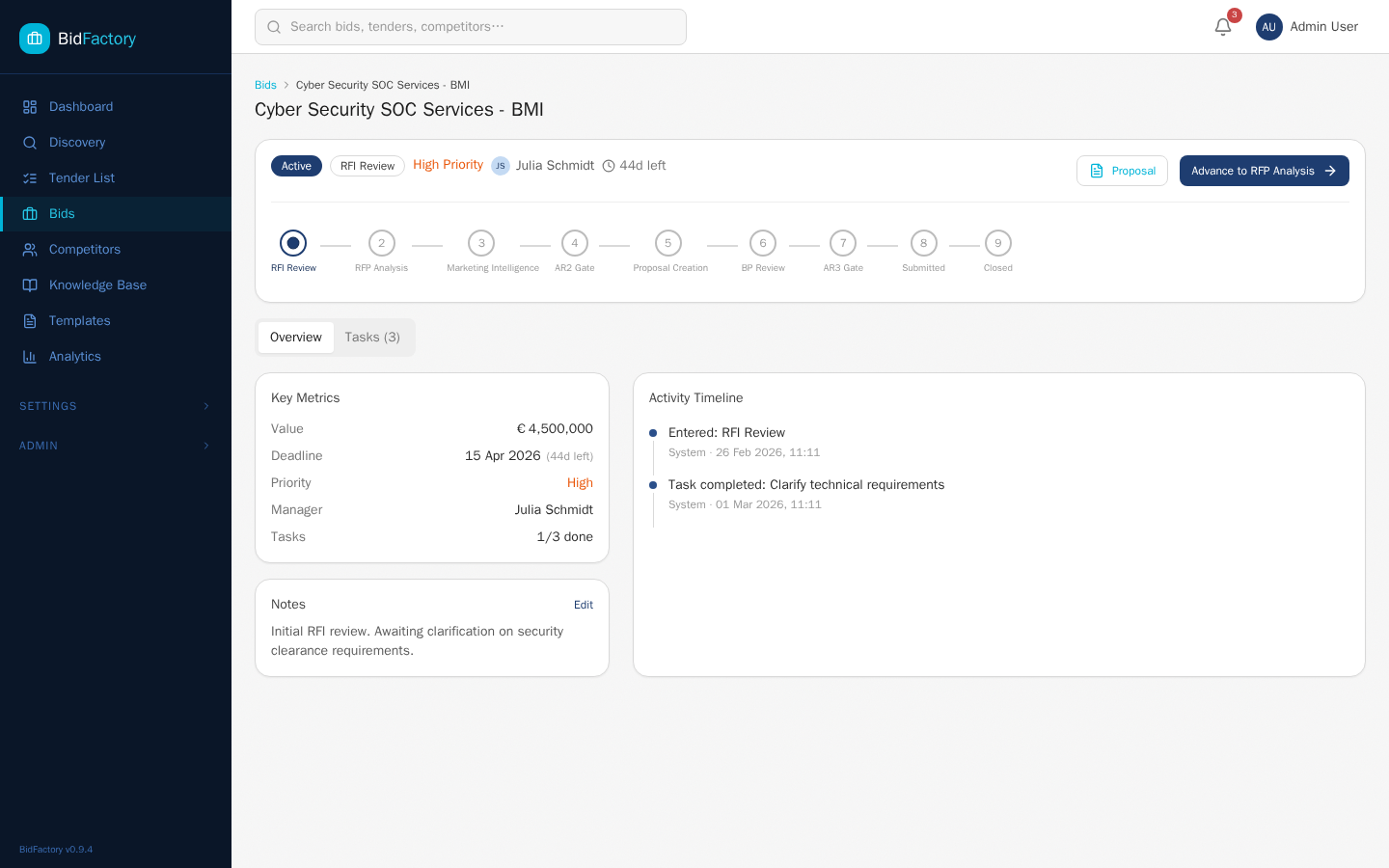
Click any bid title to open its detail page. The page is structured as:
- Status Bar — Displays the bid title, current phase badge, status badge, priority badge, and key dates (intake date, submission deadline). Admin and Bid Manager users see an “Advance Phase” button here.
- 9-Phase Stepper — A horizontal progress tracker showing all phases. Completed phases are highlighted; the current phase is active; future phases are greyed. Click any completed phase to view its notes.
- Tab Navigation — Below the stepper, tabs provide access to Overview, Tasks, Documents, Proposals, Competitors, and the Bid Resources card.
Bid Resources Card
The Bid Resources card (visible in the Overview tab) provides quick links to all documents, Knowledge Base assets, and external resources associated with the bid. It serves as a single navigation hub for all bid-related materials without switching between sections.
Pipeline Phases and Statuses
BidFactory uses a 9-phase pipeline designed around best-practice bid lifecycle management:
| # | Phase | Purpose |
|---|---|---|
| 1 | Qualification | Initial assessment of opportunity fit, strategic value, and resource availability. Gate: Go/No-Go. |
| 2 | RFI | Request for Information response. Gather clarifications and build pre-qualification relationships. Optional phase. |
| 3 | Bid/No-Bid | Formal AR2 gate decision. Approver sign-off required. Outcome determines whether to proceed to full proposal. |
| 4 | RFP Analysis | Deep analysis of full RFP/tender documents. Requirements extraction, risk identification, win-theme development. |
| 5 | Proposal Creation | Active writing of all proposal sections. AI-assisted generation, SME contribution, document assembly. |
| 6 | Best Practices Review | Internal quality review against best practices. Red team review, compliance check, SME sign-off. |
| 7 | Submit/No-Submit | AR3 gate decision. Final approver sign-off before submission. Commercial terms review. |
| 8 | Submission | Final preparation, packaging, and electronic submission to the contracting authority portal. |
| 9 | Post-Submission | Monitoring for outcome, debriefing, lessons learned capture, and pipeline close-out. |
Bid Statuses
| Status | Description |
|---|---|
| Active | Bid is progressing through the pipeline normally |
| No Bid | Decision made not to bid (set at AR2 gate or any earlier phase) |
| Won | Contract awarded to your organization |
| Lost | Contract awarded to a competitor |
| Withdrawn | Bid withdrawn before submission (tender cancelled or strategic withdrawal) |
| On Hold | Bid paused pending external event (e.g., tender delayed by authority) |
| Submitted | Proposal submitted; awaiting outcome decision from contracting authority |
Bid Priorities
| Priority | Criteria |
|---|---|
| Critical | Must-win strategic opportunity; full team resource allocation required |
| High | Important opportunity; prioritized resource allocation |
| Medium | Standard opportunity; managed within normal capacity |
| Low | Opportunistic; minimal resource investment, quick-turn approach |
Document Processing
BidFactory can ingest, parse, and extract structured information from tender documents attached to a bid. Document processing happens in the context of a specific bid, accessible from the Documents tab on the bid detail page.
Uploading Documents
Click “Upload Document” within the Documents tab to attach files to a bid. Supported formats:
| Format | Extension | Notes |
|---|---|---|
| Most common for official tender notices and ITT documents | ||
| Word | .docx | Draft RFPs, question & answer documents, specifications |
| Excel | .xlsx | Bill of quantities, pricing schedules, evaluation matrices |
| OpenDocument Text | .odt | Open-format alternatives to .docx |
| Archive | .zip | ZIP files containing multiple documents; all supported files are extracted and processed individually |
| .eml | Clarification emails and portal notifications; body and attachments are extracted |
Drag and drop files onto the upload zone or click to browse. Multiple files can be uploaded simultaneously. Maximum file size is 50 MB per file.
AI Extraction Workflow
After upload, click “Extract” on a document to trigger structured data extraction. The extraction engine processes the document and populates nine structured sections:
- Scope of Work — Core deliverables and service requirements
- Eligibility Criteria — Mandatory qualifications and exclusion grounds
- Evaluation Criteria — Award criteria and weightings
- Contract Duration — Start date, end date, extension options
- Estimated Value — Budget range or ceiling value
- Submission Requirements — Required documents and formatting rules
- Key Dates — Clarification deadline, submission deadline, award date
- Contact Information — Contracting officer name, email, telephone
- Special Conditions — Security clearance, insurance, performance bond requirements
AI Indicators and Approval Workflow
Fields where the extraction confidence is below 90% are flagged with an [AI] indicator badge. These fields require human review before the bid can advance past the RFP Analysis phase. The approval workflow is:
- Review each flagged field in context of the source document
- Edit the value if the extraction is incorrect or incomplete
- Click the checkmark next to each field to approve it
- Once all [AI]-flagged fields are approved, the extraction status updates to Verified
RFI Auto-Fill
When processing documents for bids in the RFI phase, the extraction engine also generates pre-filled answers to common RFI questions using data from the Knowledge Base. Each auto-filled field displays a confidence indicator:
| Confidence | Meaning | Action Required |
|---|---|---|
| HIGH | Exact match found in Knowledge Base with high relevance score | Review and confirm; usually accurate |
| MEDIUM | Partial match or inferred answer from related Knowledge Base content | Review carefully; may need editing |
| LOW | No matching Knowledge Base content; placeholder generated | Must be replaced with accurate content before submission |
Each auto-filled field shows the source Knowledge Base asset it was drawn from, so you can verify accuracy and update the source asset if needed for future RFIs.
Proposal Generation
BidFactory’s AI-assisted proposal generation creates structured first drafts using Claude API and your Knowledge Base content. Proposals are accessible from the Proposals tab on the bid detail page.
Quick Generate
Quick Generate creates a complete proposal draft with a single click using default section templates and available Knowledge Base content. It is designed for rapid first drafts where the goal is to produce reviewable content quickly rather than maximally customized output. The generation runs as a background ARQ job — a shimmer progress bar in the header indicates the job is in progress. Generation typically completes in 60–120 seconds depending on proposal length and Claude API latency.
Guided Generate (GEM Wizard)
Guided Generate launches the GEM (Guided Excellence Methodology) wizard, a step-by-step process for configuring each section of the proposal before generation begins. The wizard has the following steps:
- Section Selection — Choose which of the 8 section types to include in this proposal
- Win Themes — Enter 3–5 win themes that should be woven throughout the proposal
- Knowledge Base Assets — Review and select which capabilities, case studies, and references to draw from
- Competitor Context — Optionally include competitor intelligence to inform differentiating language
- Tone and Length — Set formality level (formal/semi-formal) and target word count per section
- Review and Generate — Final confirmation before submitting the generation job
Section Types
BidFactory supports 8 configurable proposal section types:
- Executive Summary — High-level overview for senior evaluators
- Technical Approach — Methodology, tools, and technical solution description
- Management Approach — Team structure, governance, and delivery management
- Past Performance — Relevant case studies and references
- Team Qualifications — Key personnel CVs and credentials
- Risk Management — Identified risks and mitigation strategies
- Innovation — Novel approaches, tools, or differentiators
- Compliance Matrix — Requirement-by-requirement compliance table
Multi-Language Support
Proposals can be generated in English, German, or French. Language selection is available in both Quick Generate and the GEM wizard. The generation workflow is:
- Content is always generated first in English regardless of target language
- If a non-English language is selected, the English draft is then translated via a second Claude API call
- Both the English source and the translated version are stored and can be reviewed independently
This “generate-then-translate” approach preserves quality by generating in the language the AI model performs best in, then applying a targeted translation rather than generating directly in a second language.
Template System and PDF Export
BidFactory includes 16 proposal templates covering common procurement categories. Templates define section order, formatting rules, and default win themes for their category. Templates are accessible from the Templates section in the sidebar.
PDF Export
To export a completed proposal as PDF, click “Export PDF” in the proposal actions menu. The export uses WeasyPrint to render the proposal with:
- Branded cover page with your company logo and bid metadata
- Automatically generated Table of Contents with page numbers
- Language filtering (if multi-language content exists, select which language to include)
- Page headers and footers with confidentiality notice and page numbers
PDF generation is a background task. When complete, a download link appears in the notification center and on the Proposals tab.
Competitor Intelligence
BidFactory maintains a database of competitor organizations built from award data extracted during tender ingestion. The Competitor Intelligence section provides tools for managing this database, enriching profiles with AI-generated intelligence, and analyzing competitive positioning.
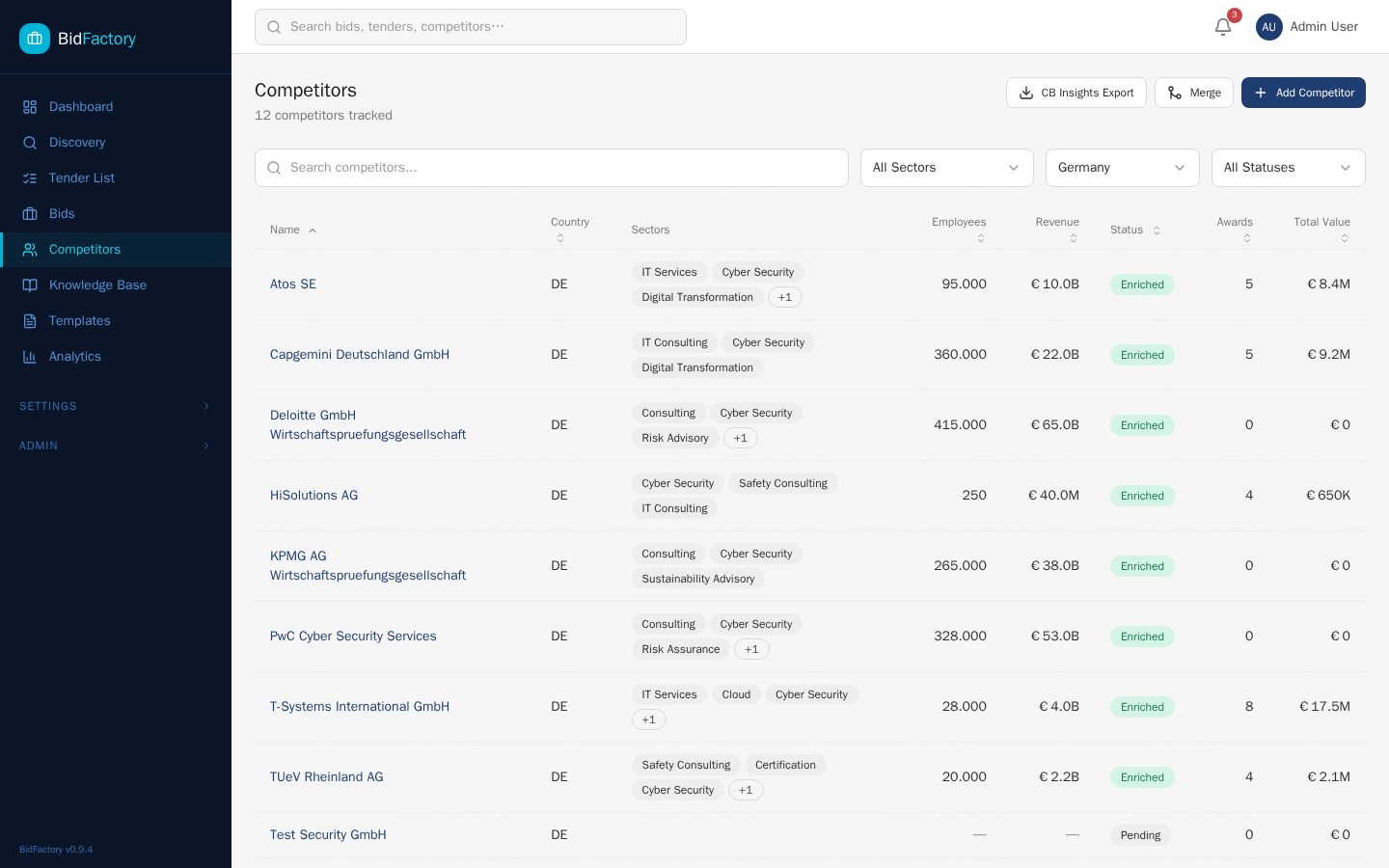
Competitor List
Navigate to Competitors in the sidebar to see all known competitor organizations. Filter the list by: company name, country, sector (CPV-based), or award date range. Each competitor card shows the company name, country of registration, number of awards in the database, and last enrichment date.
Adding a Competitor Manually
Click “Add Competitor” to manually register an organization that does not yet appear in the database (e.g., a known competitor that has not yet appeared in your monitored tenders). Provide: company name, country, and optional website URL. The entity resolution system will automatically detect and merge duplicates if the same company is later encountered during ingestion.
Merging Competitors (Admin Only)
Duplicate competitor records can occur when the same organization is referenced under slightly different names across tender databases. Administrators can merge two records into one. Navigate to the competitor profile, click “Merge”, and select the target record to merge into.
AI Enrichment
Enrichment uses web search and Claude API to generate a structured intelligence profile for a competitor. Click “Enrich” on any competitor profile to trigger the enrichment job. The job runs in the background via the ARQ worker and typically completes in 30–90 seconds.
Enrichment generates or updates the following profile sections:
- Company description and business summary
- Key service areas and capabilities
- Known clients (public sector focus)
- Estimated annual revenue range
- Recent awards and contract wins
- Strategic positioning and notable differentiators
CB Insights Export
Competitor data can be exported to CSV in CB Insights format for use with external analysis tools. From the Competitors list, select the competitors to export and click “Export → CB Insights CSV”.
SWOT Analysis per Bid
From within a bid’s Competitors tab, you can generate a SWOT analysis that evaluates a specific competitor in the context of this specific bid. The analysis covers:
- Strengths — Competitor advantages relevant to this tender’s evaluation criteria
- Weaknesses — Known gaps or disadvantages relative to the tender requirements
- Opportunities — Areas where your organization can differentiate effectively
- Threats — Risks posed by this competitor’s likely approach
- Win Probability — A calculated estimate (0–100%) based on award history, enrichment data, and bid characteristics
Market Benchmarking
The Benchmarking view (accessible from the Analytics section) provides aggregate competitive market intelligence across a configurable 2-year rolling window. Metrics include:
- Win rate by competitor and by CPV sector
- Average contract values by category
- Day-rate estimates derived from public award data and contract durations
- Market share by contracting authority type
- Competitive concentration index by sector
Knowledge Base
The Knowledge Base stores reusable content assets that power proposal generation, RFI auto-fill, and personnel assignments. It is a shared organizational resource, accessible to all roles for reading and to Admin, Bid Manager, and SME roles for editing.
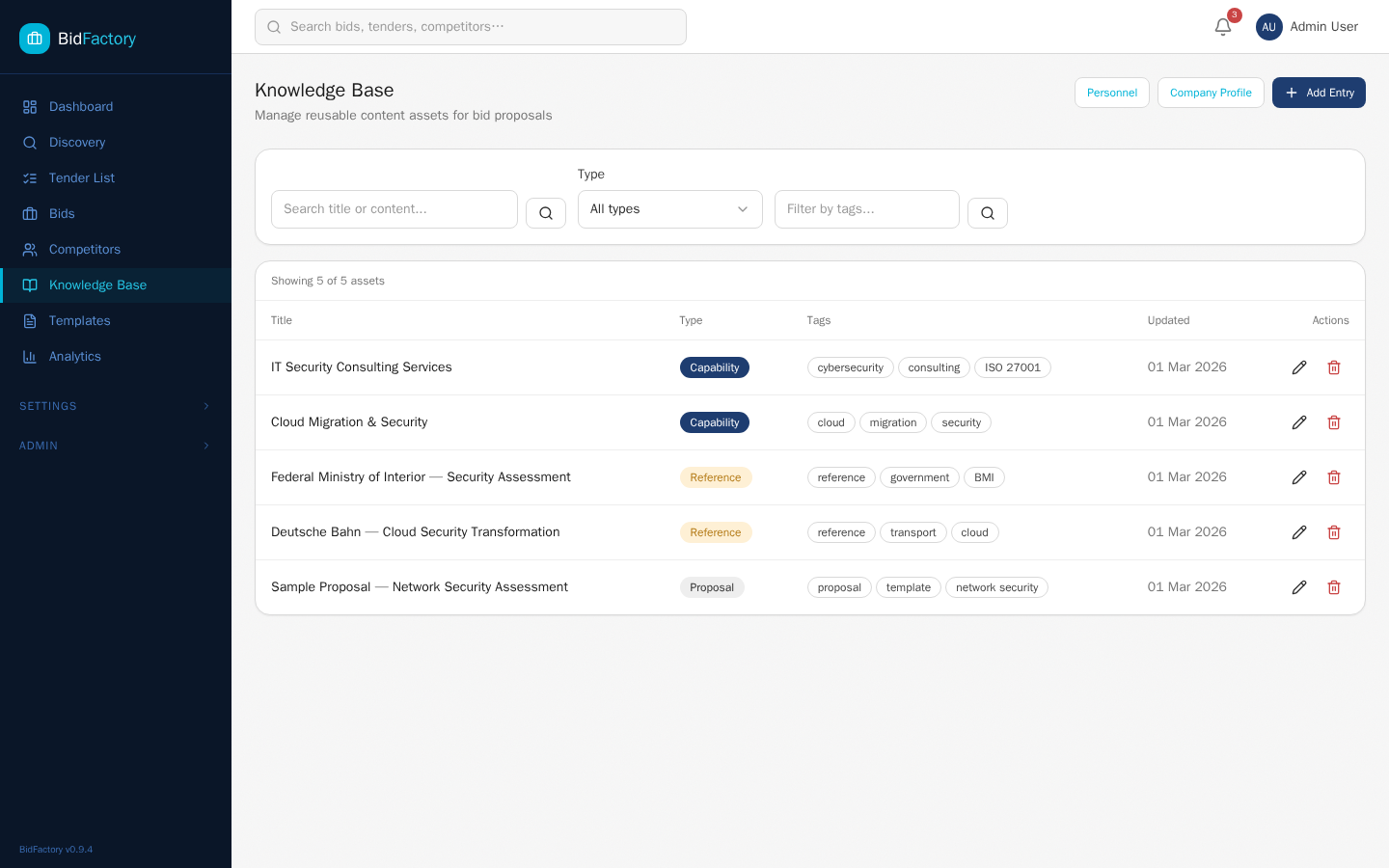
Asset Types
The Knowledge Base supports 12 distinct asset types, each with its own structured metadata schema:
| Asset Type | Description | Used In |
|---|---|---|
| Capability Statement | Formal description of a specific organizational capability | Technical Approach, Executive Summary |
| Case Study | Completed project reference with client, scope, outcome, and measurable results | Past Performance section |
| Methodology | Documented delivery methodology or framework | Management Approach, Technical Approach |
| CV / Biography | Key personnel profile with qualifications, experience, and relevant projects | Team Qualifications section |
| Certification | Organizational accreditation or quality certification with expiry date | Eligibility criteria responses |
| Boilerplate Text | Pre-approved standard paragraphs for common proposal sections | Any section |
| Reference Letter | Client testimonial or formal reference letter (uploaded PDF) | Past Performance, appendices |
| Insurance Certificate | Current insurance documentation with coverage amounts and expiry | Compliance section |
| Financial Statement | Audited accounts or financial health summary for financial standing requirements | Eligibility, financial standing |
| Technical Document | Specifications, architecture diagrams, standards compliance evidence | Technical Approach appendices |
| Template | Proposal section template configuring structure and default content | Proposal generation |
| Other | Any supporting document not fitting above categories | Appendices, supplementary evidence |
Full-Text Search
The Knowledge Base uses PostgreSQL tsvector full-text search with GIN indexing for fast, relevance-ranked search across all asset titles, descriptions, and body text. Type any keywords in the search bar to find relevant assets instantly. Results are ranked by relevance score. Advanced filter controls allow narrowing by asset type, CPV sector, language, and upload date.
Personnel Profiles
Personnel profiles in the Knowledge Base represent the CVs and biographies of key personnel who may be named in proposals. Each profile includes:
- Full name, title, and summary biography
- Qualifications and certifications (linked to Certification assets)
- Years of experience by discipline
- Project history with roles and outcomes
- Languages and clearance levels
- Photo (optional, used in formatted PDF proposals)
Personnel profiles are updated by SMEs and Bid Managers. Keeping profiles current ensures that proposal generators can accurately represent team qualifications.
Company Profile
The Company Profile contains your organization’s master information used across all proposals and RFI responses. Fields include: company legal name, registration number, VAT number, registered address, primary contact, company description, key sectors, certifications list, and insurance summary.
approver or admin role. This ensures that legally significant organizational information is controlled by authorized governance stakeholders.
Analytics
The Analytics section provides data-driven insights into your bid pipeline performance, win rates, competitive positioning, and resource utilization. All analytics are available to all roles.
Date Range Filtering and Summary Cards
Select a date range at the top of the Analytics page to filter all charts and metrics. The date range applies to bid intake date by default; toggle to filter by submission date or award date as needed. Four summary cards show aggregate statistics for the selected period:
| Card | Metric |
|---|---|
| Total Bids | All bids intaken during the period |
| Win Rate | Percentage of submitted bids that resulted in a won contract |
| Pipeline Value | Total estimated contract value of all bids in the period |
| Avg. Bid Duration | Average days from intake to submission across completed bids |
Chart Library
The analytics page contains the following charts, all responsive and interactive (hover for tooltips, click legend items to toggle series):
- Win Rate Trend — Month-by-month win rate percentage over time. Useful for identifying seasonal patterns and the impact of process changes.
- Bids by Phase — Current snapshot of bid count per pipeline phase. Identifies bottlenecks where bids are accumulating.
- Pipeline Funnel — Conversion rates between each pipeline phase showing where bids drop out. Calculated for the selected date range.
- Volume by CPV Sector — Stacked bar chart showing bid volume and win volume by CPV code category. Identifies your strongest and weakest sectors.
- Phase Duration — Box plot showing average and distribution of time spent in each phase. Helps identify phases that consistently take longer than expected.
- No-Bid Reasons — Pie chart of dismissal and no-bid decision reasons. Highlights systematic issues (e.g., high “resource conflict” rate signals capacity constraints).
- Conversion Rates — Funnel visualization from Discovery queue through to Won contracts, showing the full lead-to-win conversion across the entire pipeline.
Notifications
BidFactory generates in-platform notifications for key bid lifecycle events and system events. Administrators receive all notification types, including system-level alerts not visible to other roles.
Notification Types
| Type | Trigger | Visible To |
|---|---|---|
| Bid Phase Advanced | A bid moves to the next pipeline phase | All assigned to the bid |
| Task Assigned | A task is assigned to you | Assignee only |
| Task Completed | A task assigned by you is marked complete | Task creator |
| Approval Required | AR2 or AR3 gate reached; awaiting your approval | Approver role users |
| Deadline Approaching | Bid submission deadline is 48 hours away, then 24 hours, then overdue | Bid manager, admin |
| Ingestion Completed | A scheduled or manual ingestion run finishes | Admin only |
| Enrichment Completed | An AI competitor enrichment job finishes | User who triggered enrichment |
Notification Center
The notification bell in the top header displays an unread count badge. The badge updates every 30 seconds via polling. Click the bell to open the notification center, which shows:
- All unread notifications sorted by recency (newest first)
- A “Mark all as read” button
- Individual notification entries with: type icon, message, related bid link, and timestamp
- Older notifications are paginated in sets of 20
Click any notification to navigate directly to the relevant bid, task, or competitor. Clicking marks the notification as read.
Background Tasks for Deadlines
Deadline reminder notifications are generated by a background ARQ job that runs every hour. The job checks all active bids and sends notifications at:
- 48 hours before deadline — First reminder to the assigned bid manager and all admin users
- 24 hours before deadline — Urgent reminder with escalation flag
- Overdue (deadline passed) — Critical notification; the bid deadline indicator turns red in the dashboard
Email notifications for deadline reminders are queued in Redis and processed by the worker service. Configure the email server connection in your .env file via SMTP_HOST, SMTP_PORT, SMTP_USER, and SMTP_PASSWORD.
System Troubleshooting
This chapter covers administrator-exclusive diagnostic procedures. These commands and techniques require access to the Docker host and are not available through the web interface.
bidfactory/ directory. Do not share this access with non-admin users.
Common Issues
Likely cause: Account locked due to 5 consecutive failed login attempts, or the account was deactivated.
Diagnostic steps:
- Navigate to Admin → Users and find the affected user.
- Check the Active toggle — if it is off, reactivate the account.
- If the account appears active but login still fails, check the backend logs for authentication errors:
docker compose logs backend --tail=50 | grep "auth"Look for "rate_limited": true or "account_locked": true in the log output. If locked, wait 60 seconds or deactivate/reactivate the account to reset the lock.
If the user has forgotten their password entirely, update it from the Admin → Users console.
Likely cause: Monitoring criteria too narrow, portal connectivity issue, or ingestion run failed silently.
Diagnostic steps:
- Check the Run History tab in Settings → Monitoring. Look for failed or partial status on the most recent run. Expand the row to read the error message.
- If status is completed with 0 Records Found, your criteria may be too narrow. Try temporarily broadening CPV codes or removing the value range filter.
- Check worker logs for ingestion job errors:
docker compose logs worker --tail=100 | grep -i "ingest"Common errors: ConnectionTimeout (TED/BKMS API unreachable), XMLParseError (malformed notice — usually a single bad record that was skipped), RateLimitExceeded (too many API requests; the system will retry automatically after the backoff period).
Likely cause: Database connection pool exhausted, a long-running query, Redis disconnected, or worker queue backed up.
Diagnostic steps:
- Check service health:
docker compose ps
curl http://localhost:8000/health
curl http://localhost:8000/health/db
curl http://localhost:8000/health/redis- Check container resource usage:
docker stats --no-streamIf the db container is at high CPU, a slow query is running. Check the backend logs for slow query warnings:
docker compose logs backend --tail=200 | grep "slow_query"If the worker container shows high memory, the job queue may be backed up with large documents. Check the ARQ queue length via Redis:
docker compose exec redis redis-cli LLEN arq:queue:defaultA queue length above 50 indicates the worker cannot keep up. Consider scaling the worker service or reducing concurrent document processing jobs.
Likely cause: An external API (TED, BKMS, or Claude) is unavailable and the circuit breaker has opened, or the database connection has been lost.
Diagnostic steps:
- Check the backend health endpoint for specific subsystem status:
curl http://localhost:8000/health/db
curl http://localhost:8000/health/redis- Check backend logs for circuit breaker events:
docker compose logs backend --tail=100 | grep -i "circuit"If you see "circuit_breaker_opened": true for TED or BKMS, the system will automatically retry after the cooling period (10 minutes). You can force a reset by restarting the backend service:
docker compose restart backendIf the database is unreachable, check the db container logs and verify the DATABASE_URL in your .env file is correct.
Likely cause: Alembic migration failed or is pending after a codebase update.
Diagnostic steps:
- Check the current migration state:
docker compose exec backend alembic current- View pending migrations:
docker compose exec backend alembic history --verbose- Apply pending migrations manually:
docker compose exec backend alembic upgrade headIf a migration fails with a conflict error, check the backend logs for the specific SQL error. Do not modify the migrations directory manually — contact the development team if a migration script appears corrupted.
Likely cause: Claude API key invalid or rate limited, worker service not running, or Redis queue disconnected.
Diagnostic steps:
- Verify the worker service is running and connected to Redis:
docker compose ps worker
docker compose logs worker --tail=50- Check for Claude API errors in the worker logs:
docker compose logs worker --tail=100 | grep -i "claude\|anthropic"Common errors: AuthenticationError (invalid ANTHROPIC_API_KEY), RateLimitError (API rate limit exceeded — the system uses exponential backoff and will retry), APIConnectionError (network connectivity issue from the Docker host).
- Verify your API key is correctly set:
docker compose exec backend python -c "import os; print(bool(os.getenv('ANTHROPIC_API_KEY')))"This prints True if the key is set and non-empty. If False, update your .env file and restart: docker compose up -d.
Diagnostic Command Reference
All commands must be run from the bidfactory/ directory on the Docker host:
# Check status of all 5 services
docker compose ps

# Tail logs for a specific service (replace 'backend' with service name)
docker compose logs backend --follow --tail=100

# Check database connectivity
docker compose exec backend python -c "from app.db.session import engine; engine.connect(); print('DB OK')"

# Ping Redis
docker compose exec redis redis-cli ping

# Full health check via API
curl http://localhost:8000/health

# View container resource usage
docker stats --no-stream

# Restart a single service without affecting others
docker compose restart backend

# Rebuild and restart a single service after code change
docker compose up --build -d backend

# Run database migrations
docker compose exec backend alembic upgrade head

# Check Alembic migration status
docker compose exec backend alembic current

# View ARQ job queue length
docker compose exec redis redis-cli LLEN arq:queue:default

# Force stop and clean restart of entire stack
docker compose down && docker compose up --build -ddocker compose down stops and removes containers but preserves the named Docker volumes containing your database data. To permanently delete all data (for a clean reinstall), add the -v flag: docker compose down -v. This cannot be undone — all bids, competitors, and user data will be lost.
AI Provider Settings
BidFactory uses large language models (LLMs) for document extraction, proposal generation, competitor enrichment, SWOT analysis, RFI autofill, and translation. The AI Provider Settings page lets you configure which providers, models, and features are used across the platform. Navigate to Admin → Settings in the sidebar to access this page.
admin role. All settings changes take effect immediately — there is no staging or preview mode.
The page is organised into four tabs: Keys, Routing, Toggles, and Usage.
Keys Tab — API Provider Configuration
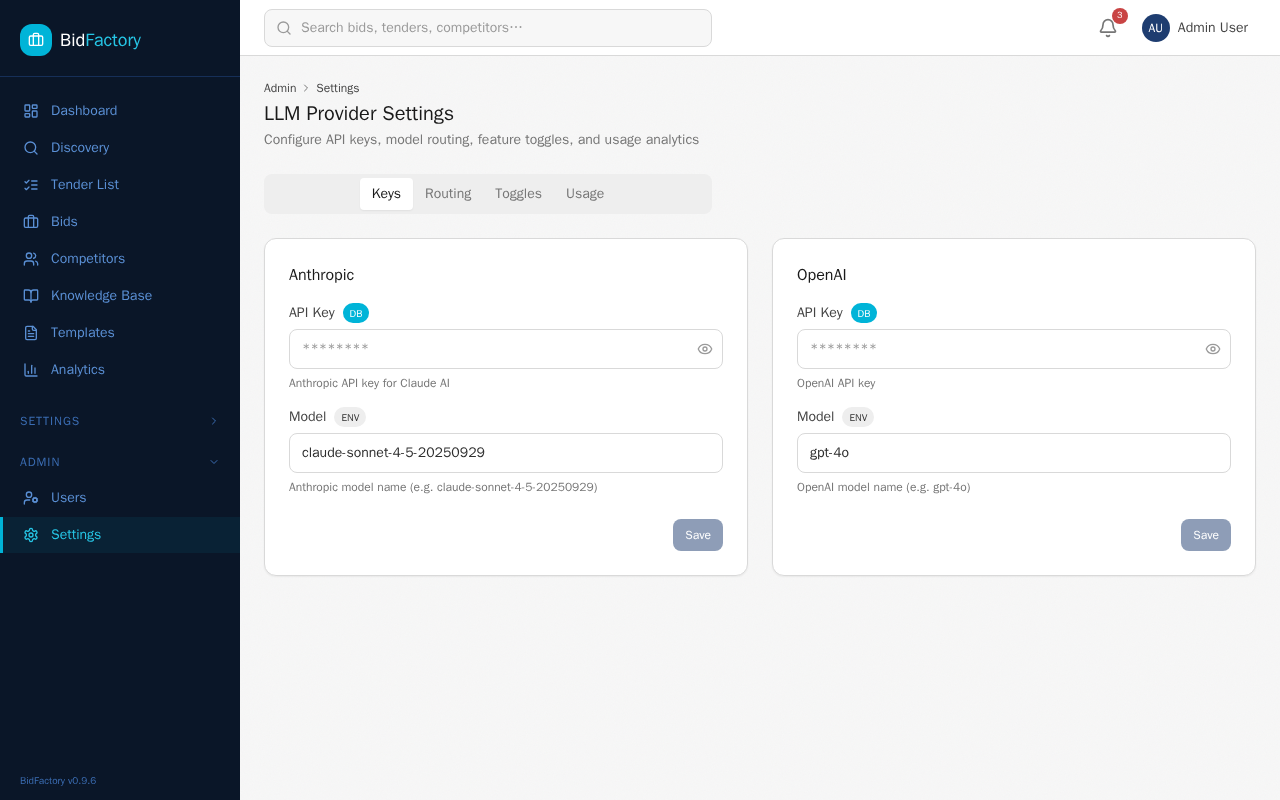
The Keys tab displays two provider cards side by side: Anthropic (Claude models) and OpenAI (GPT models). Each card contains:
- API Key — A masked password field. Keys are encrypted at rest using Fernet symmetric encryption derived from the application’s
SECRET_KEY. A source badge shows whether the current value comes from the DB (database) or ENV (environment variable fallback). - Model — The default model for this provider (e.g.,
claude-sonnet-4-5-20250929for Anthropic orgpt-4ofor OpenAI). This is used as the fallback when no role-specific model is configured. - Save — Changes are submitted per provider card. The button is disabled until a change is detected.
.env file). Database values always take priority over environment variables. This means you can set defaults in .env and override them per-environment via the UI.
Routing Tab — Role-Based Model Assignment
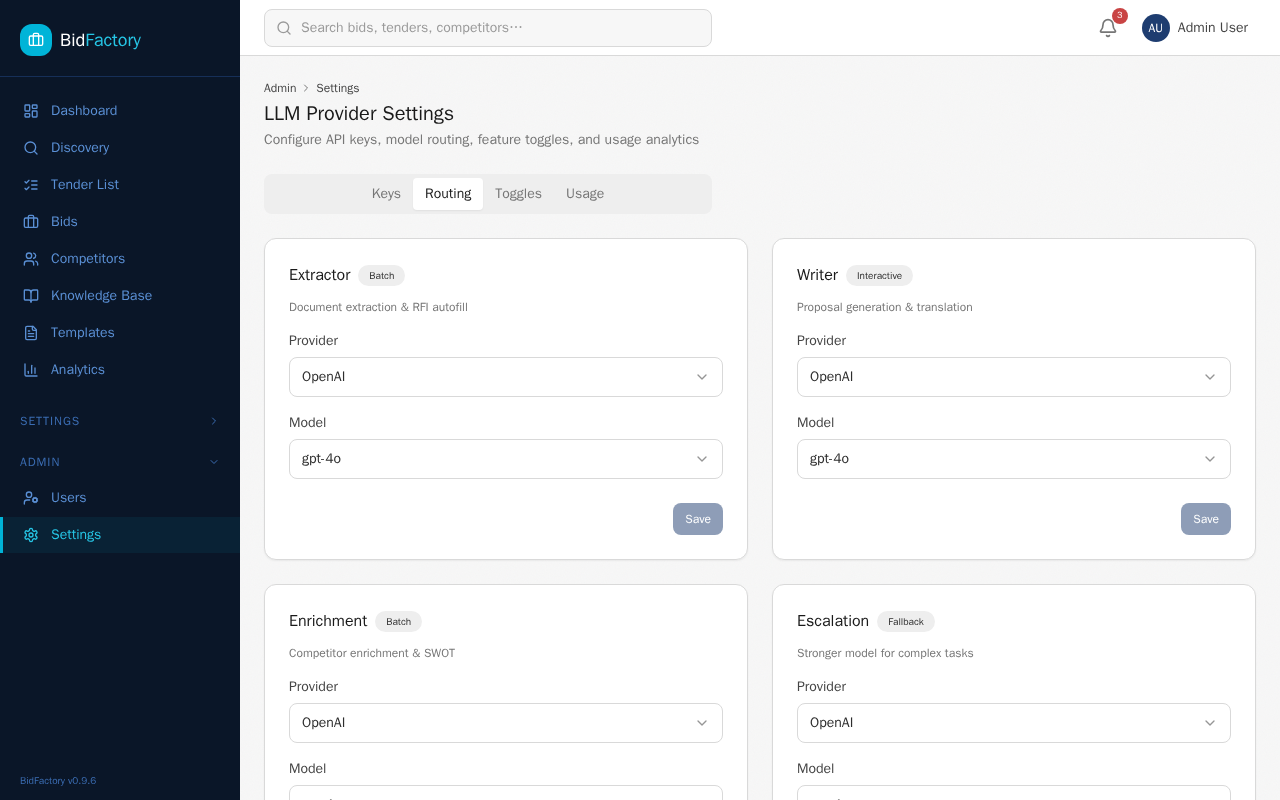
BidFactory defines four LLM roles, each handling a different category of AI work. The Routing tab shows one card per role, allowing you to assign a specific provider and model to each:
| Role | Badge | Use Cases |
|---|---|---|
| Extractor | Batch | Document extraction from uploaded PDFs/DOCX, RFI autofill generation |
| Writer | Interactive | Proposal section generation, multi-language translation |
| Enrichment | Batch | Competitor enrichment via web search summaries, SWOT analysis generation |
| Escalation | Fallback | Automatic fallback to a stronger model when the primary model fails or produces low-quality output |
Each role card provides:
- Provider dropdown — Choose between Anthropic and OpenAI. Changing the provider clears the model selection so you must re-select a model.
- Model dropdown — Lists available models for the selected provider. Anthropic options include
claude-3-5-haiku-latest,claude-3-5-sonnet-latest,claude-3-opus-latest, andclaude-sonnet-4-5-20250929. OpenAI options includegpt-4.1-mini,gpt-4o-mini,gpt-4.1, andgpt-4o. Select Custom… to enter any model name manually (useful for newly released models or fine-tuned variants). - Save — Provider and model are saved together.
gpt-4.1-mini for Extractor, claude-sonnet-4-5-20250929 for Writer.
Toggles Tab — Feature Flags
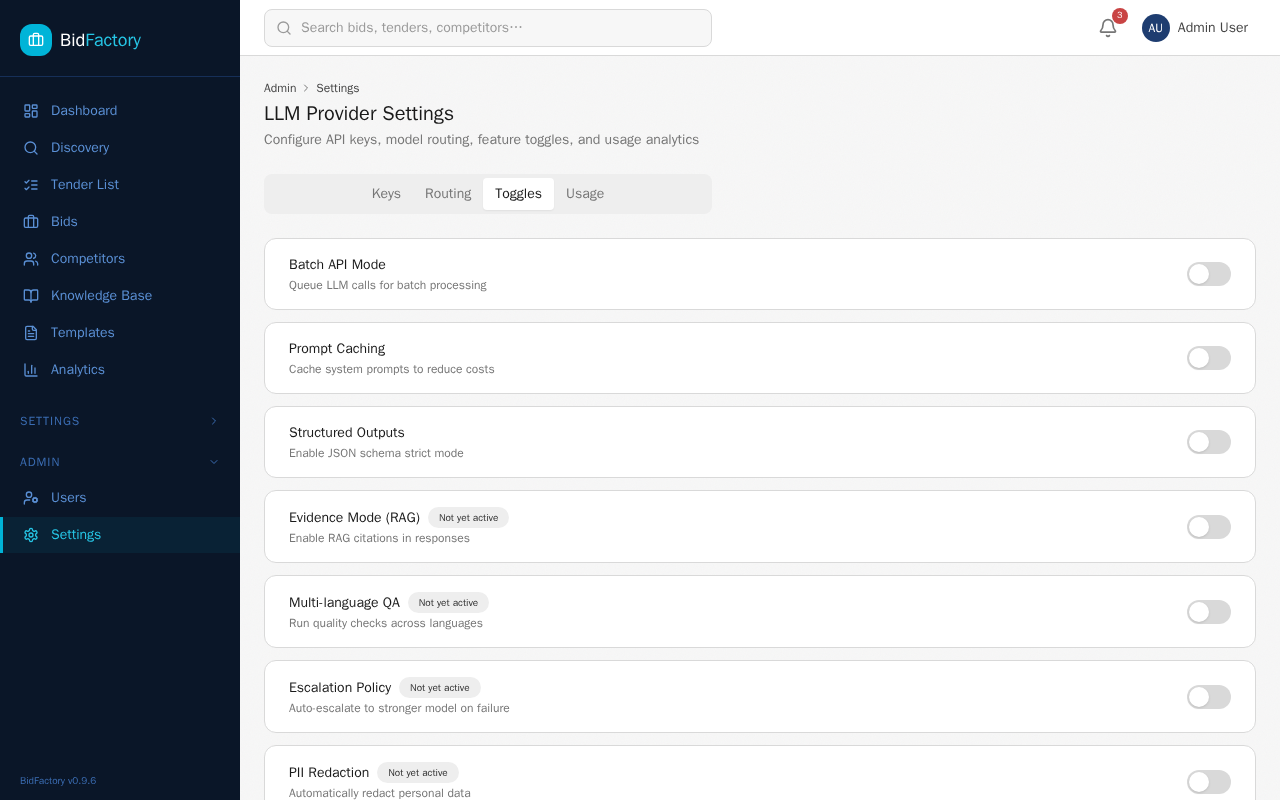
The Toggles tab provides on/off switches for experimental and optimisation features. Each toggle saves immediately when clicked — no separate Save button is needed.
| Toggle | Status | Description |
|---|---|---|
| Batch API Mode | Active | Queue LLM calls for batch processing instead of individual requests. Reduces cost on supported providers. |
| Prompt Caching | Active | Cache system prompts to avoid re-sending identical prompt prefixes. Significantly reduces input token costs for repeated operations. |
| Structured Outputs | Active | Enable JSON schema strict mode so LLM responses conform to a predefined structure. Improves extraction reliability. |
| Evidence Mode (RAG) | Planned | Enable RAG citations in responses so each AI output references the source document and page. |
| Multi-language QA | Planned | Run automated quality checks across language variants after translation. |
| Escalation Policy | Planned | Automatically retry with a stronger model when the primary model fails or produces unusable output. |
| PII Redaction | Planned | Automatically redact personal data (names, addresses, phone numbers) before sending content to the LLM. |
Usage Tab — LLM Analytics Dashboard
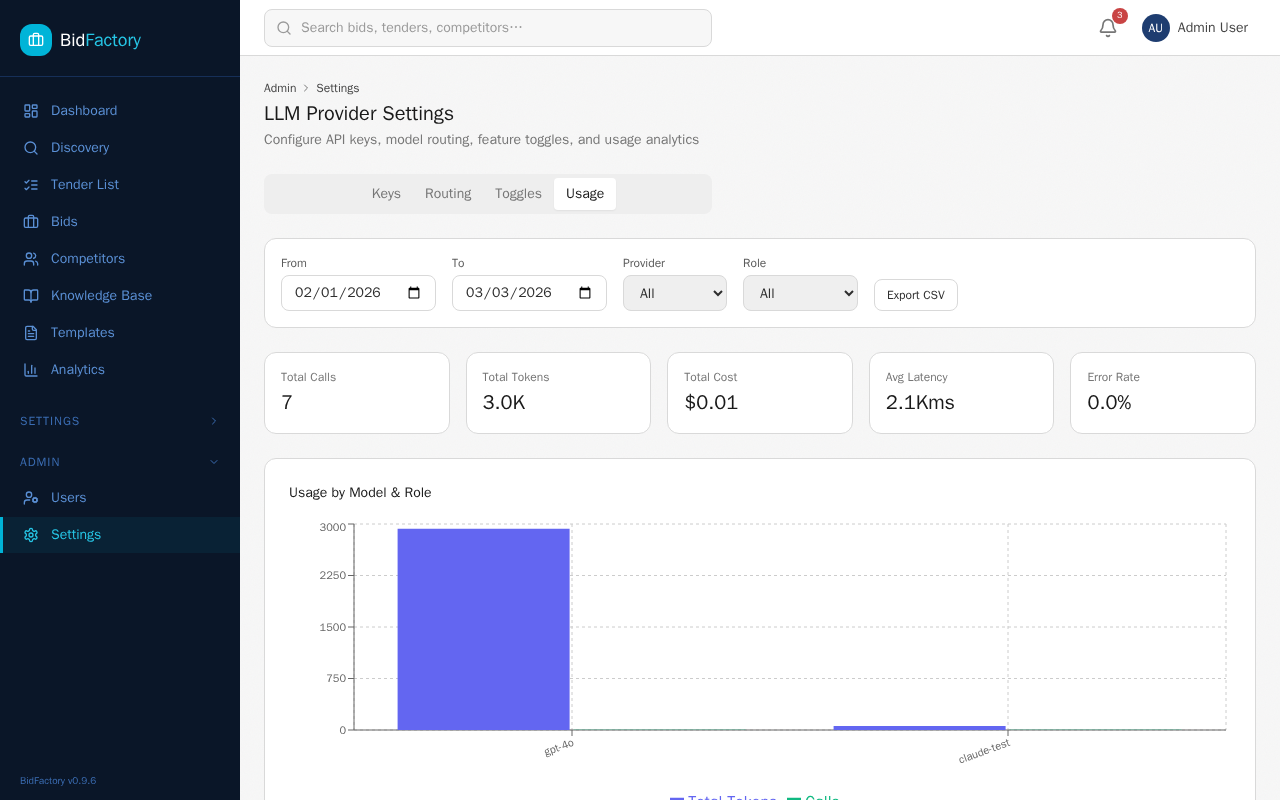
The Usage tab provides full observability into all LLM API calls made by the platform. Every call — whether for extraction, proposal generation, enrichment, or translation — is logged with token counts, cost, latency, and success/failure status.
Filters
At the top of the Usage tab you can filter the data by:
- Date range — From/To date pickers (defaults to the last 30 days)
- Provider — All, Anthropic, or OpenAI
- Role — All, Extractor, Writer, Enrichment, or Escalation
KPI Summary Cards
Five cards display aggregate metrics for the filtered period:
| Card | Description |
|---|---|
| Total Calls | Number of LLM API requests in the period |
| Total Tokens | Sum of input + output tokens (formatted as K/M for readability) |
| Total Cost | Computed USD cost based on per-model pricing tables |
| Avg Latency | Average response time in milliseconds across all calls |
| Error Rate | Percentage of failed API calls (displayed as %) |
Usage Chart
A bar chart (powered by Recharts) visualises token usage and call counts grouped by model and role. This makes it easy to identify which operations consume the most resources.
Aggregation Table
Below the chart, an aggregation table breaks down usage by provider, model, and role combination. Columns include call count, total tokens, total cost (USD), and average latency. Use this to compare cost efficiency across providers.
Event Log
The bottom section shows a paginated table of individual LLM events (20 per page). Each row includes:
- Time — When the API call was made
- Provider and Model — Which LLM handled the request
- Role and Job Type — The purpose (e.g.,
writer/proposal_generation) - Tokens — Input + output token count
- Cost — Computed cost in USD
- Latency — Response time in milliseconds
- Status — OK or ERR badge. Failed calls include the error message.
CSV Export
Click the Export CSV button to download all usage events for the selected date range as a CSV file. The file includes all columns from the event log and is named llm-usage-{from}_{to}.csv. Use this for external reporting, cost allocation, or audit purposes.
Shortcuts & Accessibility
Keyboard Shortcuts
BidFactory supports the following keyboard shortcuts to speed up navigation and common actions:
| Shortcut | Action | Context |
|---|---|---|
| Ctrl+K / Cmd+K | Open global search | Anywhere in the application |
| Escape | Close modal, drawer, or overlay | When any overlay is open |
| Tab | Move focus to next interactive element | Throughout the interface |
| Shift+Tab | Move focus to previous interactive element | Throughout the interface |
| Enter | Activate focused button or link | Any focused element |
| ArrowRight | Navigate to next chapter (in this manual) | Manual pages only |
| ArrowLeft | Navigate to previous chapter (in this manual) | Manual pages only |
Responsive Design and Accessibility
Responsive Breakpoints
- Desktop (>1024px) — Full two-column layout: sidebar always visible, full-width content area
- Tablet (768px–1024px) — Compressed sidebar (260px), content area adjusts padding
- Mobile (<768px) — Sidebar hidden by default, accessible via hamburger button in top-left. Content fills the full viewport width.
WCAG 2.1 AA Compliance
BidFactory’s frontend is designed to meet WCAG 2.1 Level AA accessibility guidelines:
- Colour contrast — All text meets a minimum 4.5:1 contrast ratio against its background. UI controls meet 3:1 for non-text elements.
- Keyboard navigation — Every interactive element is reachable and operable via keyboard alone. Focus indicators are clearly visible.
- Screen reader support — Semantic HTML elements, ARIA labels on icon-only buttons, and live regions for dynamic content updates.
- Form labels — All form fields have associated visible labels. Error messages are programmatically associated with their fields.
- Image alt text — All informational images have descriptive alternative text. Decorative images have empty
alt=""attributes.
Glossary
This glossary defines key terms used throughout the BidFactory platform and this manual, including both procurement terminology and technical platform concepts.
| Term | Definition |
|---|---|
| Alembic | Python database migration tool used to manage schema changes to the PostgreSQL database. Migrations run automatically on startup via alembic upgrade head. |
| AR2 | Approval Review 2 — the Bid/No-Bid gate decision at Phase 3, requiring formal sign-off from an Approver role user before committing to full proposal development. |
| AR3 | Approval Review 3 — the Submit/No-Submit gate decision at Phase 7, requiring formal Approver sign-off before the proposal is submitted to the contracting authority. |
| ARQ | Async Redis Queue — the Python background task library used by BidFactory for all asynchronous operations: ingestion, AI enrichment, proposal generation, PDF export, and email sending. |
| BKMS | Bekanntmachungsservice — the German federal and state procurement announcement service (Bekanntmachungsservice OpenData API). Primary source for German below-threshold and state-level tenders not published to TED. |
| CPV | Common Procurement Vocabulary — the standardized classification system for public procurement in the EU. CPV codes are 8-digit strings (e.g., 72000000 for IT services). Always stored as strings to preserve leading zeros. |
| DACH | The German-speaking market: Germany (D), Austria (A), Switzerland (CH). BidFactory’s BKMS integration specifically targets the DACH region. |
| Docker Compose | The container orchestration tool used to run BidFactory’s 5-service stack locally or on a server. All operational commands run from the bidfactory/ directory. |
| eForms | The new EU standard XML schema for procurement notices, mandatory for TED publications after November 2022. Uses multiple XML namespaces: cac, cbc, efac, efbc. |
| eForms-DE | The German extension of the eForms standard used by BKMS. Adds German-specific XML namespace extensions for national procurement requirements. |
| Enrichment | The process of supplementing a competitor record with AI-generated intelligence gathered via web search and Claude API. Rate-limited to 10 calls per hour with a 90-day per-competitor cooldown. |
| FastAPI | The Python web framework powering BidFactory’s backend REST API. Auto-generates OpenAPI documentation at /docs and /redoc. |
| Ingestion | The automated process of fetching tender data from TED, BKMS, and other portals, parsing the XML/CSV data, applying monitoring criteria filters, and loading matching tenders into the Discovery queue. |
| JWT | JSON Web Token — the stateless authentication standard used by BidFactory. Access tokens expire after 24 hours; refresh tokens after 7 days. The signing secret is set via SECRET_KEY in .env. |
| Pipeline | The 9-phase bid lifecycle workflow in BidFactory: Qualification → RFI → Bid/No-Bid → RFP Analysis → Proposal Creation → Best Practices Review → Submit/No-Submit → Submission → Post-Submission. |
| Redis | The in-memory data store used by BidFactory for the ARQ task queue, session caching, and rate limit counters. Runs as the redis service in Docker Compose. |
| RFI | Request for Information — a pre-qualification stage where contracting authorities gather information about potential suppliers before issuing a full RFP. Phase 2 in the pipeline (optional). |
| RFP | Request for Proposals — the formal tender document issued by a contracting authority inviting suppliers to submit binding proposals. Typically contains the full scope, evaluation criteria, and submission requirements. |
| SWOT | Strengths, Weaknesses, Opportunities, Threats — the competitive analysis framework used in BidFactory’s per-bid competitor assessments. |
| TED | Tenders Electronic Daily — the official EU-wide procurement journal and data portal (ted.europa.eu). Primary source for all above-threshold EU public procurement notices. Supports both eForms and legacy F03/F06 XML schemas. |
| WeasyPrint | The Python HTML-to-PDF rendering library used to export proposals to branded PDF documents with cover pages, table of contents, and page headers/footers. |
Role Permission Matrix
Complete reference of all platform features and the roles that can access each one. This matrix supersedes any partial tables elsewhere in this manual.
| Feature / Action | admin | bid_manager | sme | approver |
|---|---|---|---|---|
| View Dashboard & Analytics | Yes | Yes | Yes | Yes |
| View all Bids (read) | Yes | Yes | Yes | Yes |
| Create and edit Bids | Yes | Yes | No | No |
| Delete Bids | Yes | No | No | No |
| Advance Bid Phases | Yes | Yes | No | No |
| Approve AR2 / AR3 Gates | Yes | No | No | Yes |
| Intake Tenders from Discovery | Yes | Yes | No | No |
| Dismiss Tenders from Discovery | Yes | Yes | No | No |
| View Discovery Queue | Yes | Yes | Yes | Yes |
| Import Tenders Manually | Yes | Yes | No | No |
| Create / Assign Tasks | Yes | Yes | No | No |
| Complete Assigned Tasks | Yes | Yes | Yes | No |
| Upload & Process Documents | Yes | Yes | No | No |
| Generate Proposals | Yes | Yes | No | No |
| Manage Templates | Yes | Yes | Yes | No |
| View Competitor Profiles | Yes | Yes | Yes | Yes |
| Add Competitors Manually | Yes | Yes | No | No |
| Merge Competitors | Yes | No | No | No |
| Delete Competitors | Yes | No | No | No |
| Trigger AI Enrichment | Yes | Yes | No | No |
| Export Competitor Data (CSV) | Yes | Yes | No | Yes |
| View Knowledge Base | Yes | Yes | Yes | Yes |
| Add / Edit Knowledge Base Assets | Yes | Yes | Yes | No |
| Delete Knowledge Base Assets | Yes | Yes | No | No |
| Manage Personnel Profiles | Yes | Yes | Yes | No |
| Update Company Profile | Yes | No | No | Yes |
| Configure Monitoring Settings | Yes | No | No | No |
| Configure AI Provider Settings | Yes | No | No | No |
| Trigger Ingestion Runs | Yes | No | No | No |
| View Ingestion Run History | Yes | No | No | No |
| Manage User Accounts | Yes | No | No | No |